Slack
Let users see and post Slack messages and attachments from your intranet using a Slack app.
The Slack widget integrates with a channel in your Slack workspace, letting a user see and post messages and attachments.
Before you start
You need:
- A Power User account in Interact with access to Control Panel > Marketplace.
- An administrator account in your Slack workspace with permission to create Slack apps.
- Your intranet domain to hand, to build the redirect URL.
Step 1: Create a Slack app
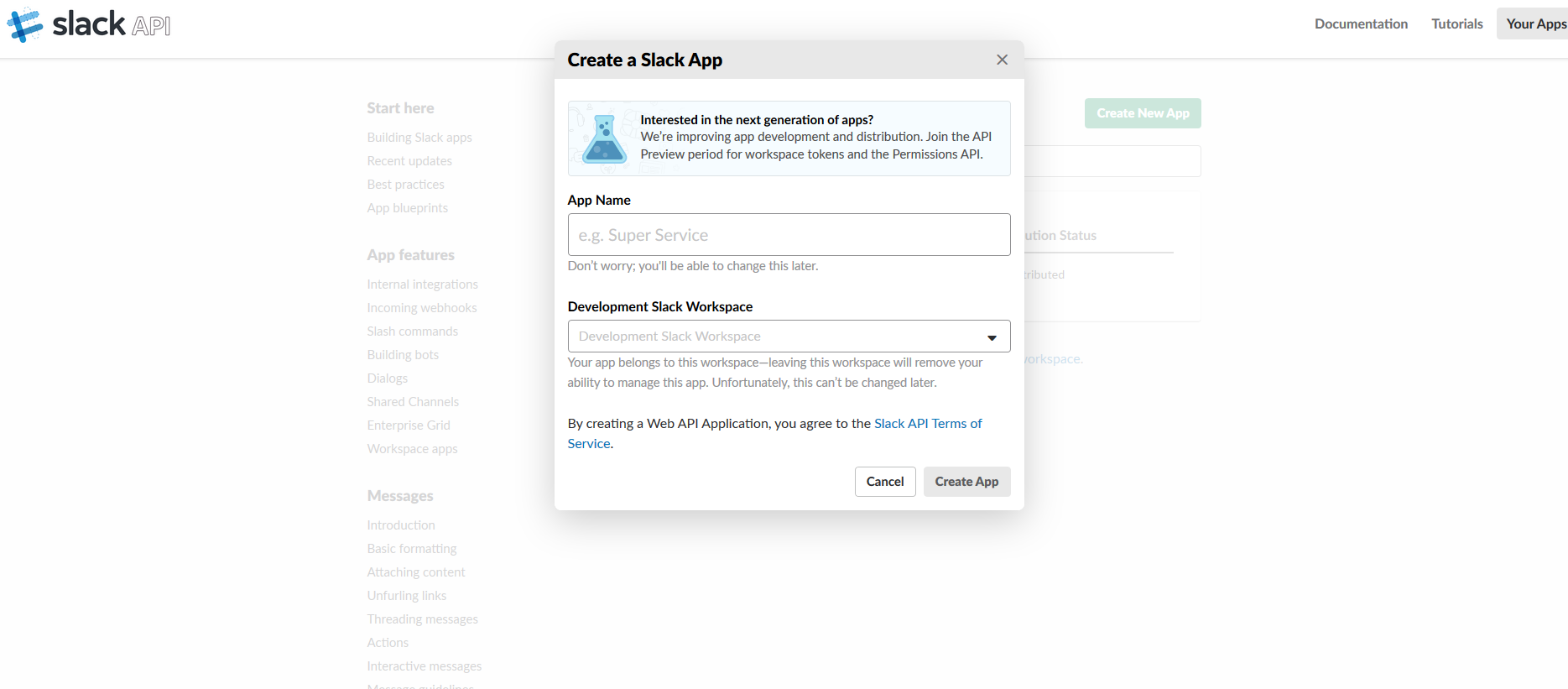
- Go to https://api.slack.com/apps and select Create New App. Specify an app name for the integration. This name is presented to all Interact users when they authenticate for the first time.
- Configure the redirect URL. Under Features in the menu, go to OAuth & Permissions and specify the following redirect URL:
https://{{intranet_url}}/marketplace/slack/account/sign-in/oauth2
For example: https://intranet.acme.com/marketplace/slack/account/sign-in/oauth2
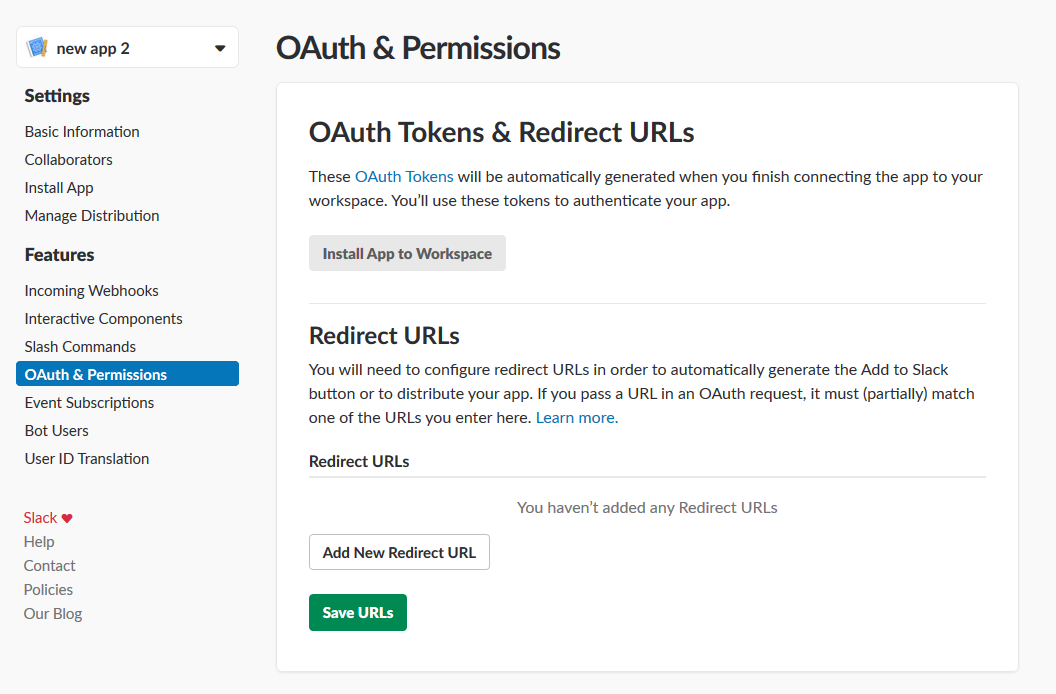
- Select Save.
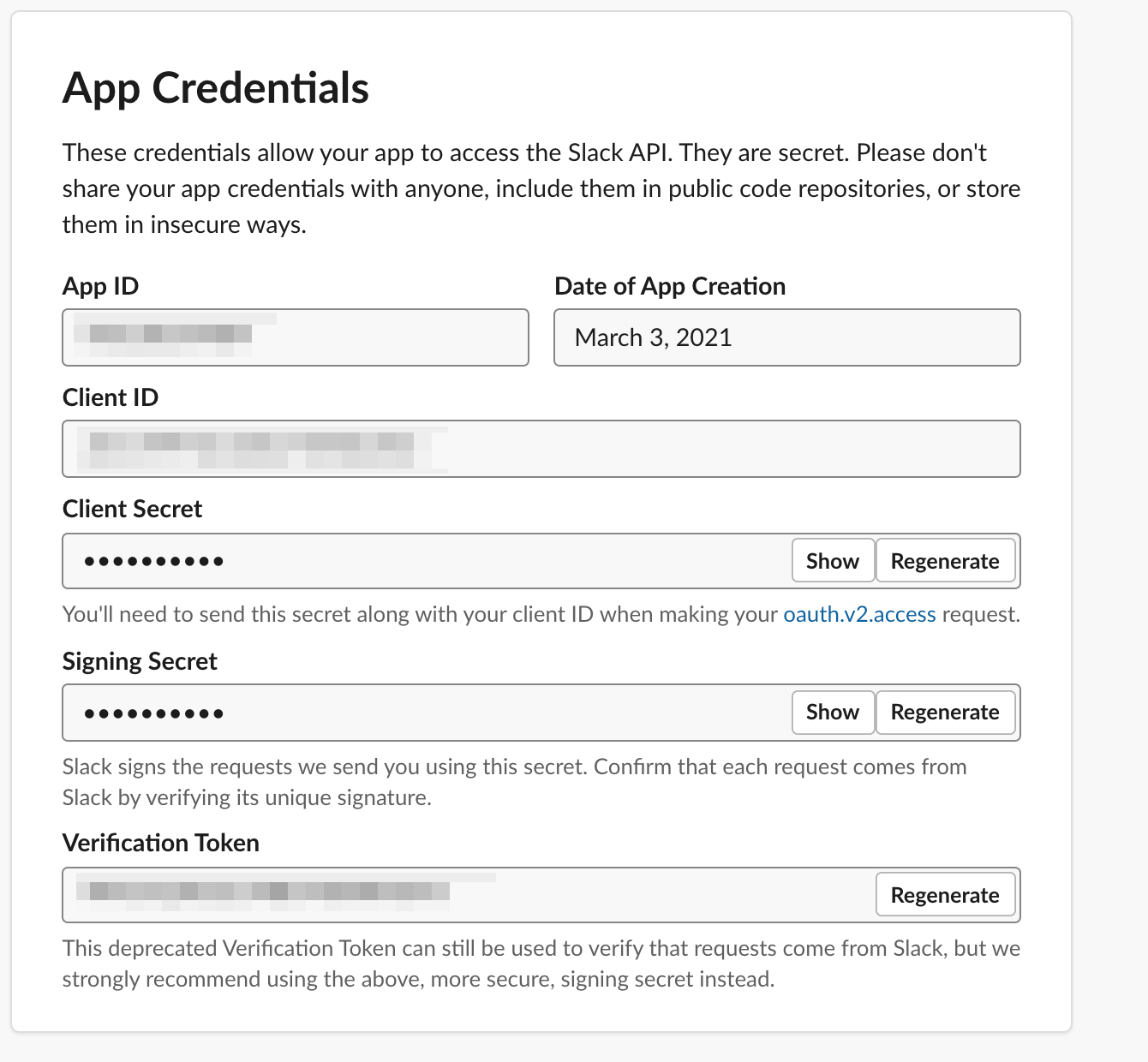
- Get the Client ID and Client Secret. Under Settings in the left-hand menu, select Basic Information, then retrieve the Client ID and Client Secret for the app.
Step 2: Configure the Interact Marketplace
- Go to Control Panel > Marketplace and select Slack.
- Specify the Client ID and Client Secret from the Slack app.
- Select Save.
Important: Editing existing Marketplace configuration options forcibly purges the authentication tokens of all users who have used the integration. Those users must re-authenticate before they can use the integration again. Any scope changes apply immediately to new access tokens. Existing service-provider access tokens do not pick up changes until re-authentication.
Guidance
- Interact polls the Slack APIs every 10 seconds to retrieve updates for specific channels. If a browser tab becomes inactive, it continues to poll.
- Slack enforces rate limits on its APIs. These are outside Interact's control, and Interact does not currently apply API monitoring or capping for third-party services. See Slack rate limits.
- Slack provides guidance on permitted file types for uploads to a channel. Interact does not pre-validate the file type before sending it to the Slack API. Files uploaded via Interact are not subject to security scanning (for example, antivirus or malware) within Interact.
- Slack does not currently provide guidance on the maximum supported file upload size. Interact permits only files under 28 MB to be uploaded to Slack.
API scopes
The following scopes are required for the Slack integration:
identify— view information about your identitygroups:history— view messages and other content in your public and private channelschannels:read— view basic information about public channels in your workspacegroups:read— view basic information about your private channelsusers:read— view people in your workspacefiles:read— view files shared in channels and conversations that you have access tochat:write— send messages on your behalffiles:write— upload, edit and delete files on your behalf
Related
Section: Integrations