Google Calendar widget
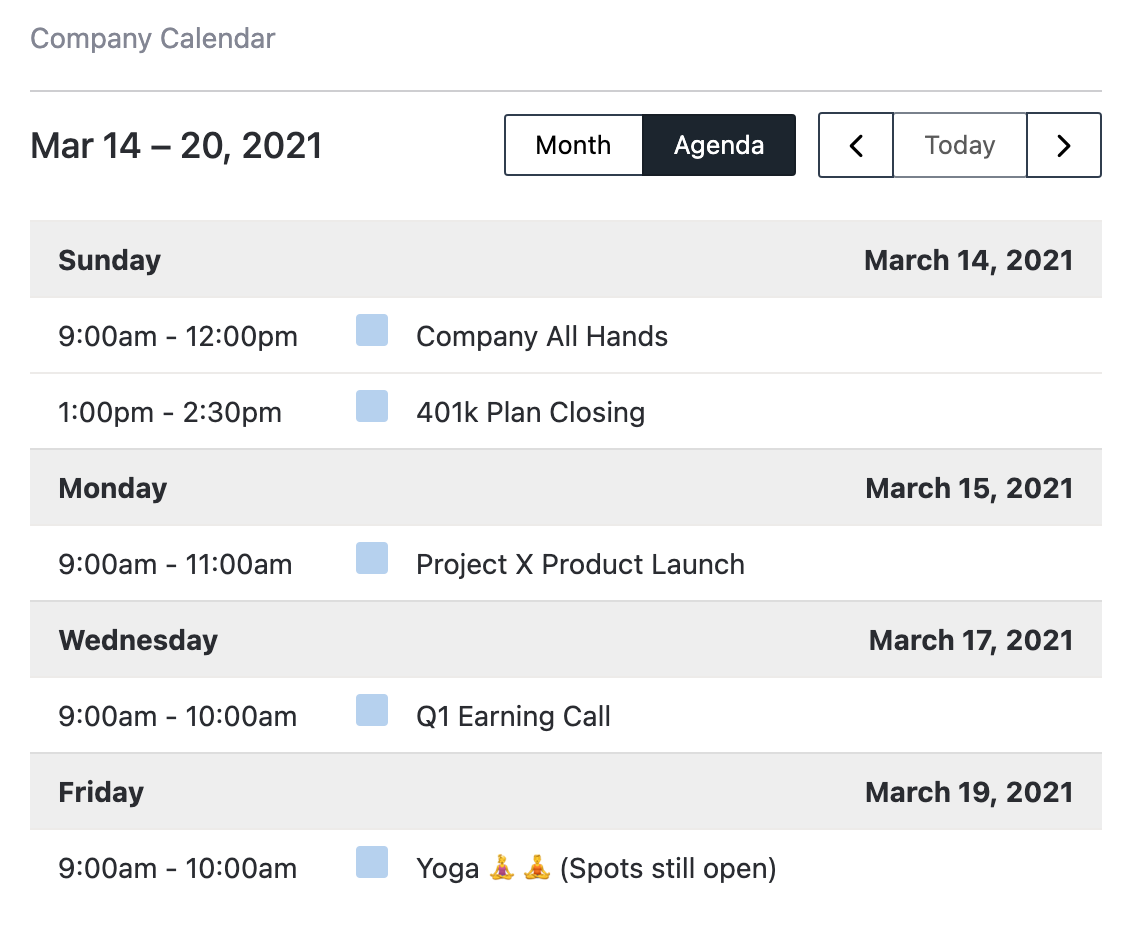
Display a shared Google Calendar on a homepage by adding its Calendar ID to the Google Calendar widget.
The Google Calendar widget lets users access shared calendars directly within a homepage.
Before you start
You need:
- A Power User account in Interact with permission to add widgets to a homepage.
- A configured Google Marketplace integration.
- Access to Google Calendar in a browser. You can only get the Calendar ID from a computer, not the Google Calendar app.
Step 1: Get the Calendar ID
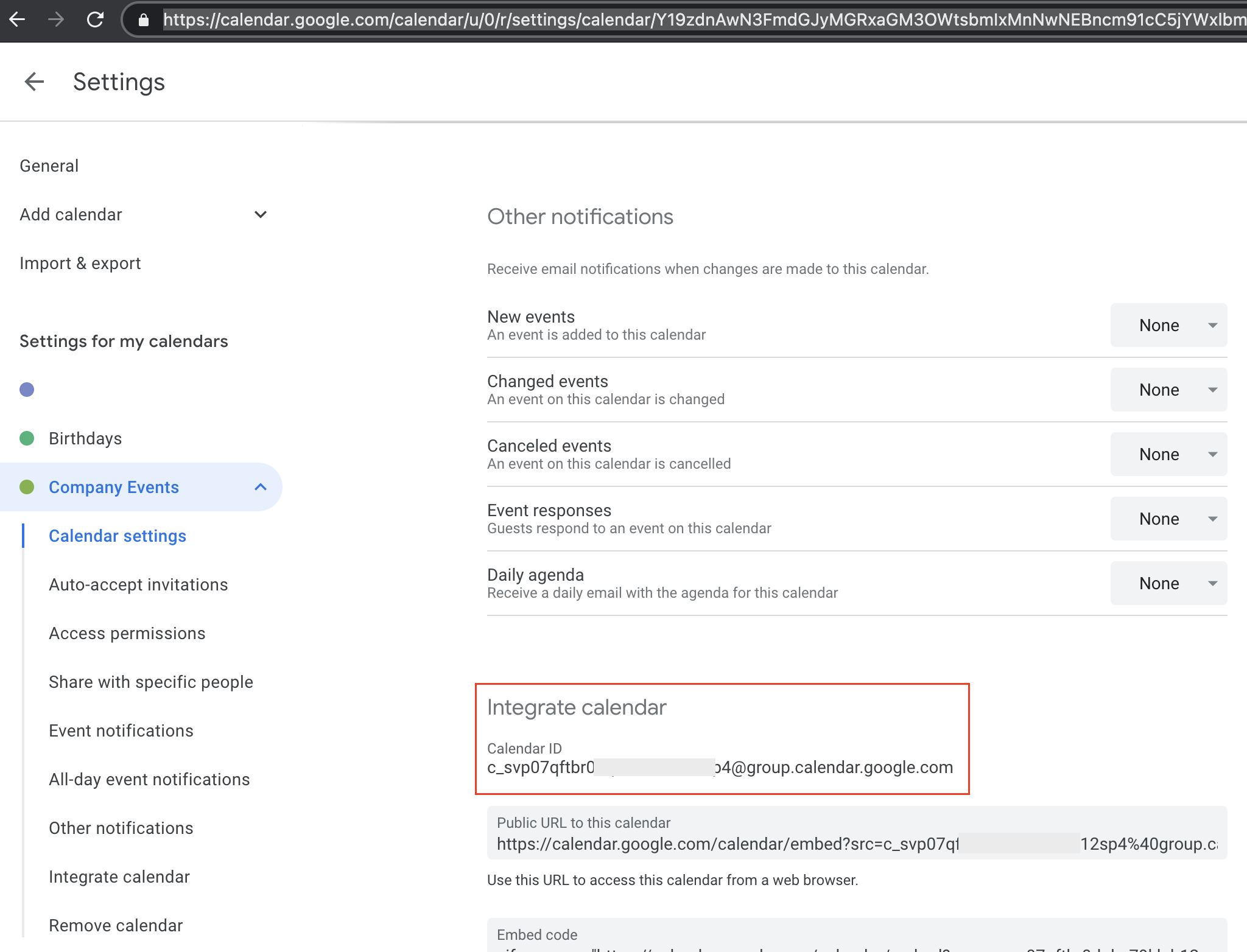
- Open Google Calendar in a browser.
- In the top right, select Settings.
- On the left of the screen, select the name of the calendar you want to embed.
- In the Integrate calendar section, copy the Calendar ID displayed.
Step 2: Add the widget
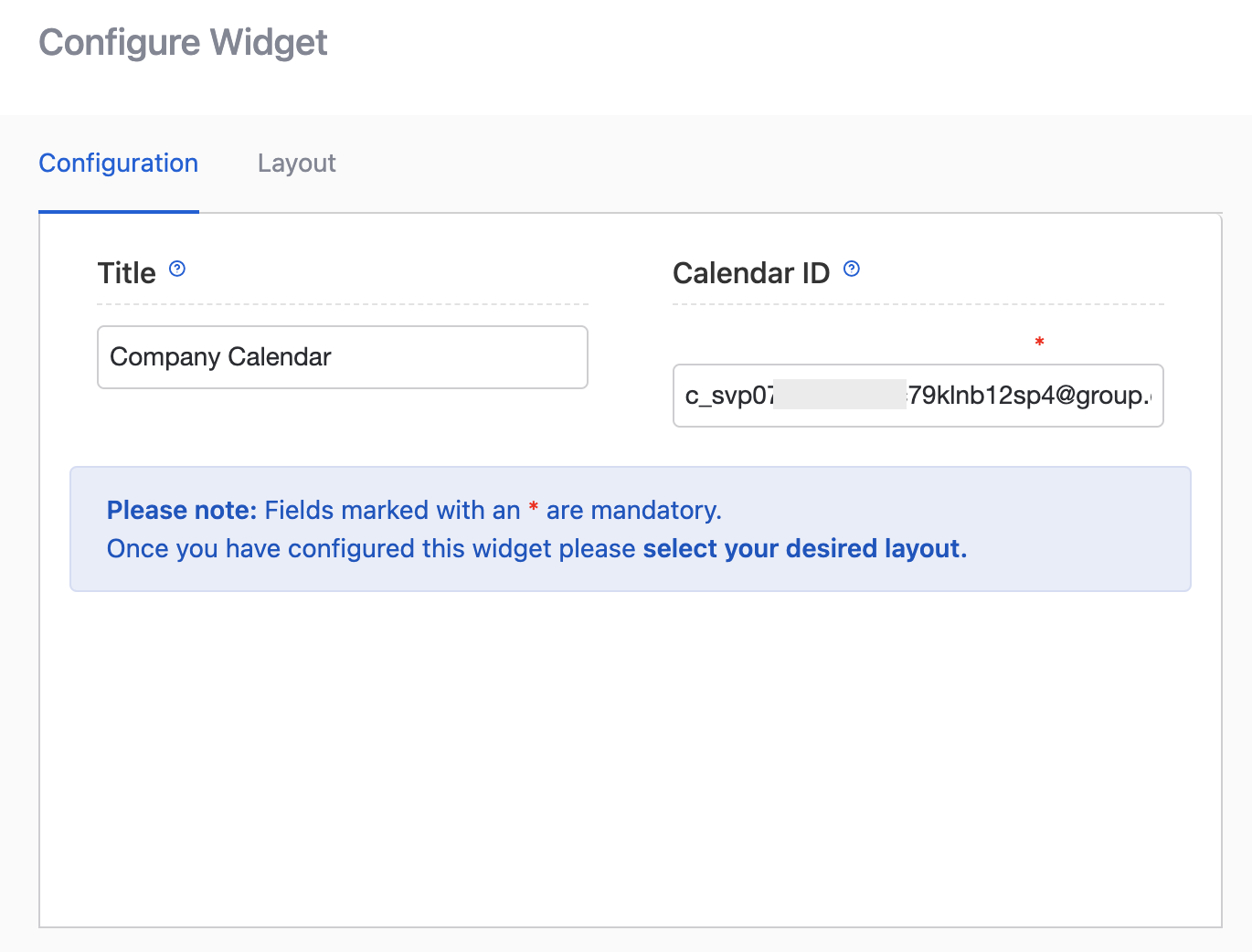
- In Interact, add a Google Calendar widget to a homepage.
- Paste the Calendar ID into the widget configuration.
Common errors
| Error | Guidance |
|---|---|
Google.Apis.Requests.RequestError Google [API NAME] API has not been used in project 359986354840 before or it is disabled. |
The relevant API has not been enabled within the project dashboard. |
Google.Apis.Requests.RequestError Not Found [404] Errors [ Message[Not Found] Location[ - ] Reason[notFound] Domain[global] ] |
A Calendar ID is incorrect within a homepage widget, or the accessing user does not have access to the calendar. Make sure you have the full Calendar ID and that the calendar has been made available under Access permissions in calendar settings. |
Related
Section: Integrations