Workday
Show real-time Workday notifications, inbox tasks and PTO information in your intranet using a Workday API client.
The Workday integration gives you real-time notifications directly from Workday.
Before you start
You need:
- A Power User account in Interact with access to Control Panel > Marketplace.
- A Workday account with an admin or integration-enabled user that can register API clients.
- Your intranet domain to hand, to build the redirection URI.
Step 1: Register an API client and configure OAuth 2.0
- Log in to your Workday account with an admin or integration-enabled user.
- Search for Register API Client in Workday and open the task.
- Provide the client details:
| Field | Value | Example |
|---|---|---|
| Client Name | The name of your application | Acme Intranet |
| Client Grant Type | Choose Authorization Code Grant | |
| Access Token Type | Choose Bearer | |
| Redirection URI | https://{{intranet_url}}/marketplace/workday/account/sign-in/oauth2 |
https://intranet.acme.com/marketplace/workday/account/sign-in/oauth2 |
- Select the scopes for your integration needs. For accessing inbox tasks, choose Tenant Non-Configurable and Staffing. For PTO widget and absence-management features, choose Time Off and Leave.

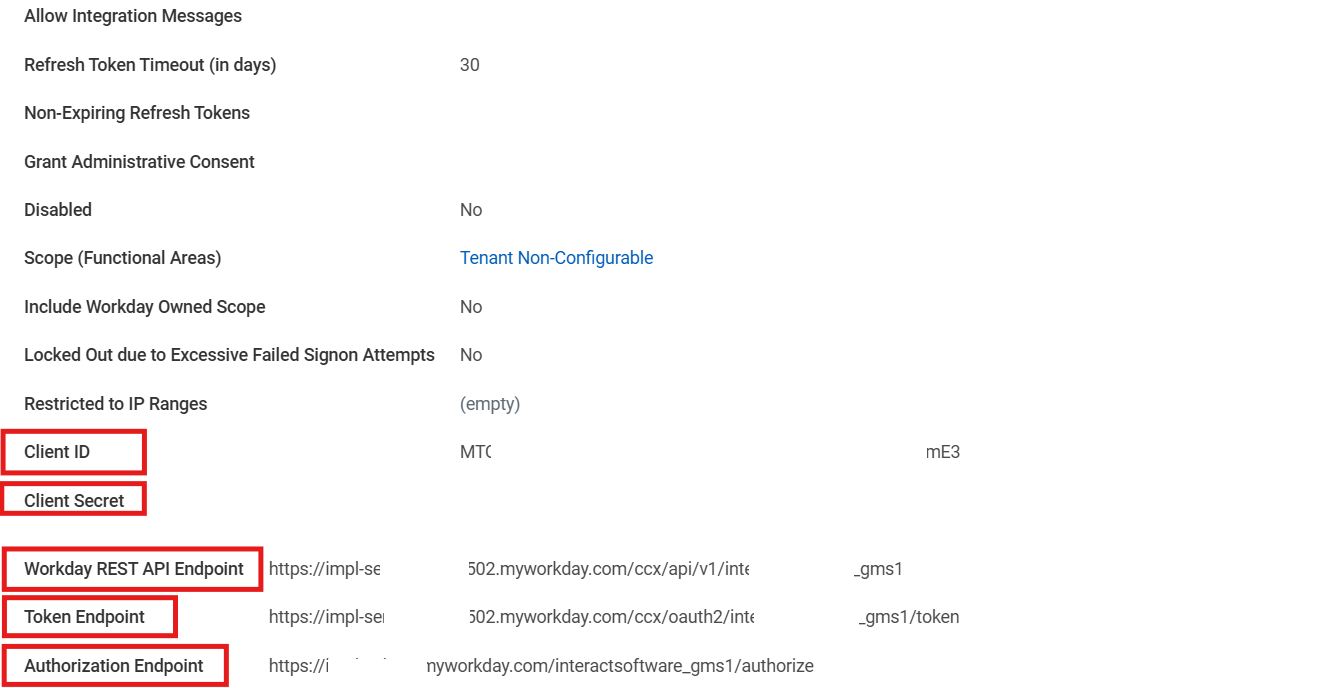
- Select OK. If successful, the summary shown below appears.
-
Save the following:
- Client ID
- Client Secret
- Authorization Endpoint
- Workday REST API Endpoint
- Tenant Name — this is the text after
v1/in the Workday REST API Endpoint. For example, inhttps://.......02.myworkday.com/ccx/api/v1/inte......._gms1, the tenant name isinte......._gms1.
Warning: Copy the Client Secret securely. You will not be able to see the secret again. Treat the Client Secret like a password. Store it securely and avoid sharing it unnecessarily.
Step 2: Configure the Interact Marketplace
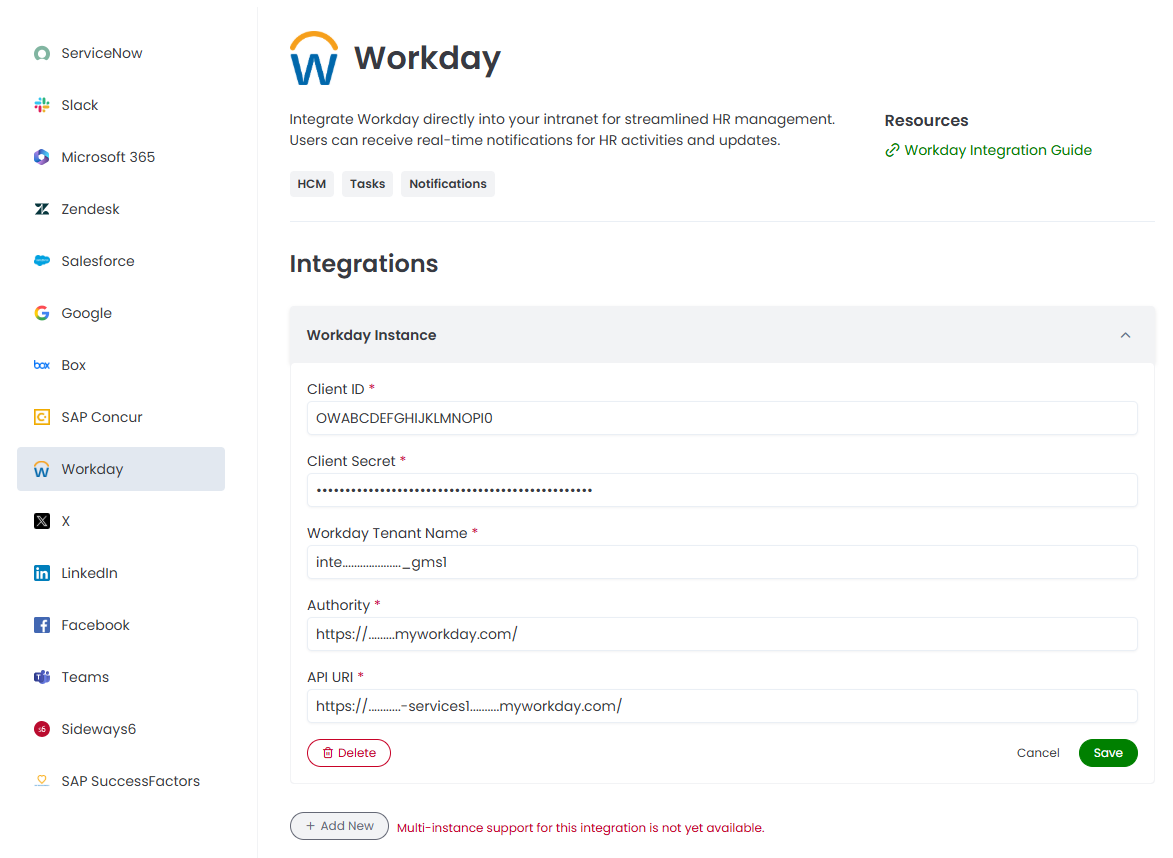
- Go to Control Panel > Marketplace and select Workday.
-
Specify the following from your Workday API client setup:
- Client ID
- Client Secret
- Workday Tenant Name
- Authority — use your Workday domain, for example
https://your-workday-domain.myworkday.com/. You do not need to include the tenant or the/authorizepart. - API URI — use just the base Workday domain, for example
https://your-domain.myworkday.com/. The tenant and API path that follow are not needed.
-
Select Save.
Important: Editing these settings invalidates existing authentication tokens for all users, requiring them to re-authenticate before using the integration again. Any scope changes apply to new tokens immediately.
Related
Section: Integrations