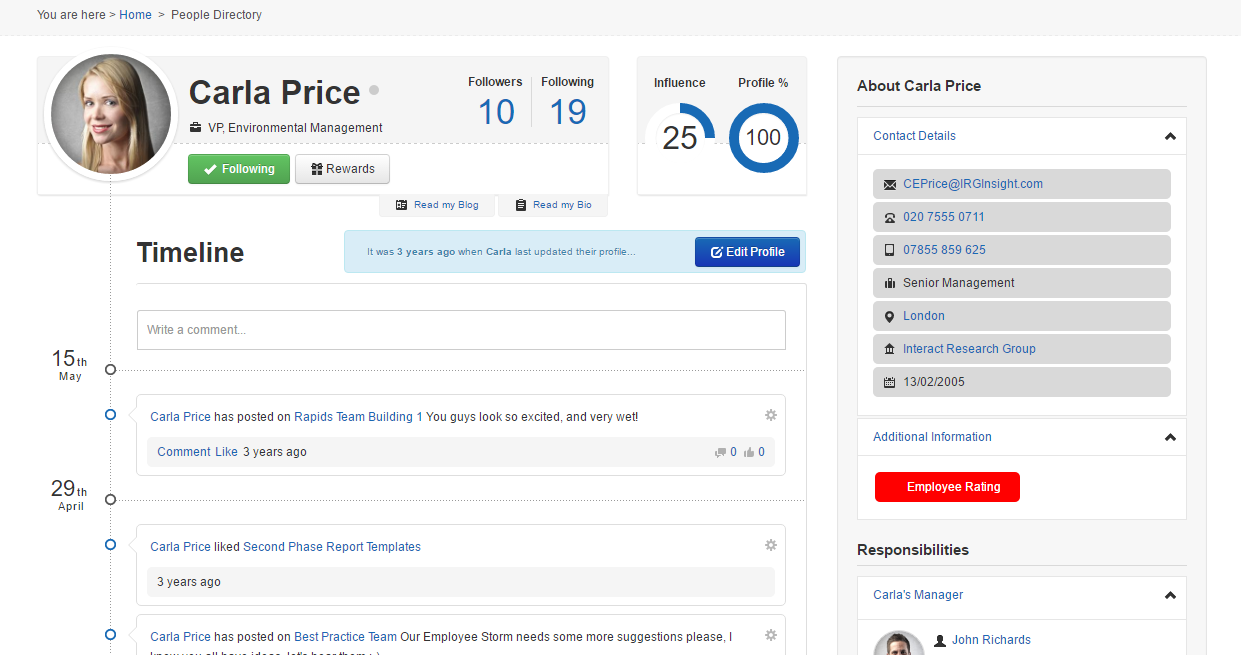
Change the colour of a field on the profile page
Before you start
- You need access to the Control Panel with permission to manage the Developer Framework.
Note: This script is a sample, not officially supported by Interact Technical Support. Review and test it with your development team before use, as it may need amends to work in your environment.
Overview
The Developer Framework lets you extend and customise some of the functionality within Interact by embedding custom JavaScript in a page.
A request on the Community portal asked whether it was possible to display coloured dots on the profile page based on an additional field. The approach below sets the background colour of the 'pill' on the profile page to match the text. The script does exactly that:
$(document).ready(function(){
  if($("#body_rptAdditionalFields_addFieldItem_0 span")){
    var color = $("#body_rptAdditionalFields_addFieldItem_0 span").html();

    $("#body_rptAdditionalFields_addFieldItem_0").css({ "background-color":color, "color":"white" });
    $("#body_rptAdditionalFields_addFieldItem_0 span").html("Employee Rating");
    $("#body_rptAdditionalFields_addFieldItem_0 img").hide();
  }
});
Breaking it down
Let's look at each part and see how it comes together.
The example assumes that the ID of the additional field is 0. Check this first by navigating to the page and inspecting the element with your browser's developer tools.
$(document).ready(function(){
  if($("#body_rptAdditionalFields_addFieldItem_0 span")){
This attaches the function to the document ready event, so the code only runs when the page loads, and then checks whether the additional field is on the page.
This check matters because the JavaScript runs on every page, but not every page has the additional fields on it. Running the rest of the code on those pages would have no effect.
var color = $("#body_rptAdditionalFields_addFieldItem_0 span").html();

    $("#body_rptAdditionalFields_addFieldItem_0").css({ "background-color":color, "color":"white" });
    $("#body_rptAdditionalFields_addFieldItem_0 span").html("Employee Rating");
    $("#body_rptAdditionalFields_addFieldItem_0 img").hide();
  }
});
This part gets the contents of the additional field from the document and uses it as the background colour, while setting the foreground colour to white.
$("#body_rptAdditionalFields_addFieldItem_0 span").html("Employee Rating");
    $("#body_rptAdditionalFields_addFieldItem_0 img").hide();
  }
});
Finally, the script adds some text to the pill so that the user knows what they are looking at, and hides the icon for the additional field.
Here is what it looks like on the page: