Active Directory connector (on-premise)
Tip: For new integrations, use SCIM v2.0. It provides real-time provisioning and richer field mapping than the native connector.
Before you start
- The servers running Interact must be able to reach a domain controller in your environment over the appropriate LDAP(S) ports.
- You need an LDAP user with bind and read access to all domain objects (see Credentials).
Overview
With profile sources, you can set Interact to synchronise directly with an Active Directory in your organisation. As long as Interact can access a domain controller over the appropriate LDAP(S) ports, it reads and automatically synchronises users in your directory overnight.
Create an LDAP source
From Control Panel > Profile Sources, select Active Directory. This opens the Create LDAP Source page. Work through each tab and enter the details described below.
Domain configuration
Enter a name for your source, ensuring it is clearly identifiable.
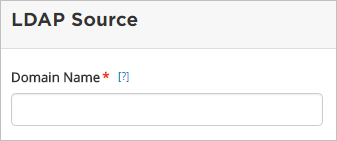
Then fill out the domain details (LDAP).
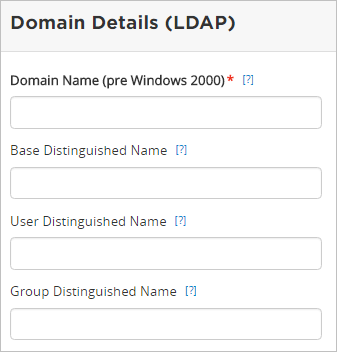
- Domain Name (pre-Windows 2000) — the user login name from the Account tab in Active Directory.
- Base Distinguished Name — the root Distinguished Name (DN) to use when running queries against your directory server. Example:
dc=interact-intranet,dc=com. - User Distinguished Name — a Relative Distinguished Name (relative to the Base DN) that contains users to synchronise to Interact. This value is added to the Base DN when searching for users. If blank, the Base DN is searched. Example:
ou=users,.
Note: Interact only synchronises users that are members of security groups (or nested groups) found in the Group DN. This setting reduces the synchronisation time when connecting to large, disparate Active Directory structures.
- Group Distinguished Name — a Relative Distinguished Name (relative to the Base DN) that contains groups to synchronise to Interact. This value is added to the Base DN when searching for groups. If blank, the Base DN is searched. Example:
ou=groups,. Interact does not support cross-domain referrals within groups.
Server details
Next, fill out the server details, some of which are pre-populated.
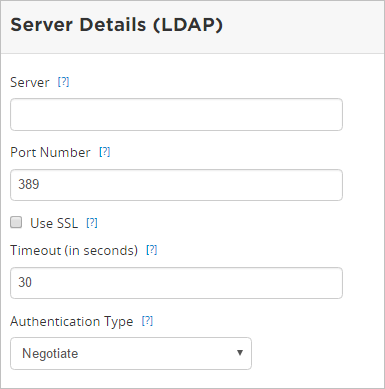
- Server — the hostname of your directory server. Example:
rodc.company.com. - Port Number — the port number of the LDAP server (pre-populated). To use SSL, set the port number to
636. - Use SSL — specifies that the connection to the directory server is an SSL connection. You cannot use a self-signed or local domain certificate; a public certificate issued by a Certificate Authority (CA) is required.
- Timeout — timeout for the LDAP connection. Default 30 seconds (pre-populated).
- Authentication Type — defines how to connect to the server and how it should match the server's settings. It must be one of:
- Anonymous — connect without passing credentials.
- Basic — connect using basic authentication.
- Negotiate — connect using Microsoft Negotiate authentication.
Credentials
Next, fill out the domain credentials.
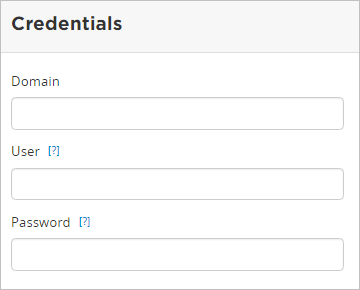
- Domain — server domain.
- User — must be a member of the built-in Administrators group. The specific privileges for the LDAP user are bind and read (user info, group info, group membership, update sequence number, deleted objects). The user needs read access to all domain objects.
- Password — the user's password. As a best practice, set the password not to expire.
Warning: For Interact to connect to an LDAP server, the password cannot be one-way hashed; it must be recoverable in the context of this application. This password is stored in plain text without obfuscation. To keep it secure, ensure that other processes do not have OS-level read permissions for this application's database or configuration files.
Domain options
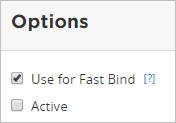
- Use for Fast Bind — denotes which domain to use for Fast Bind authentication (only one per tenant).
- Active — makes the LDAP source live.
Synchronisation
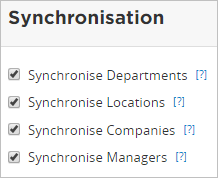
- Synchronise Departments — if enabled, users are automatically allocated as members of the relevant department in Interact based on the data from Active Directory. Departments that do not exist in Interact are created automatically.
- Synchronise Locations — if enabled, users are automatically allocated to the relevant location. Locations that do not exist in Interact are created automatically.
- Synchronise Companies — if enabled, users are automatically allocated to the relevant company. Companies that do not exist in Interact are created automatically.
- Synchronise Managers — if enabled, a user is assigned the appropriate manager, provided the manager exists in Interact.
Schedule
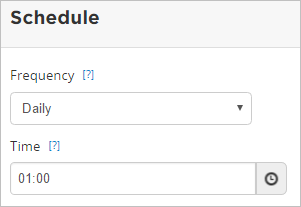
- Frequency — how often the synchronisation occurs.
- Time — the time of day the synchronisation occurs.
Actions
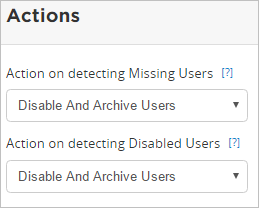
- Action on detecting Missing Users — enable or disable deletion of users in Interact if they are no longer present in any of the security groups from Active Directory. This is useful when administrators quarantine users in Active Directory before deletion.
- Action on detecting Disabled Users — enable or disable deletion of users in Interact if they are disabled in Active Directory.
Dates
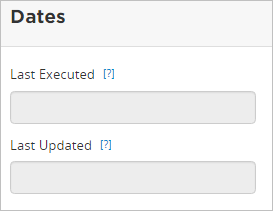
- Last Executed — the date and time of the last synchronisation.
- Last Updated — the date and time the source was last updated.
Defaults
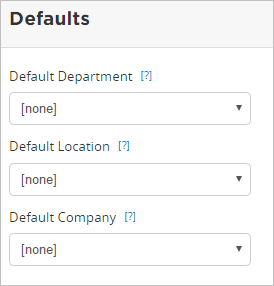
- Default Department — the department to allocate if not specified in the directory.
- Default Location — the location to allocate if not specified in the directory.
- Default Company — the company to allocate if not specified in the directory.
Field names
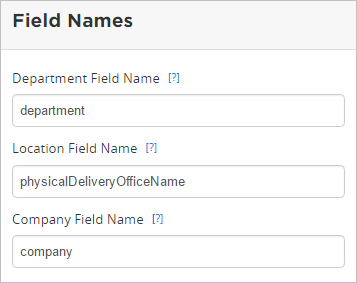
- Department Field Name — the attribute field to use when loading the user's department. Default:
department. - Location Field Name — the attribute field to use when loading the user's location. Default:
physicalDeliveryOfficeName. - Company Field Name — the attribute field to use when loading the user's company. Default:
company.
Lingering object filter
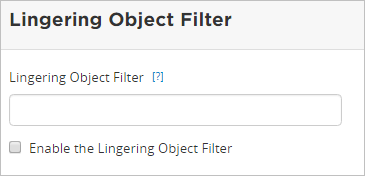
- Lingering Object Filter — specify a filter for lingering objects. A lingering object is any Active Directory object that has been deleted but gets reanimated when a domain controller has not replicated the change during the domain's tombstone lifetime period.
- Enable the Lingering Object Filter — select if required.
User and group details
Next, fill out the user and group details (all are pre-populated).
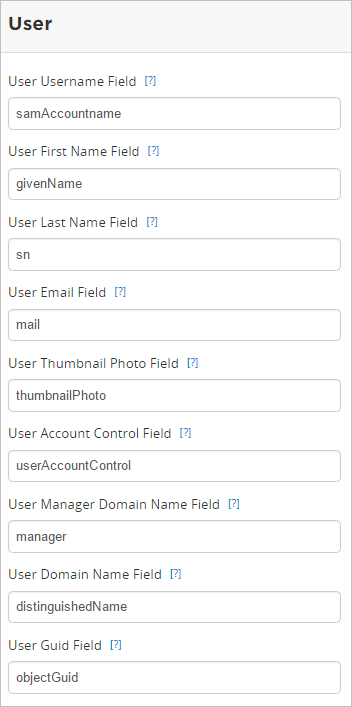
- User Username Field — the attribute field to use when loading the username. Default:
sAMAccountName. - User First Name Field — the attribute field for the user's first name. Default:
givenName. - User Last Name Field — the attribute field for the user's last name. Default:
sn. - User Email Field — the attribute field for the user's email. Default:
email. - User Thumbnail Photo Field — not currently used.
- User Account Control Field — the LDAP field name used to control the behaviour of the user account.
- User Manager Domain Name Field — the LDAP field name used to look up manager domain names.
- User Domain Name Field — the LDAP field name used to look up user domain names.
- User Guid Field — the LDAP field name used to look up user GUIDs.
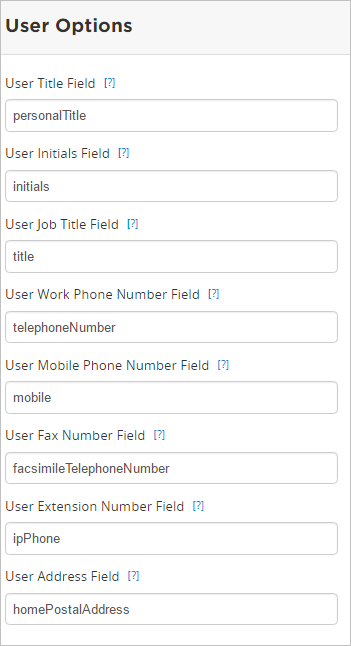
- User Title Field — the attribute field for the user's title. Default:
personalTitle. - User Initials Field — the attribute field for the user's initials. Default:
initials. - User Job Title Field — the attribute field for the user's job title. Default:
title. - User Work Phone Number Field — the attribute field for the user's telephone. Default:
telephoneNumber. - User Mobile Phone Number Field — the attribute field for the user's mobile. Default:
mobile. - User Fax Number Field — the attribute field for the user's fax. Default:
facsimileTelephoneNumber. - User Extension Number Field — the attribute field for the user's extension. Default:
extensionName. - User Address Field — the attribute field for the user's address. Default:
homePostalAddress.
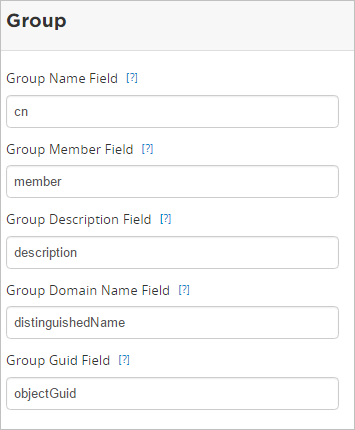
- Group Name Field — the field that maps a group to its common name (CN) in LDAP.
- Group Member Field — the field that maps a user to a group. This is a user attribute.
- Group Description Field — the field that maps a group to its description in LDAP.
- Group Domain Name Field — the field that maps a group to its domain name (DN) in LDAP.
- Group Guid Field — the LDAP field name used to look up group GUIDs.
Search
Next, fill out the search options (all are pre-populated).
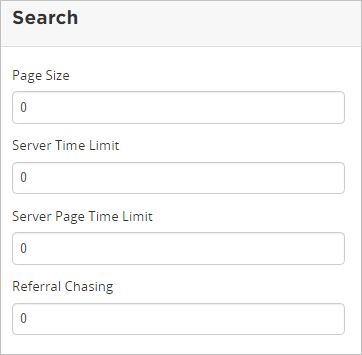
- Page Size — default
0. - Server Time Limit — default
0. - Server Page Time Limit — default
0. - Referral Chasing — default
0.
Search filters
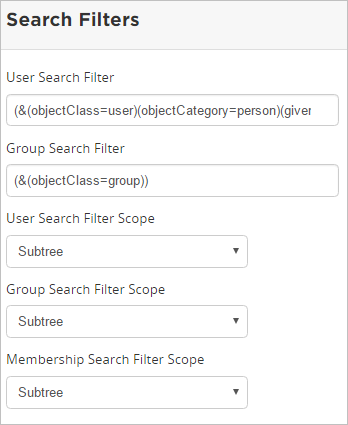
- User Search Filter — default
(&(objectClass=user)(objectCategory=person)(givenName=*)(sn=*)(!(cn=*CNF:*))). - Group Search Filter — default
(&(objectClass=group)). - User Search Filter Scope — Base, Onelevel or Subtree. Default Subtree.
- Group Search Filter Scope — Base, Onelevel or Subtree. Default Subtree.
- Membership Search Filter Scope — Base, Onelevel or Subtree. Default Subtree.
Additional fields
If your organisation uses custom fields within Active Directory, you can map those fields to profile fields in Interact. First add the fields to Interact by going to Control Panel > Additional Fields.
Once the additional fields exist in Interact, you can map custom fields from Active Directory.
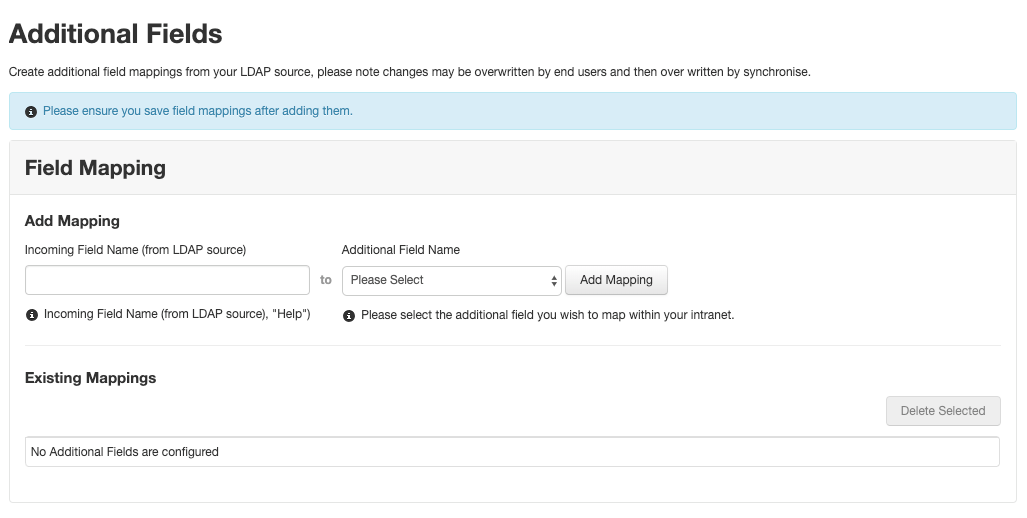
Finally, select Save to complete the LDAP source.
Related
- SCIM v2.0
- General Profile Sources
- Generate an XML file from Active Directory
- Microsoft Entra ID connector