Live streaming with Interact
Before you start
To host a live stream, you need:
- A broadcast client such as Zoom, Microsoft Teams or OBS. If you have not chosen local streaming software, follow the OBS quick start guide to get started with this free local streaming tool.
- A cloud streaming provider, which gives you a Viewer Token and a Livestream ID.
- Permission to add a page in Interact.
Overview
Interact supports live streaming out of the box, so you can host broadcasts for your team.
The key components for live streaming are shown below.
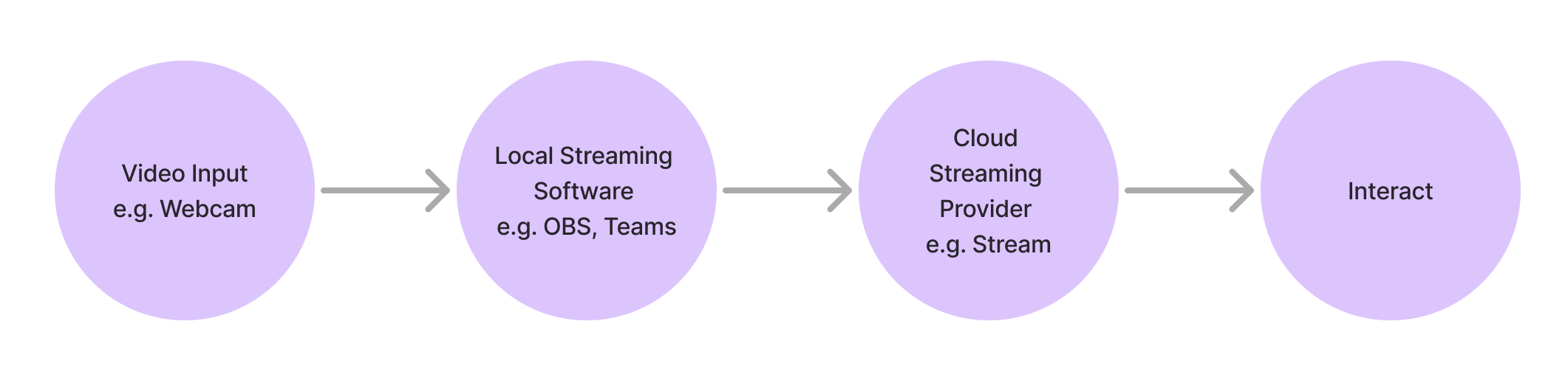
This guide walks through connecting your cloud streaming provider to Interact.
Decide where you want to share your live stream. A page or a feed post are the most common options, but you can embed the live stream player anywhere using basic HTML.
Step 1: Set up a livestream
Create your livestream in your provider of choice. The examples below use Stream.
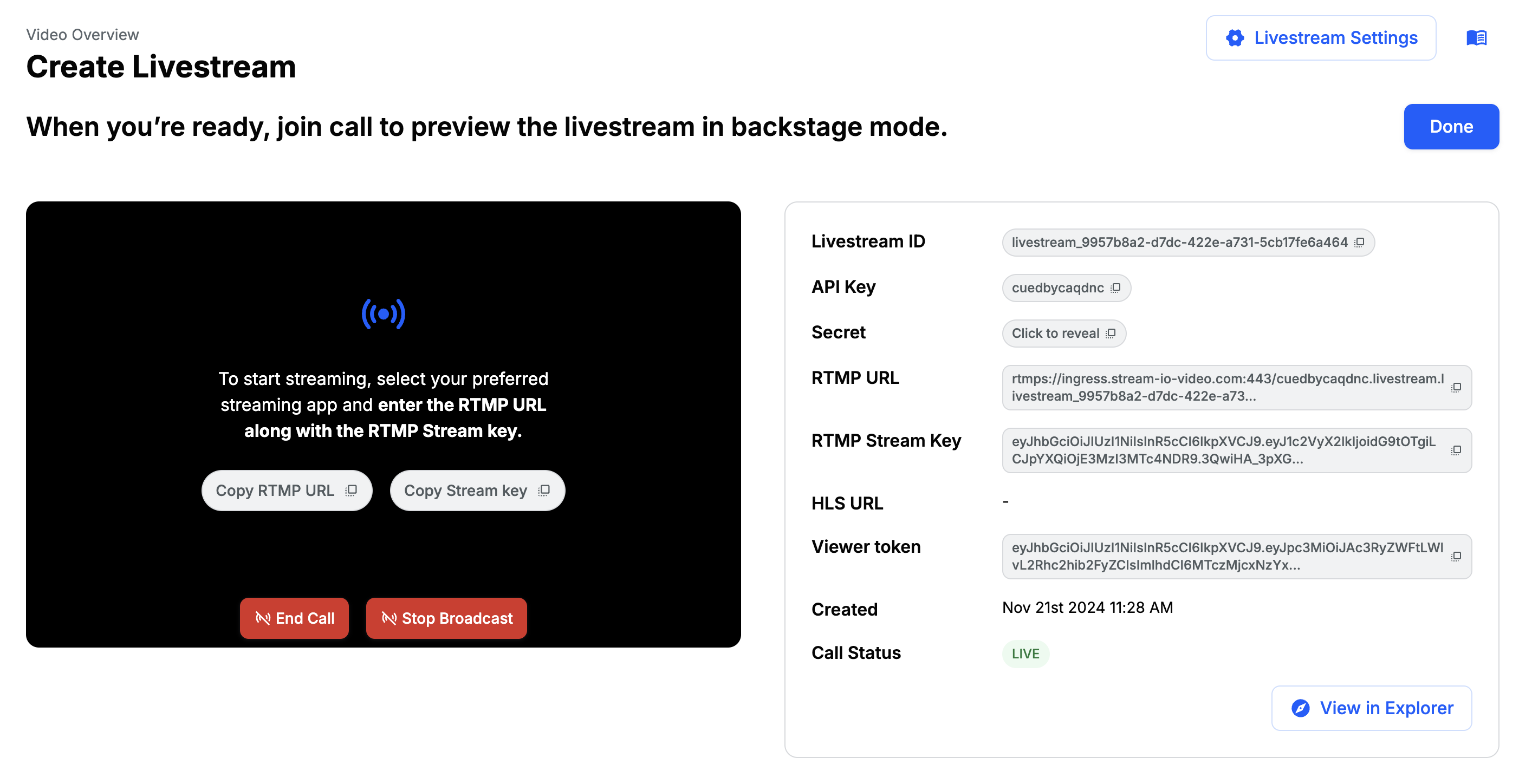
Once you have your Viewer Token and Livestream ID, you can create the live streaming player in Interact.
Step 2: Create a page
Go to Manage Pages > Add Page to add the page you want to use to broadcast your stream. Add any content to accompany your livestream, then add an iframe block.
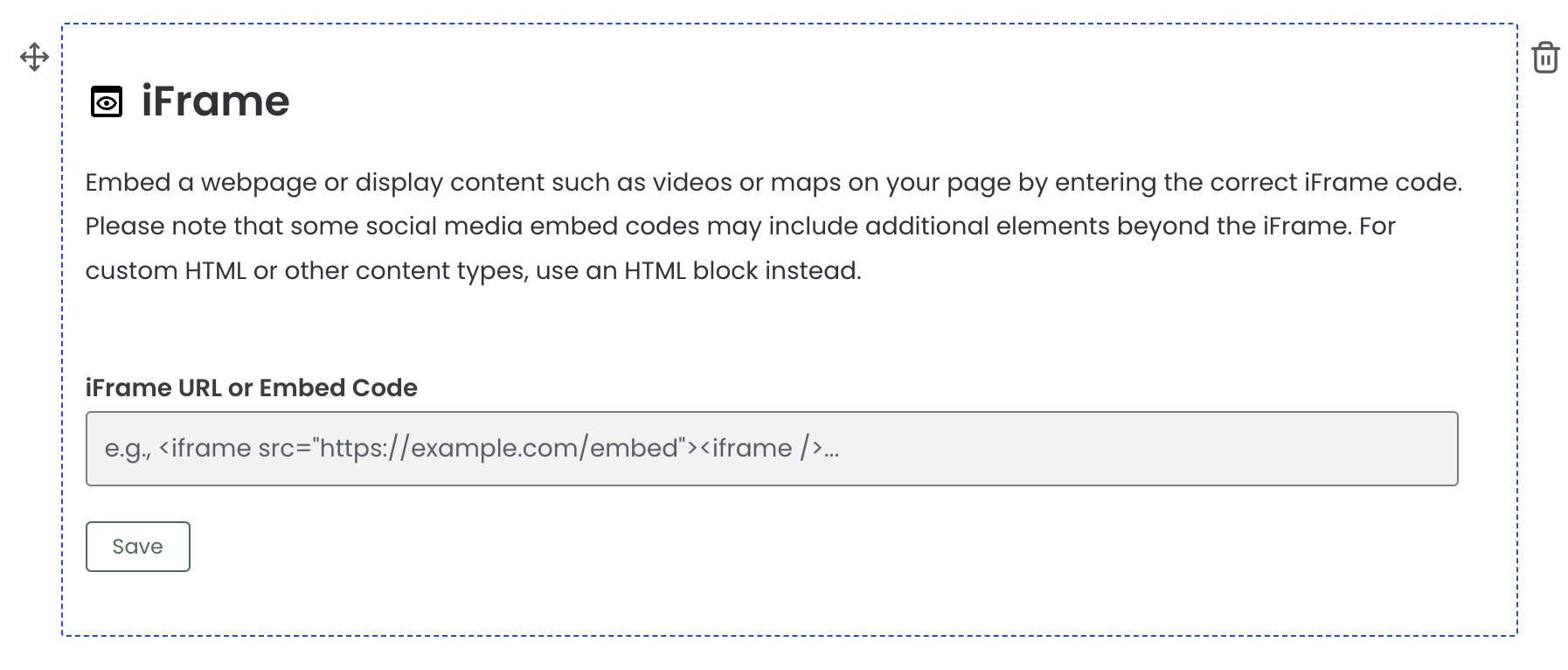
Using the Viewer Token and Livestream ID from Step 1, replace the placeholders in the URL below.
https://{{intranet_url}}/livestream/index.html?call={{livestream_id}}&token={{viewer_token}}
Step 3: Add the livestream URL to the iframe block
Copy the URL into your iframe block, then publish your page or save it as a draft.
Step 4: View your page
On the page viewer, if you have started streaming, your livestream now appears inline.
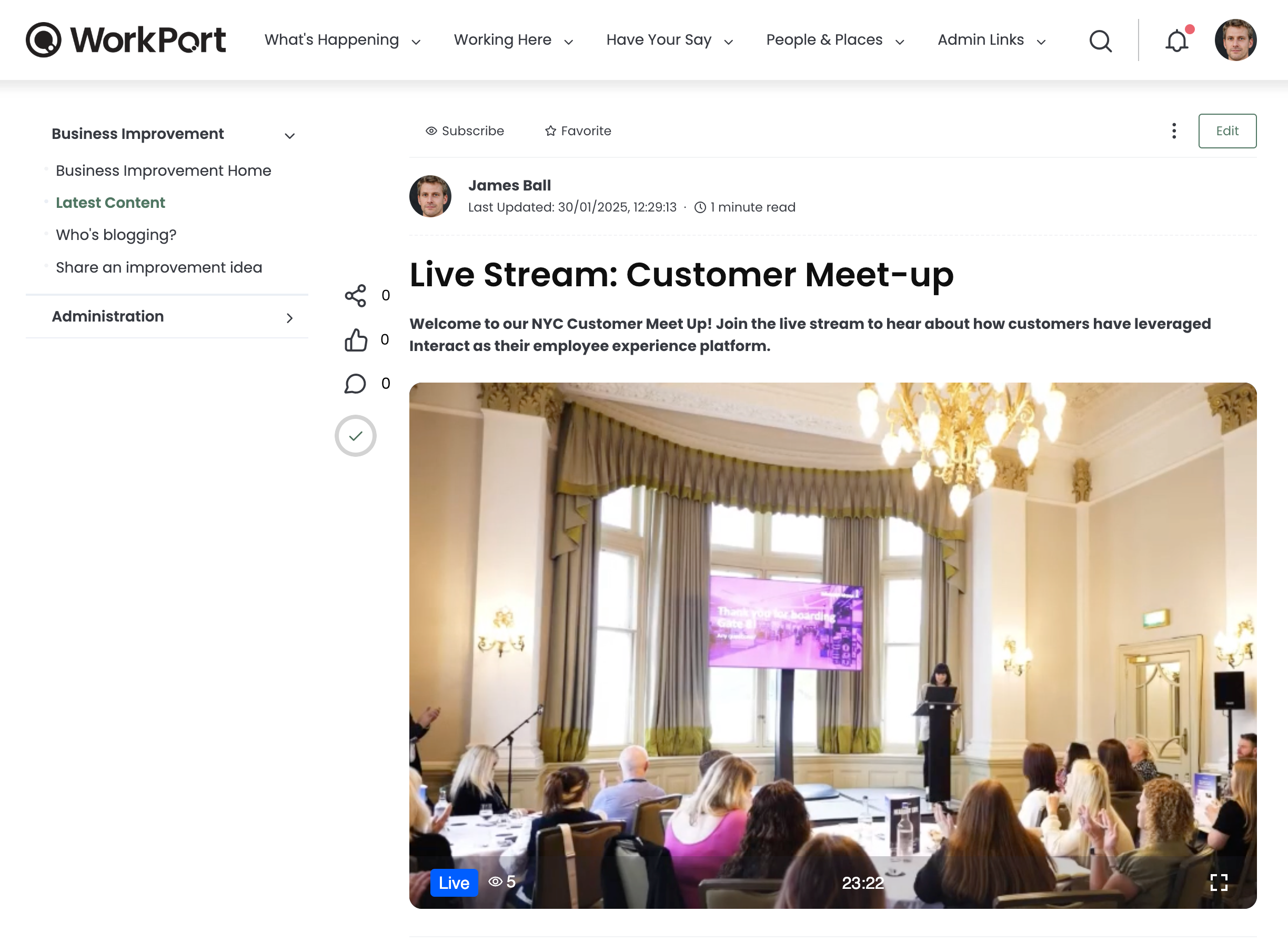
If the stream has not started yet, the page displays a message to viewers. Once the stream ends, the video player is blank.