Promoting to Microsoft Teams
Let Block Editor content authors promote pages to a Microsoft Teams channel using an incoming webhook workflow.
The Block Editor lets content authors promote content across many channels in your business, including Microsoft Teams. This guide explains how to configure Interact to promote to your Teams workspace.
Before you start
You need:
- A Power User account in Interact with access to Control Panel > Block Editor.
- A Microsoft Teams account with permission to create workflows in the target channel.
Note: Posting to private channels is not currently supported by Workflows.
Step 1: Set up an incoming webhook workflow
- Select More options next to the channel or chat you want to create a workflow for, then select Workflows.
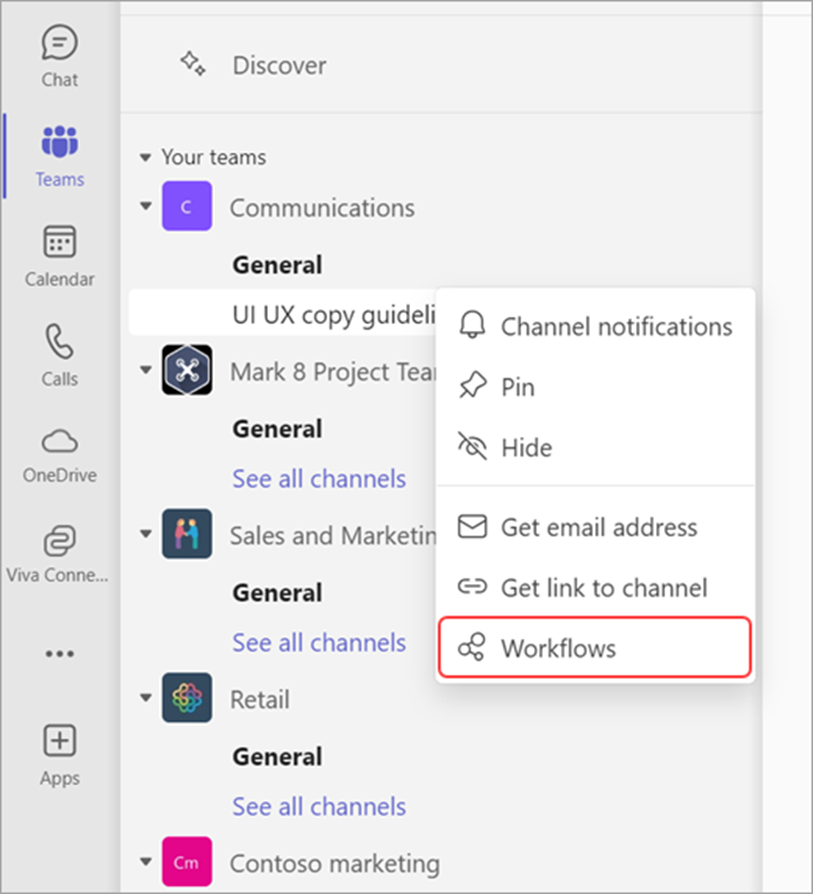
- Choose Send webhook alerts to a channel.
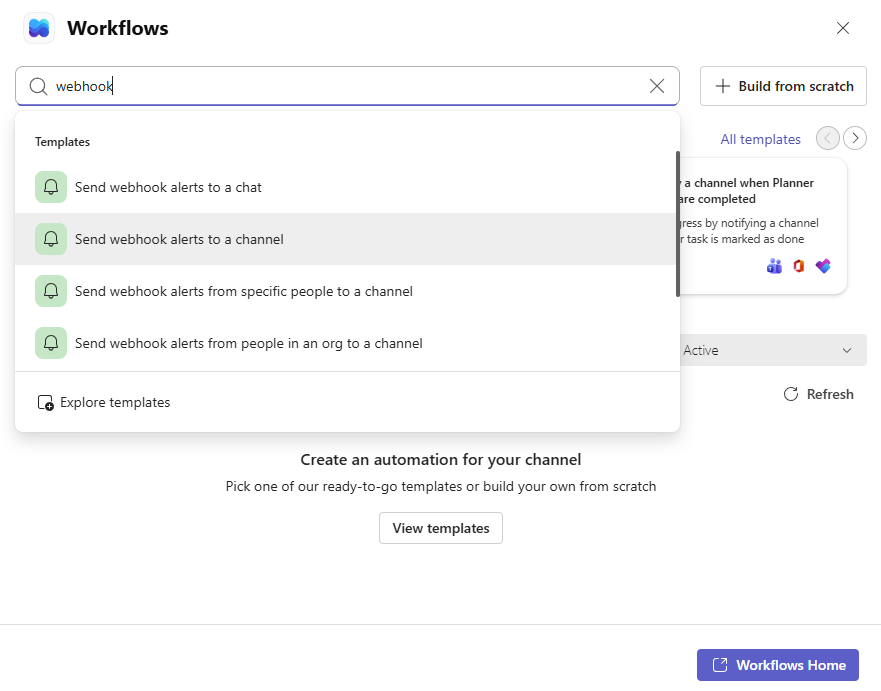
Note: The webhook template "Post to a chat when a webhook request is received" may not be available depending on your organisation type. For more help, contact your IT admin.
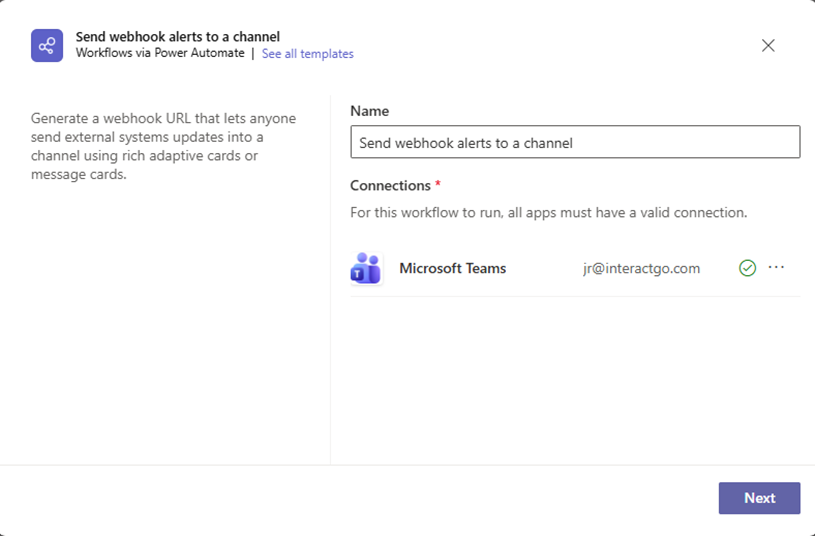
- Once the workflow opens, you can change its name.
- Authenticate with your account so your workflows can post to the channel or chat. To choose a different account, select Switch account and choose the account you want to use.
- Once you have updated the name and authenticated the correct account, select Next.
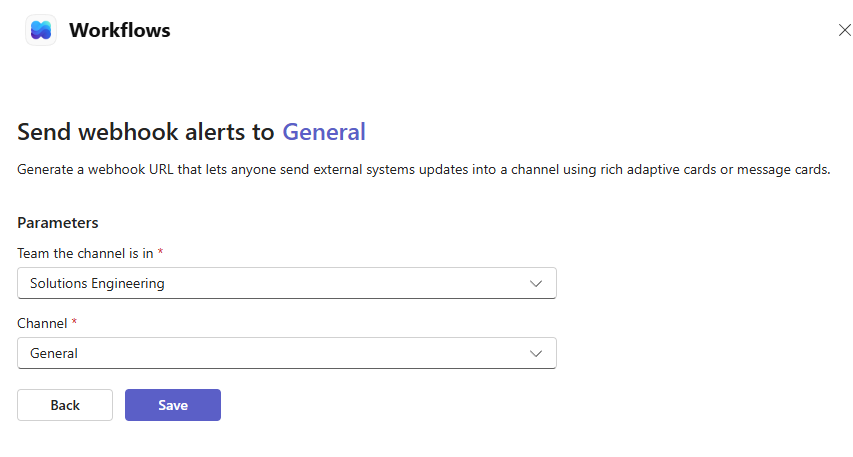
- On the next page, choose the channel this notification will post to. If you are using this workflow from a channel, these fields auto-populate. After filling out the required details, select Add workflow.
- Once the workflow is created, a new dialog shows the URL that you can copy.
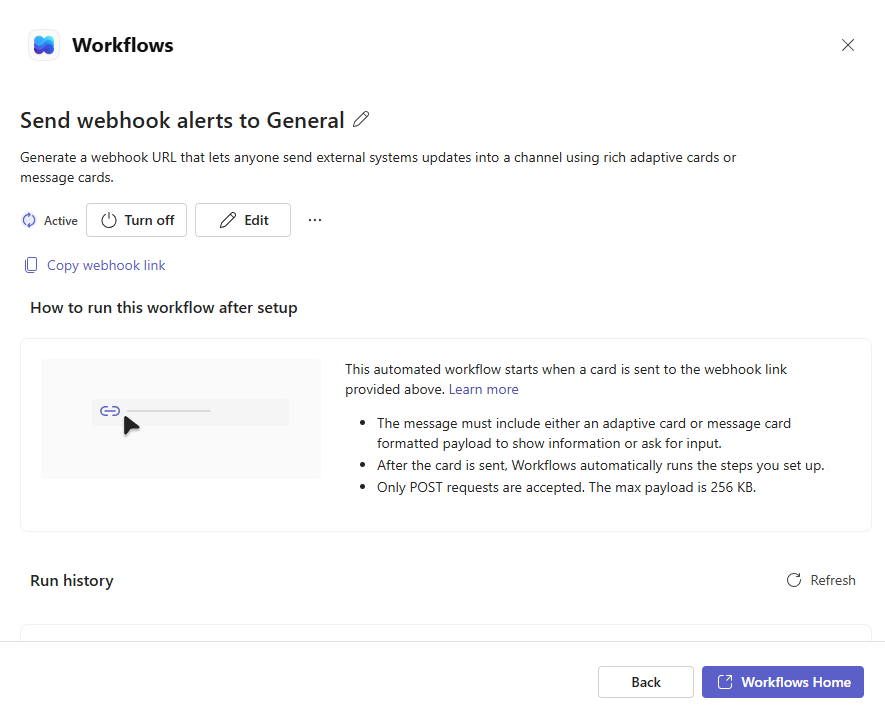
- To copy the workflow URL again later, open the Workflows app within Teams, select the workflow that was created, select Edit, and expand the trigger When a Teams webhook request is received.
The webhook is now available in the Teams channel. For more on Power Automate workflows, see Use Power Automate flows in Microsoft Teams.
Step 2: Configure a promotion channel
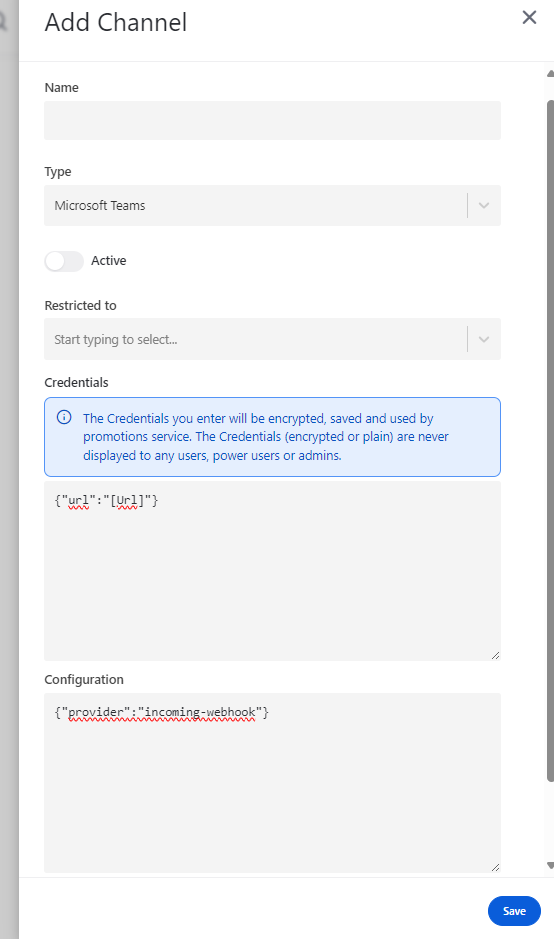
- Go to Control Panel > Block Editor > Promotion Channels > Add New Channel.
- Specify the Name and Type. The Name is what your content authors see when selecting which platform to promote to. Set the Type to Microsoft Teams.
- Mark it as active.
- In the credentials section, replace
[Url]with the URL from the Teams workflow or connector. - In the configuration section, replace
[Provider]withincoming-webhook. - Select Save.
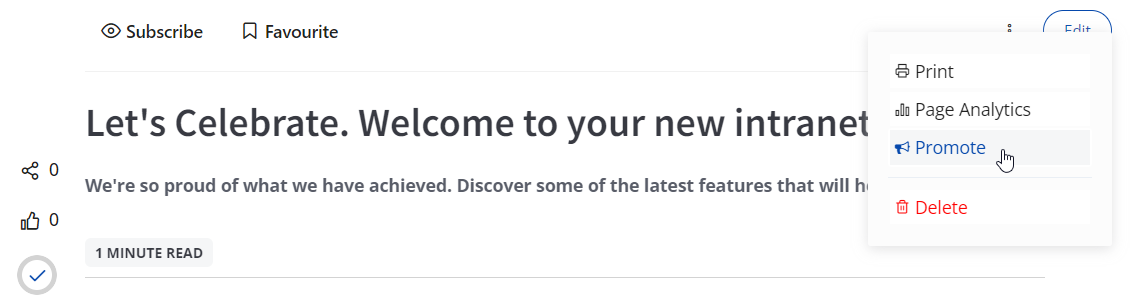
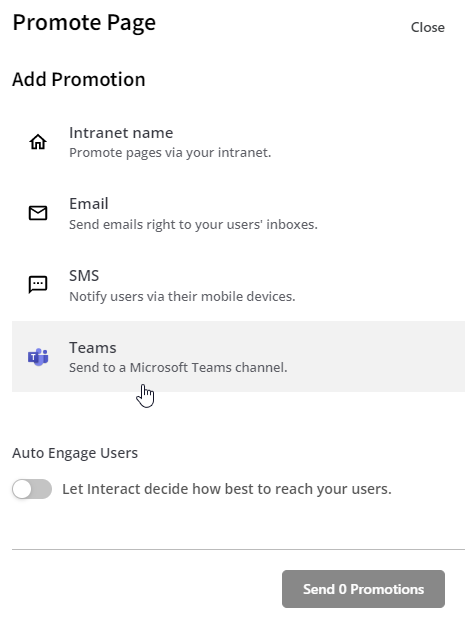
You can now promote a page to a public or private Teams channel.
Related
Section: Integrations