Connectors in general search
Search results
Search results for documents synchronised using Workplace Search connectors are enriched to show more content and allow more interactions.

A breadcrumb shows the hierarchical relationship between the item and its related entities, as well as any relevant folder path. For SharePoint, this includes the site, drive (document library), and parent folders.
Each element of the breadcrumb is clickable. For SharePoint synchronised content, you can select the parent folder of a file from a document library and be taken directly to that folder in SharePoint.
The result also displays the last updated date, which is the date the item was last updated in the external system.
The icon for each search result is customised per result, based on file extension or a configurable URL, rather than using a single icon for the whole connector as the legacy custom connector API did.
Note: New APIs for custom connectors provide this same level of synchronised content and functionality. See Custom connector API.
Filters and aggregations
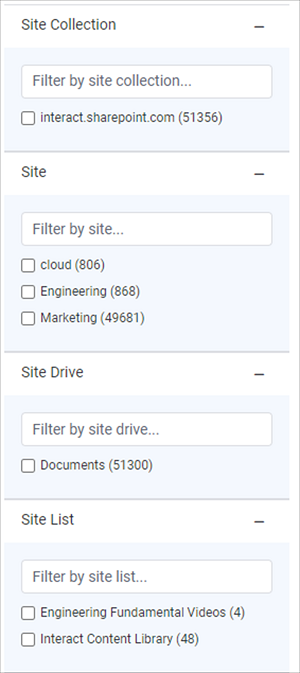
Documents synchronised using the native connectors are enriched with various taxonomy values. There is a set of standard taxonomy values for each connector.
For example, the SharePoint native connector populates the following standard taxonomy values on synchronised content, where relevant:
- Site Collection
- Site
- Site Drive
- Site List
- File Extension
- Directory
You can configure the general search results page to include these additional taxonomy values in the Filters flyout as aggregations.
SharePoint is highly configurable, so the connector can also record values from custom columns of lists against synchronised documents. These additional values can then appear as filters in the general search results page.
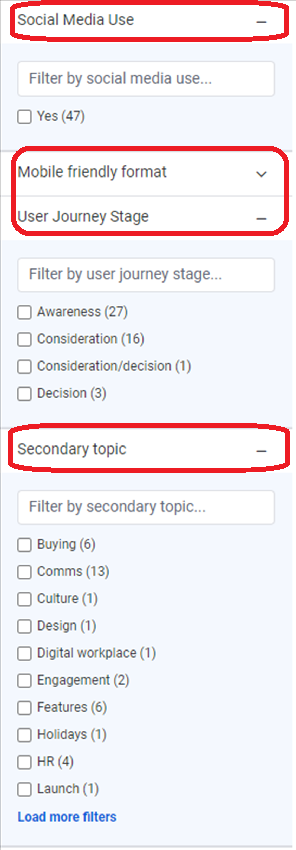
You can also perform advanced filters within the Content Widget or Content Listing Block based on these additional values.
Configuration
Additional values associated with documents do not appear automatically in the general search filters panel. You must configure them globally with the Taxonomy Aggregations (JSON) application variable.
For details, see Filters and taxonomy aggregations.