Bulk import web pages
Use a sample PowerShell script to import web pages from a CSV file into Interact's search index.
Before you start
- A Workplace Search record in your Interact intranet. See Set up a custom connector.
- Basic understanding of PowerShell scripts, and PowerShell installed on your machine.
- The web pages to import must be available to the local PC and on your company network, so users can access them when selecting through from the search results.
- A CSV file with the following values in the first row, then your list of URLs and relevant data in each subsequent row.
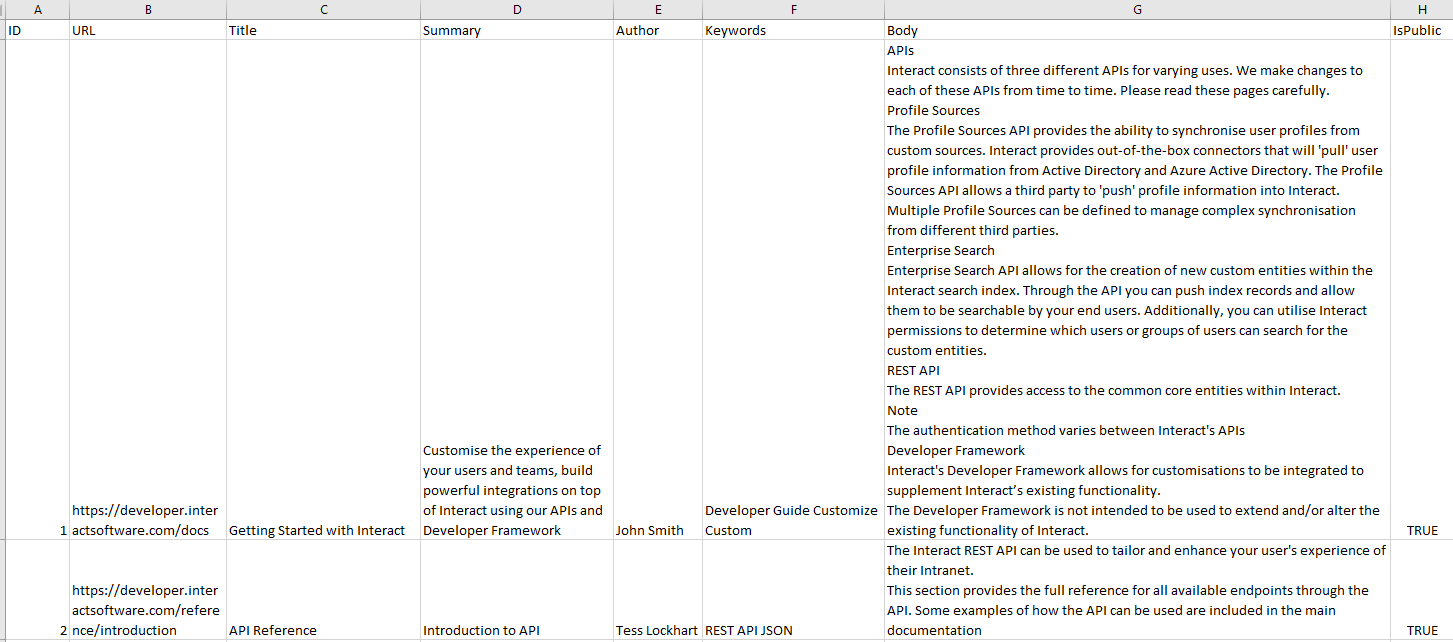
Warning: This is provided as an example only.
How it works
The script below:
- Sets up the template for the JSON request to Interact.
- Opens the CSV file.
- For each row after the row 1 header values, compiles the JSON data to send to Interact, setting the values based on columns in the CSV file.
- Sends the data to Interact to add the web page to the search index.
How to run it
The script takes two parameters:
CSVFile— the path to the CSV file.interactURI— the URL to your Interact installation.
To run it, cd into the folder that contains the script file and run:
./ImportWebPages.ps1 -CSVFile "<CSV File Location>" -interactURI "<URL to the search app on your intranet>"
For example:
./ImportWebPages.ps1 -CSVFile "C:\Files\importwebpages.csv" -interactURI "http://demo.interact.com/api/searchapp/1/document"
Things to consider
- This is not officially supported by Interact. It is a helper and example of what is possible with search apps.
- There is no error detection or data validation.
- There is no duplicate checking and no easy way of deleting documents.
- This works only as a bulk import. Adding new files to the file system does not add them to Interact.
- Edit the script to include your own secret key, which is added when setting up the search app within Interact.
- If the script is working, you get a success message on screen for each web page imported.
The script
Param(
    [string]$CSVFile,
    [string]$interactURI
)

# Clear PowerShell screen
cls

# Build JSON template that will be used for sending to Interact
$templateJSON = "{
  ""Url"": ""{webpageurl}"",
  ""Id"": ""{id}"",
  ""Title"": ""{webtitle}"",
  ""IsPublic"": ""{webispublic}"",
  ""Body"": ""{webbody}"",
  ""summary"": ""{websummary}"",
  ""Author"": ""{webauthor}"",
  ""Keywords"": ""{webkeywords}"",
}"

# Point to csv file
$webpageimports = Import-Csv $CSVFile

for ($i=0; $i -lt $webpageimports.Count; $i++) {

    if($webpageimports[$i].URL){

        # Format the Body into one string if it is being treated as multiple rows
        $BodyFormatted = $webpageimports[$i].Body -join " "

        # Update JSON template with information from the CSV file (for each row)
        $fileJSON = $templateJSON
        $fileJSON = $fileJSON.Replace("{webpageurl}", $webpageimports[$i].URL)
        $fileJSON = $fileJSON.Replace("{id}", $i)
        $fileJSON = $fileJSON.Replace("{webtitle}", $webpageimports[$i].Title)
        $fileJSON = $fileJSON.Replace("{webauthor}", $webpageimports[$i].Author)
        $fileJSON = $fileJSON.Replace("{websummary}", $webpageimports[$i].Summary)
        $fileJSON = $fileJSON.Replace("{webkeywords}", $webpageimports[$i].Keywords)
        $fileJSON = $fileJSON.Replace("{webbody}", $BodyFormatted)
        $fileJSON = $fileJSON.Replace("{webispublic}", $webpageimports[$i].IsPublic)

        # Send web page to Interact
        Invoke-RestMethod -Uri $interactURI -Method Put -ContentType "application/json" -Headers @{'X-ApiKey'='<secret key from the search app>'; } -Body $fileJSON

    }

}
Related
Section: Workplace Search