Promoting to Slack
Let Block Editor content authors promote pages to a Slack workspace by configuring a Slack app and a promotion channel.
The Block Editor lets content authors promote content across many channels in your business, including Slack. This guide explains how to configure Interact to promote to your Slack workspace.
Before you start
You need:
- A Power User account in Interact with access to Control Panel > Block Editor.
- An administrator account in your Slack workspace with permission to create Slack apps and install them.
- Your intranet domain to hand.
Step 1: Create a Slack app
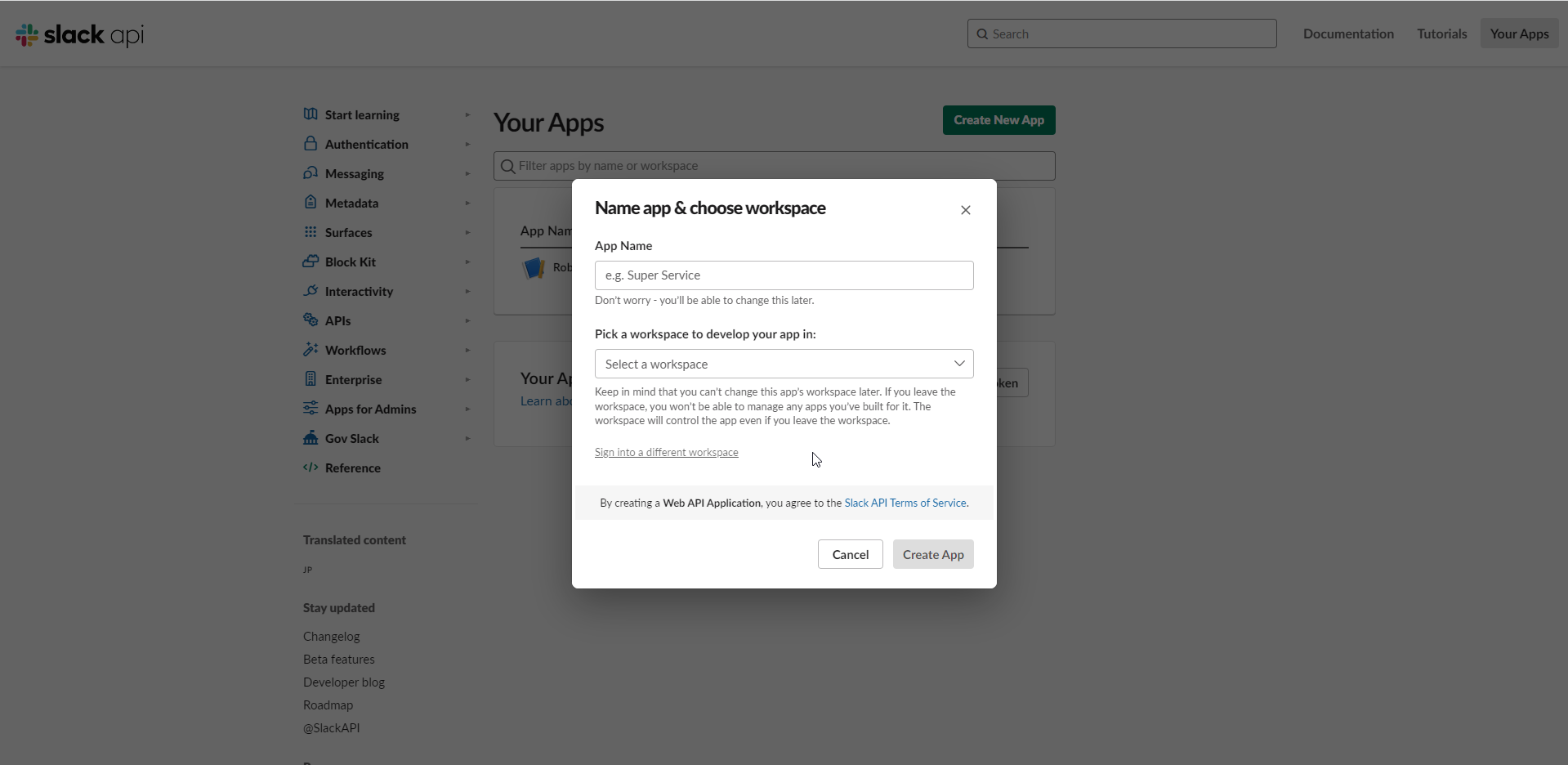
- Go to https://api.slack.com/apps and sign in if necessary. Select Create New App, then From scratch. Specify an app name for the integration and select the workspace where you will develop your app.
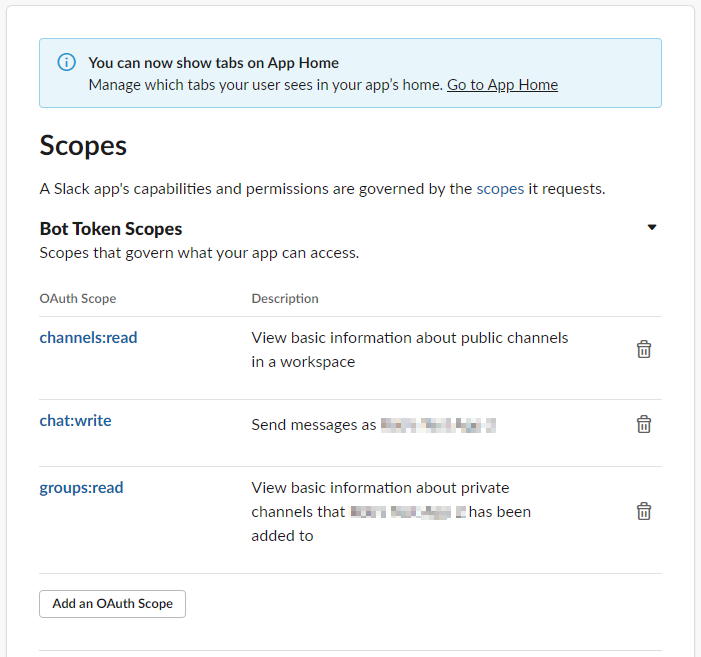
- Go to the OAuth & Permissions section. Towards the bottom of the page, set the required Bot Token Scopes. Select Add an OAuth Scope and add
channels:read,chat:writeandgroups:read. No scopes need to be added to User Token Scopes.
For more on Slack access tokens, see the Slack token types documentation.
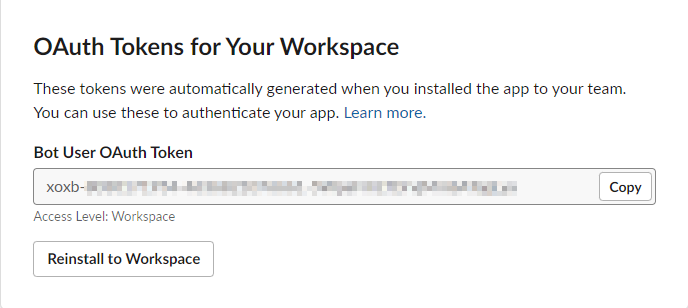
- Scroll back to the top of the OAuth & Permissions page. Select Install to Workspace, then Allow. This returns you to the OAuth & Permissions page, where you now see your Bot User OAuth Token for the first time. Make a copy of this. It is accessible again if you forget it. A Bot User OAuth Token always begins with
xoxb.
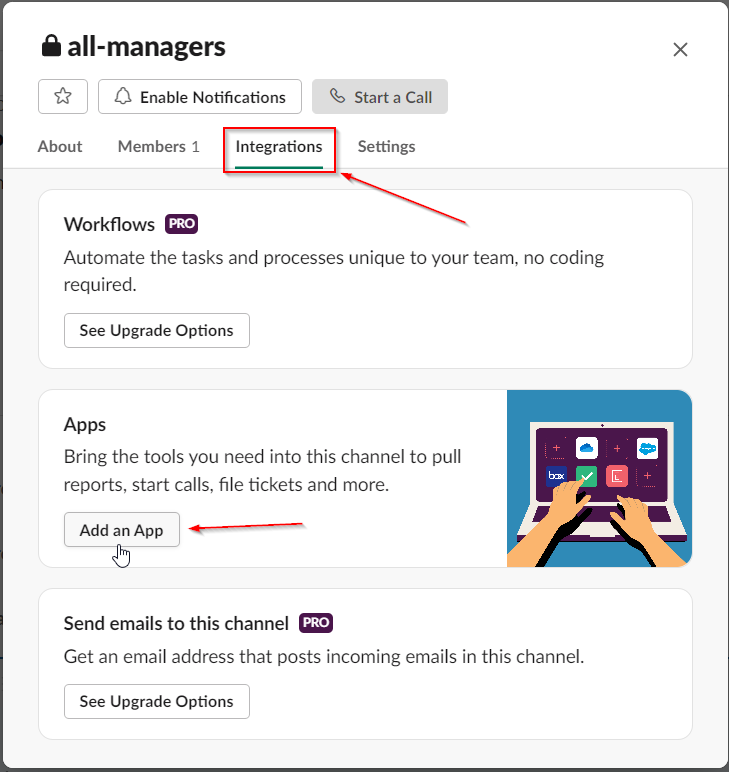
- Add your newly created app individually to any public or private channels you want it to post to.

Step 2: Configure a promotion channel
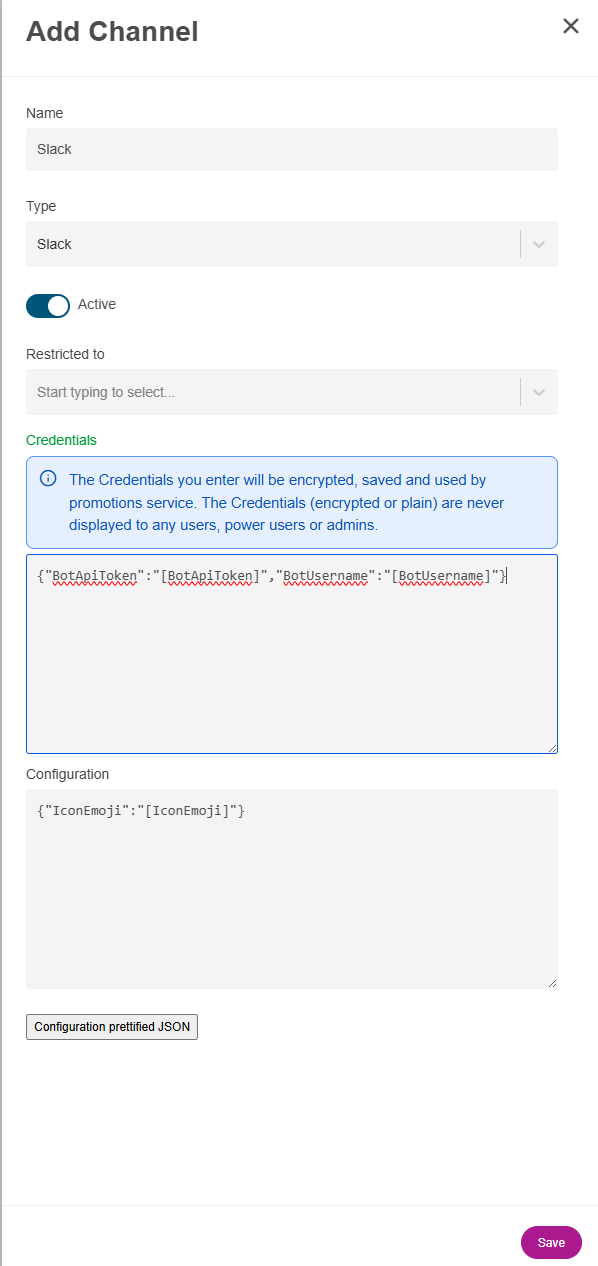
- Go to Control Panel > Block Editor > Promotion Channels > Add New Channel.
- Specify the Name and Type. The Name is what your content authors see when selecting which platform to promote to, so
Slackis fine here. Set the Type to Slack. - Mark it as active.
- Replace the placeholders in the credentials and configuration fields, using your own Bot User OAuth Token in the
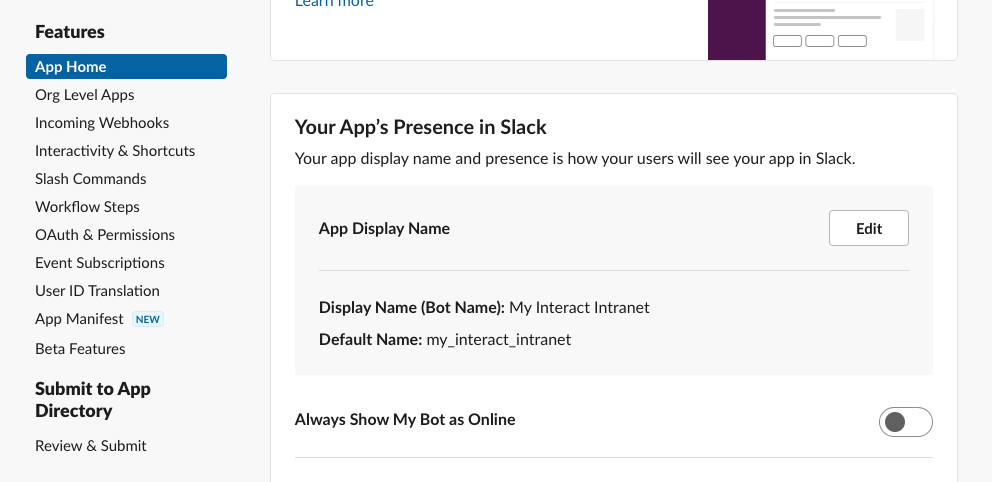
BotApiTokenfield. You can find theBotUsernamein the App Home screen of https://api.slack.com/apps/. IconEmojiis an emoji that is available on your Slack app.- Select Save.
{
   "BotApiToken": "{{bot_user_oauth_token}}",
   "BotUsername": "{{slack_app_username}}"
}
{
   "IconEmoji": ":{{slack_emoji_name}}:"
}
Note: Use the default name for your
BotUsername. In the example screen, it ismy_interact_intranet.
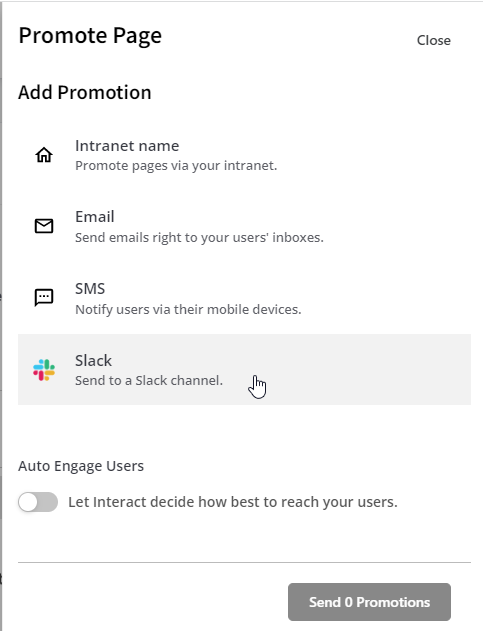
You can now promote a page to a Slack channel.

Related
Section: Integrations