Set up a custom connector
Before you start
- You need access to the Control Panel with permission to manage Workplace Search.
Note: The Workplace Search custom connector API authentication mechanism is distinct from the REST API. A specific secret key is used per connector for authentication.
Overview
To use the Workplace Search custom connector APIs, create your own custom connector. The connector communicates with the Workplace Search custom connector API. Using the API, you control what is pushed into the search index and when.
Step 1: Open Workplace Search
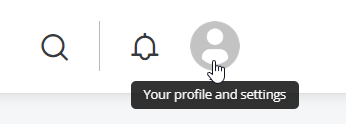
On your intranet homepage, select the Profile icon, then Control Panel.

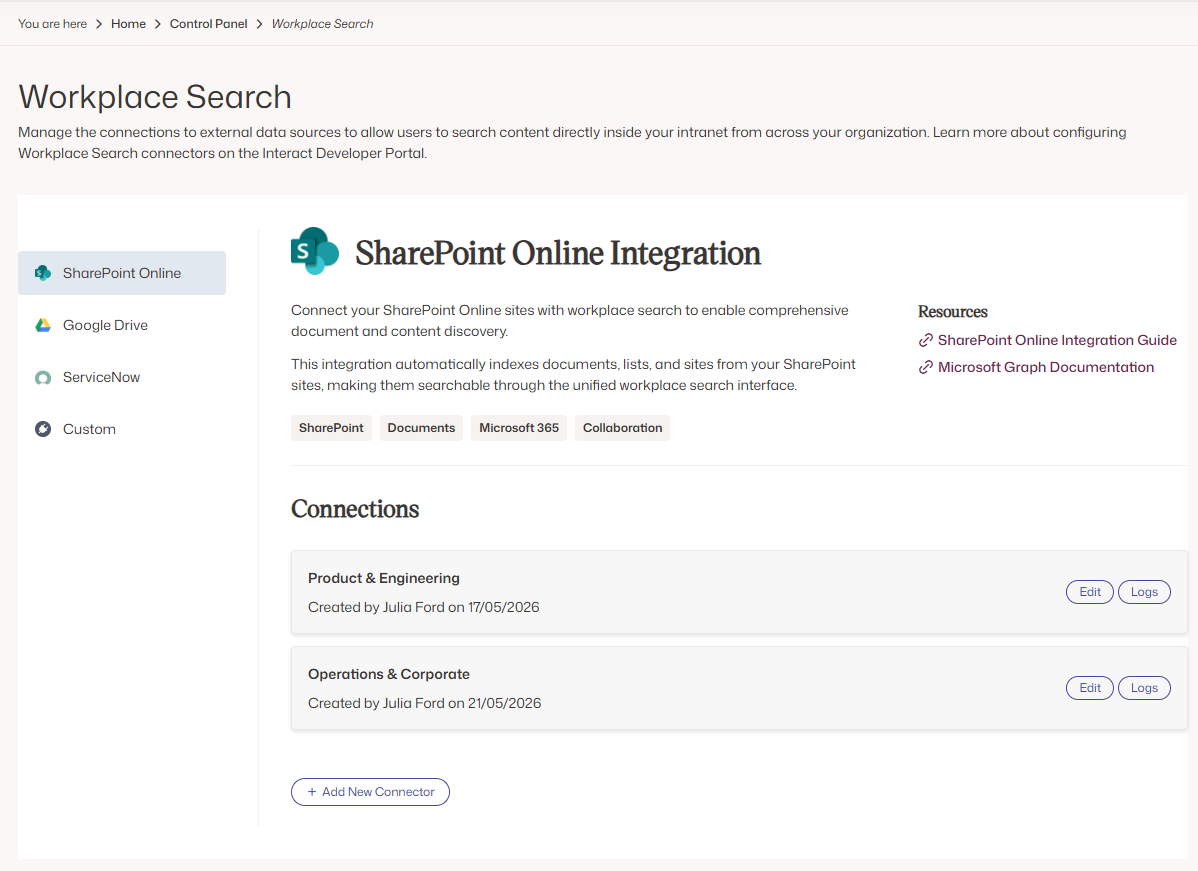
Select Workplace Search, under the Developer Framework group.

A page displaying your Workplace Search applications is shown with tabs on the left hand side for each of the connection types available.
Step 2: Create a custom connector
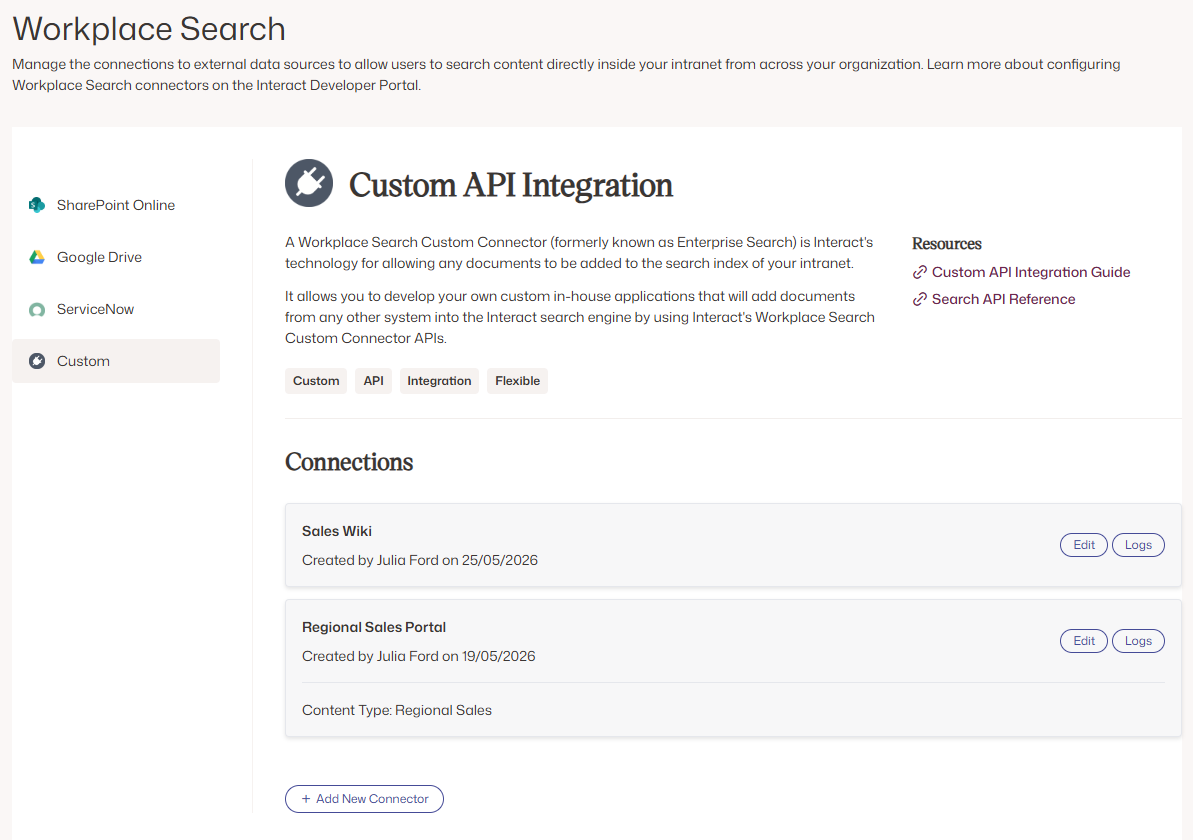
To add a new custom connector, select the 'Custom' category on the left, and Add New Connector.
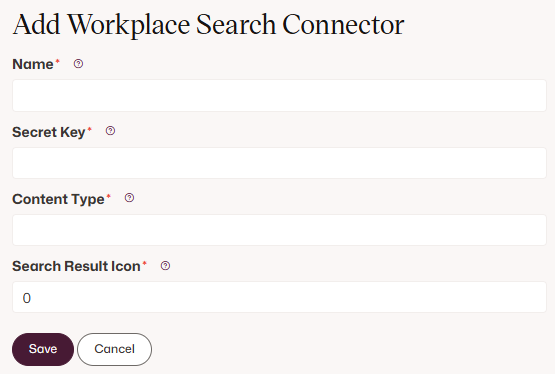
You are presented with a page to configure the new custom connector.
Step 3: Configure the connector
Enter the following details:
- Name — the name of your search app.
- Secret Key — generate and add a secret key. Include this secret key with any HTTP request to the Workplace Search custom connector APIs as an
X-ApiKeyHTTP header. - Content Type — only needed if using the legacy APIs. The new APIs let you specify the content type per document.
- If using the legacy APIs, add a content type name. This is used in the search results as a filter option.
- If using the new APIs, enter any value, for example
-.
- Asset Id for Search Result Icon — only needed if using the legacy APIs. The new APIs let you specify the icon per document.
- If using the legacy APIs, add the ID of the image asset to use for your icon.
- If using the new APIs, enter any value, for example
-1.
Warning: Never expose your secret key in any public website or client-side code. Use it only within your custom external application to communicate with the Workplace Search custom connector APIs.
Important: The secret key cannot contain angle brackets.
Select Save. You can now use the Workplace Search custom connector APIs to push documents to Interact.