SharePoint sync schedule
Overview
You can define a schedule for when SharePoint drives or lists are synchronised. A schedule comprises:
- Interval (Minutes, Hourly, Daily, Weekly, Monthly, Continuous)
- Units (for example, 1 or more)
The schedule defines the minimum amount of time that must pass since the last start of synchronisation before synchronisation can run again.
Configuring schedules
You can define the schedule independently for drives and for lists. Set it within the config at various levels, with inheritance:
- Within the root
Config.SiteOptionsconfig node:ListSchedule— schedule for when lists are synchronised. Applied to all lists by default. Override per site withinSpecificSiteOptions.DrivesSchedule— schedule for when drives are synchronised. Applied to all drives by default. Override per site withinSpecificSiteOptions.
- Within
SpecificSiteOptions(for all lists and drives within a specific site):ListSchedule— if supplied, these list settings are used instead of the default list settings. Override per list withinSpecificListOptions.DrivesSchedule— if supplied, these drive settings are used instead of the default drive settings. Override per drive withinSpecificDriveOptions.
- Within
SpecificListOptions(for a specific list within a site): if not supplied, it defaults to the site options schedule. If the site options schedule is not supplied, it defaults to the root site options schedule. - Within
SpecificDriveOptions(for a specific drive within a site): if not supplied, it defaults to the site options schedule. If the site options schedule is not supplied, it defaults to the root site options schedule.
What happens if no schedule is defined
If no schedule options are defined (and none can be resolved at any level of inheritance), the drive or list is synchronised continuously. For a drive, it does a delta sync as normal, every time the connector synchronisation runs.
If the schedule node is specified but any of its properties are not set, they take the following defaults:
- Interval → Hourly
- Units → 1
This is effectively the same schedule applied when a new connector is created.
What happens if ForceResync is true
If ForceResync is set to true, any resolved schedule settings are ignored for the one iteration that the ForceResync flag is set, and synchronisation runs as soon as it can. This is useful when you prefer the synchronisation of certain drives or lists to be manual. For example, set the schedule to be very long and rely on this mechanism to force a sync when needed.
Continuous interval
You can set the interval explicitly to Continuous, which means the item is synchronised whenever the connector synchronisation process runs. This is useful when root-level schedules have been specified and applied to everything by default, but you want certain items to be synchronised at all times and as quickly as possible.
Benefits and use cases
- Use a single connector config with granular configuration to support many use cases.
- Customise performance and responsiveness (how quickly the system reacts to changes) globally or at a drive or list level.
- For large, relatively unchanging data, set large sync schedules (for example, weekly) so that more dynamic content is synchronised more frequently and preferentially (for example, hourly), all within the same connector configuration.
- If a single drive or list fails repeatedly and impacts the synchronisation of other drives or lists, a schedule ensures that the failing item, when reprocessed, does not take priority over other synchronisations.
Default configuration
By default, new SharePoint connectors have a default schedule configured so that all lists and drives are synchronised at most every hour. This gives you the flexibility to prioritise certain lists or drives explicitly, for example by setting a continuous schedule for them.
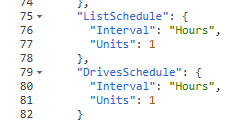
If required, you can set the interval of these default root-level schedules to something more frequent, such as Minutes or Continuous.