SharePoint connector config
Overview
The SharePoint connector config gives you granular control over which users and content are synchronised, and lets you customise how synchronised content appears in search. Full field-level details are in the SharePoint connector schema.
Credentials
For details on how to populate the credentials, see Azure OAuth app and SharePoint.
Specifying which users to synchronise (external identities)
Synchronised content is only ever accessible to those users whose external identities have been synchronised. You can synchronise All Users or Specific Users.
To synchronise all users, the config should look like this:
{
  "UsersOptions": {
    "UsersListingMode": "AllUsers",
    "AllUsersListingOptions": {
      "DisallowedUsers": []
    }
  }
}
You can customise the AllUsers mode further by populating AllUsersListingOptions. Populate the DisallowedUsers array with a list of emails, user principal names, or IDs.
To synchronise only specific users, set UsersListingMode to Specific, then populate the SpecificUsersListingOptions.AllowedUsers array with the users you want to synchronise. You can populate AllowedUsers with user principal names or IDs.
Specifying which content to synchronise
A SharePoint native connector has many configuration options that let you fine-tune which content is synchronised. At the highest level within the config, you can define:
SitesListingMode—AllSitesorSpecificSites, and the corresponding options.- Global drive filters (document libraries) — which drives to include or exclude by default for all sites:
AllorSpecific, and the corresponding options. - Global list filters — which lists to include or exclude by default for all sites:
AllorSpecific, and the corresponding options. - Specific site options:
- Override the global drive filters.
- Override the global list filters.
- Specific options for a drive within the site, including force resync.
- Specific options for a list within the site, including mapping columns to taxonomy values and force resync.
- Force resync of the whole site.
For sites, you can synchronise All sites or a list of Specific sites only. If you choose All, you can also explicitly exclude specific sites.
For any synchronised site, you can also choose which drives (document libraries) or lists to synchronise. As with sites, you can synchronise All (with a specific set to exclude) or Specific drives or lists.
You can configure the drive (document library) filters and the list filters at a global level, so they apply to all sites automatically. You can also combine global filters with overrides for specific sites.
You cannot currently filter which files from a drive (document library) or list items from lists are synchronised. If a drive or list is configured to synchronise, all of its items are synchronised. This additional level of filtering is planned for a future release.
Advanced config
Rename default content types
To customise the name given to synchronised content types and change how they appear in the general search Content Types filter, customise the content type for each SharePoint entity type. For example, by default the name "Site" is used for both intranet sites and SharePoint sites.
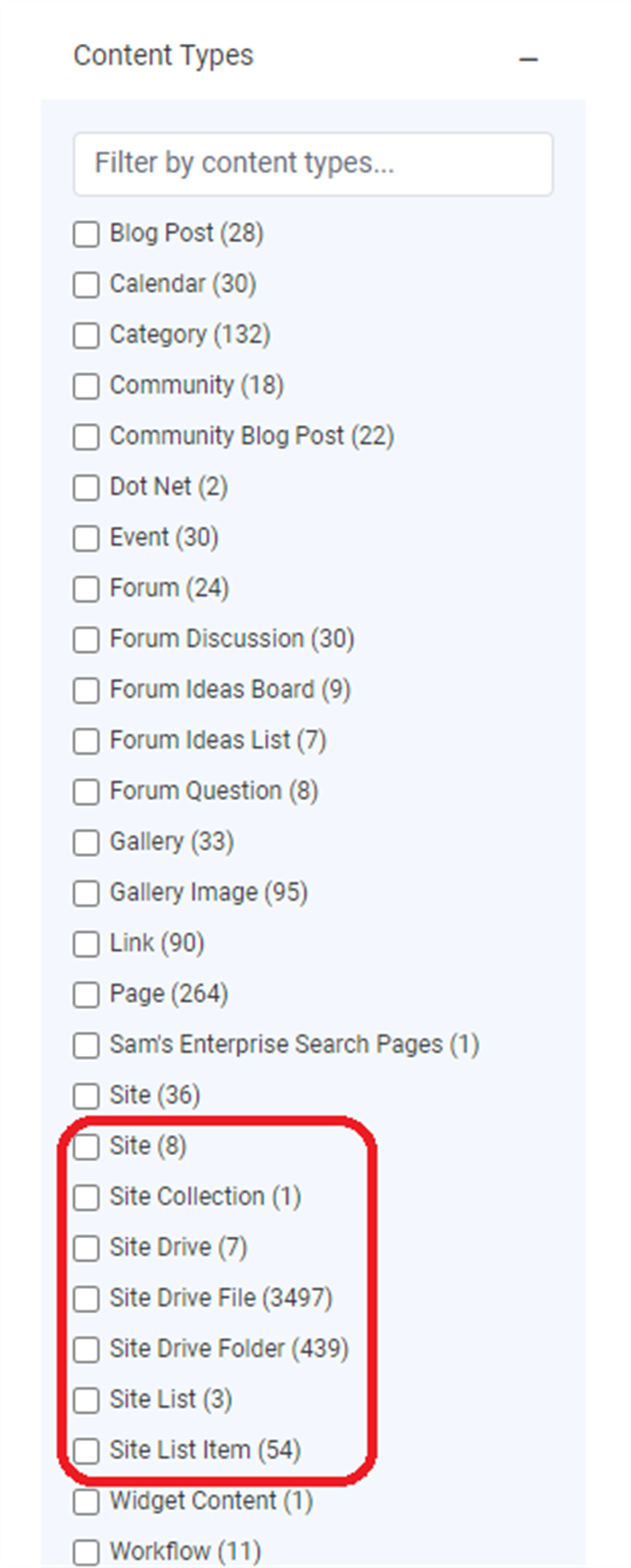
Within the SharePoint connector config, specify the custom FacetTypeNameMappings in the options to change the name of each content type. The example below overrides all available types with the same default values. The Type is the key used for the custom name mapping and must match one of the supported FacetTypes.
"FacetTypeNameMappings": [
  { "Type": "SiteCollection", "Name": "Site Collection" },
  { "Type": "Site", "Name": "Site" },
  { "Type": "SiteDrive", "Name": "Site Drive" },
  { "Type": "SiteDriveFile", "Name": "Site Drive File" },
  { "Type": "SiteDriveFolder", "Name": "Site Drive Folder" },
  { "Type": "SiteList", "Name": "Site List" },
  { "Type": "SiteListItem", "Name": "Site List Item" },
  { "Type": "SiteListItemAttachment", "Name": "Site List Item Attachment" },
  { "Type": "SitePage", "Name": "Site Page" }
]
Within a config, these settings sit under Options:
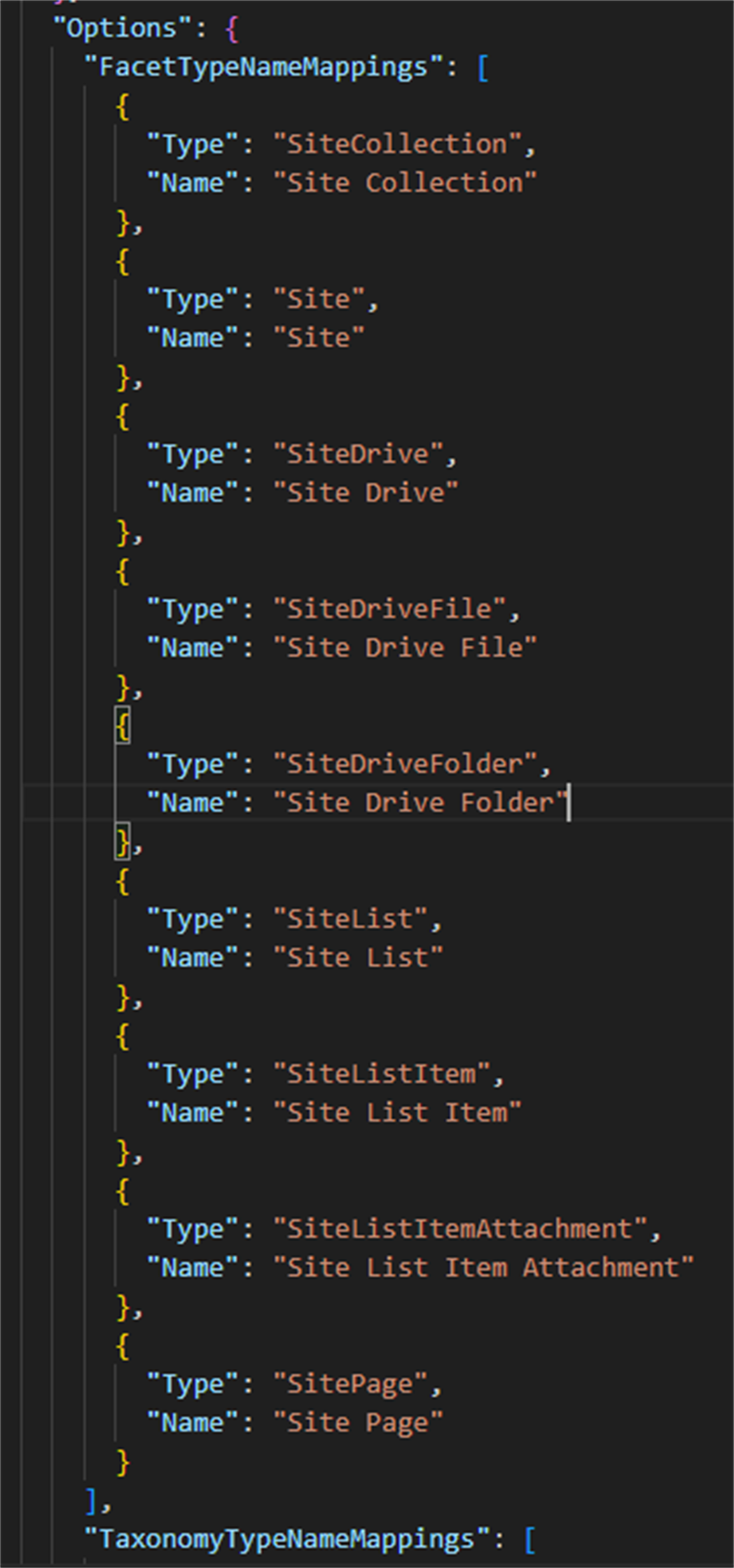
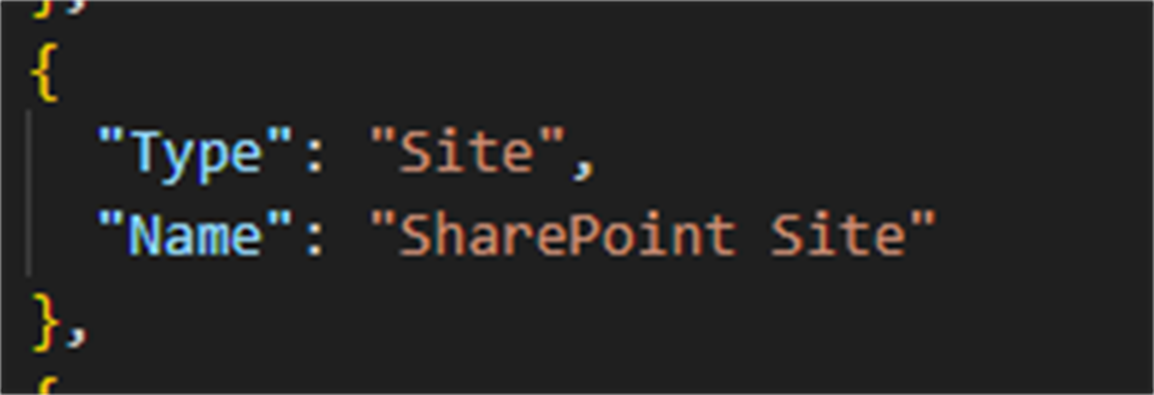
The Type is the key used for the custom name mapping and must match one of the supported FacetTypes. You can customise the Name as you like. For example, you can change the default content type for sites from "Site" to "SharePoint Site":
This results in the following:
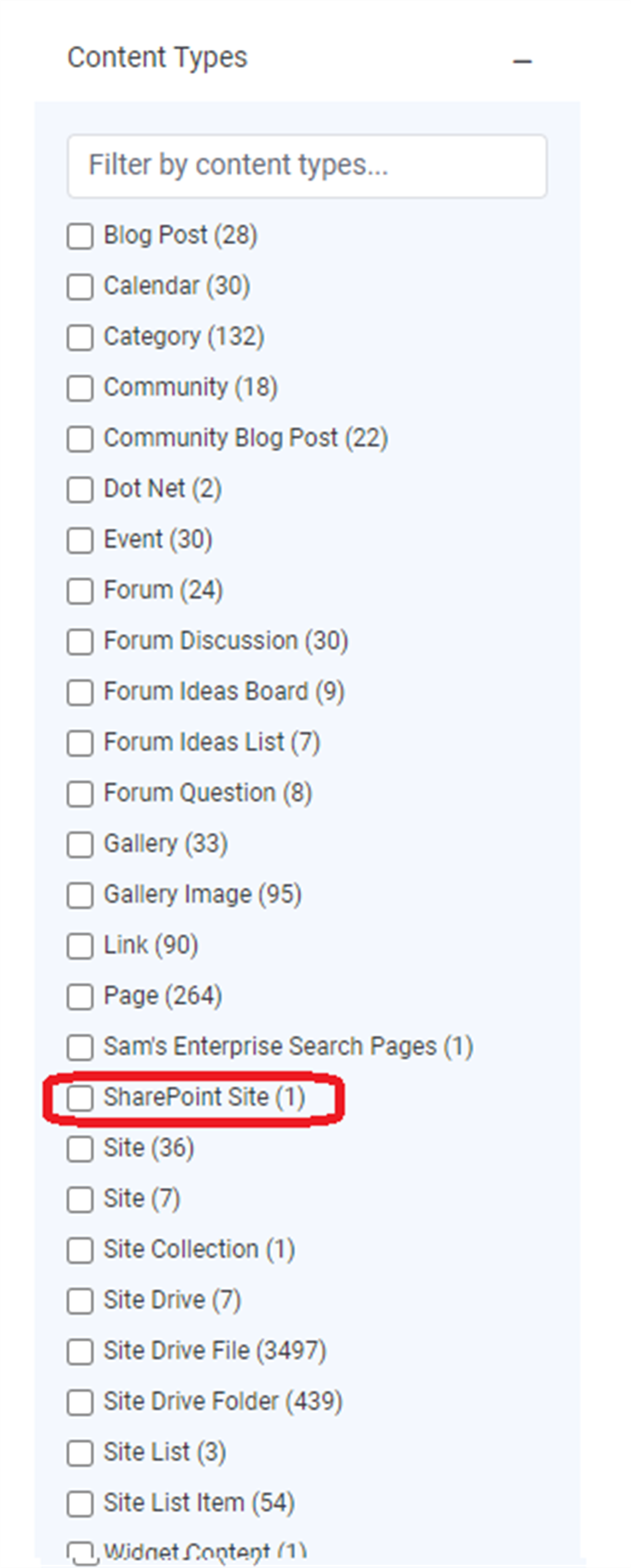
Documents are only updated after synchronisation runs again (forced), as the name of the content type is part of the synchronised document.
In the example above, only one site was force-resynced, resulting in a single "SharePoint Site" record, and the previous number of "Site" records decreased from 8 to 7. Synchronising the whole site collection again would rename all "Site" records to "SharePoint Site".
Rename default filters applied to synchronised content
To customise the names of the standard taxonomy values that appear in general search results, note that the following standard and custom (from list columns) taxonomy values are synchronised:
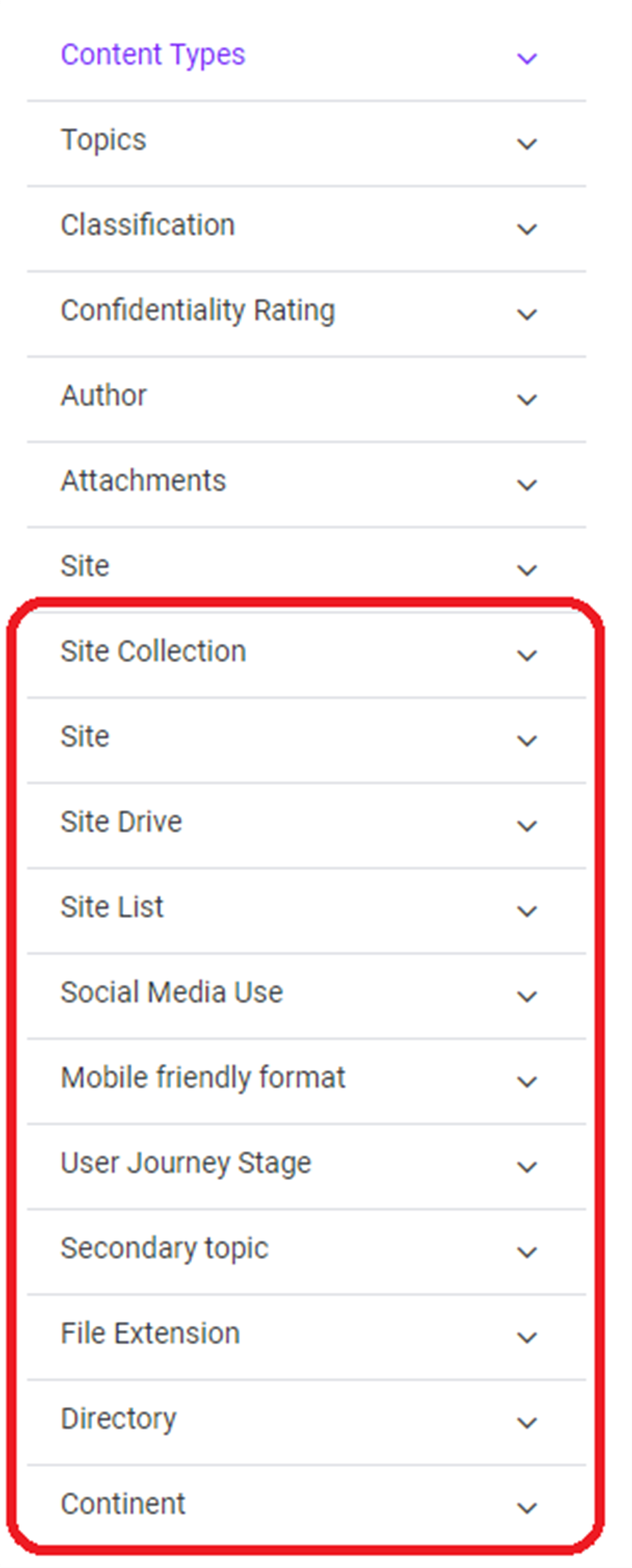
Customise the standard taxonomy labels in a similar way to content types, using the TaxonomyTypeNameMappings option:
"TaxonomyTypeNameMappings": [
  { "Type": "SiteCollection", "Name": "Site Collection" },
  { "Type": "Site", "Name": "SharePoint Site" },
  { "Type": "SiteDrive", "Name": "Site Drive" },
  { "Type": "SiteList", "Name": "Site List" },
  { "Type": "FileExtension", "Name": "File Extension" },
  { "Type": "Directory", "Name": "Directory" }
]
To display these taxonomy values in the general search filters, update the Taxonomy Aggregations (JSON) application variable to include them. List the Name value (not the Type) from TaxonomyTypeNameMappings as the facet. Application variables are managed in Control Panel > Application Variables.
Confirmation logs
During synchronisation, Debug messages record which document type mapping and taxonomy type mappings are applied to the connector. This is a useful way to confirm the relevant overrides are being applied as expected.
Note: To enable the Debug log level for a connector, contact Technical Support. If you do not, the log level reverts to Information.