Advanced filter (JSON)
Overview
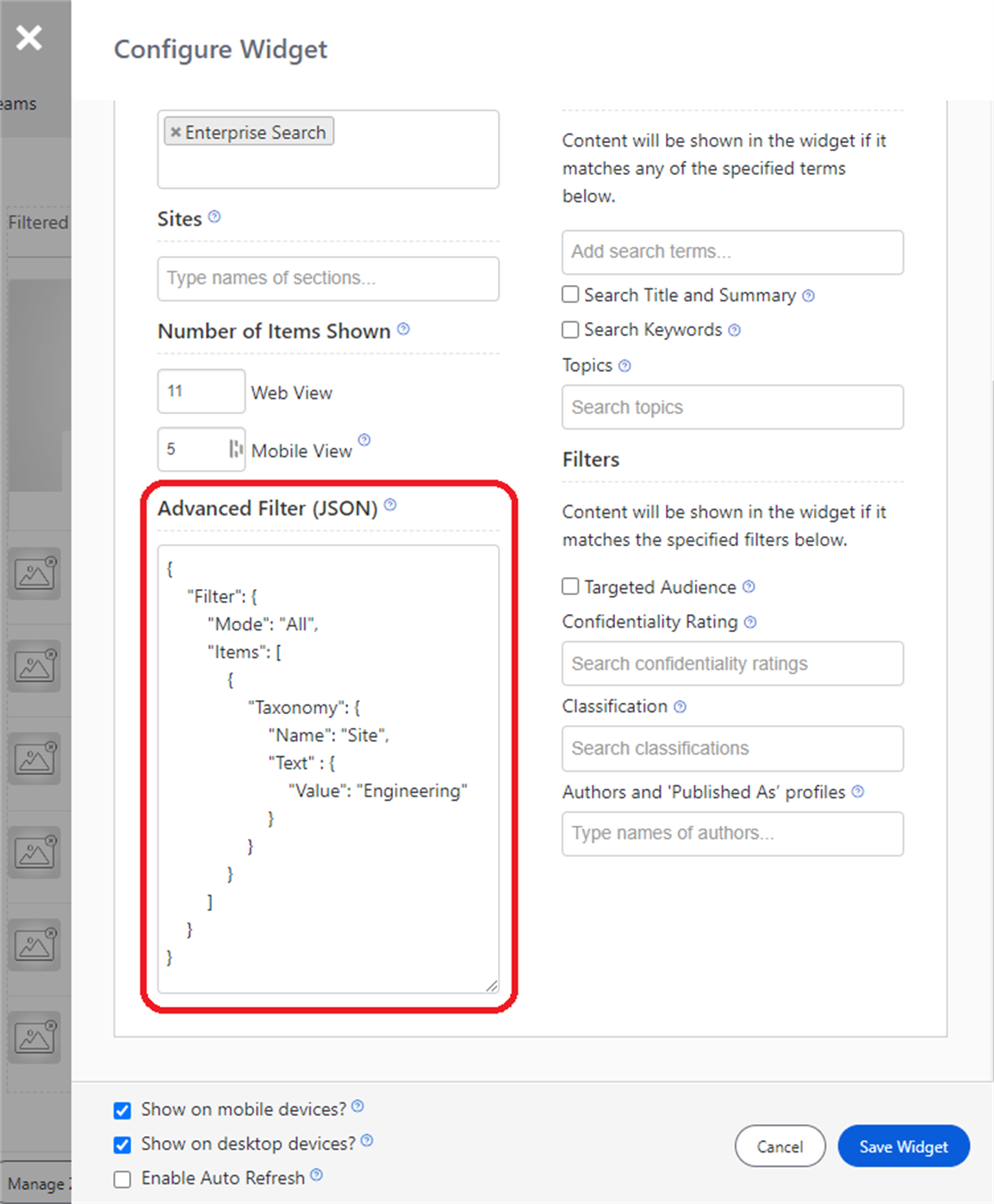
The Content Widget and the Content Listing Block (Filter type) both support an Advanced Filter option, presented as a JSON text field.
The Advanced Filter lets you filter on one or more specific taxonomy values, as well as content type. For example:
- Content type (File, Folder)
- File extension
- Directory (optionally including content from subdirectories)
You can also specify AND/OR clauses (by setting All or Any) and use nested (group) clauses to define which content is displayed. For the field-level reference, see Content widgets schema.
Content Widget
Content Listing Block
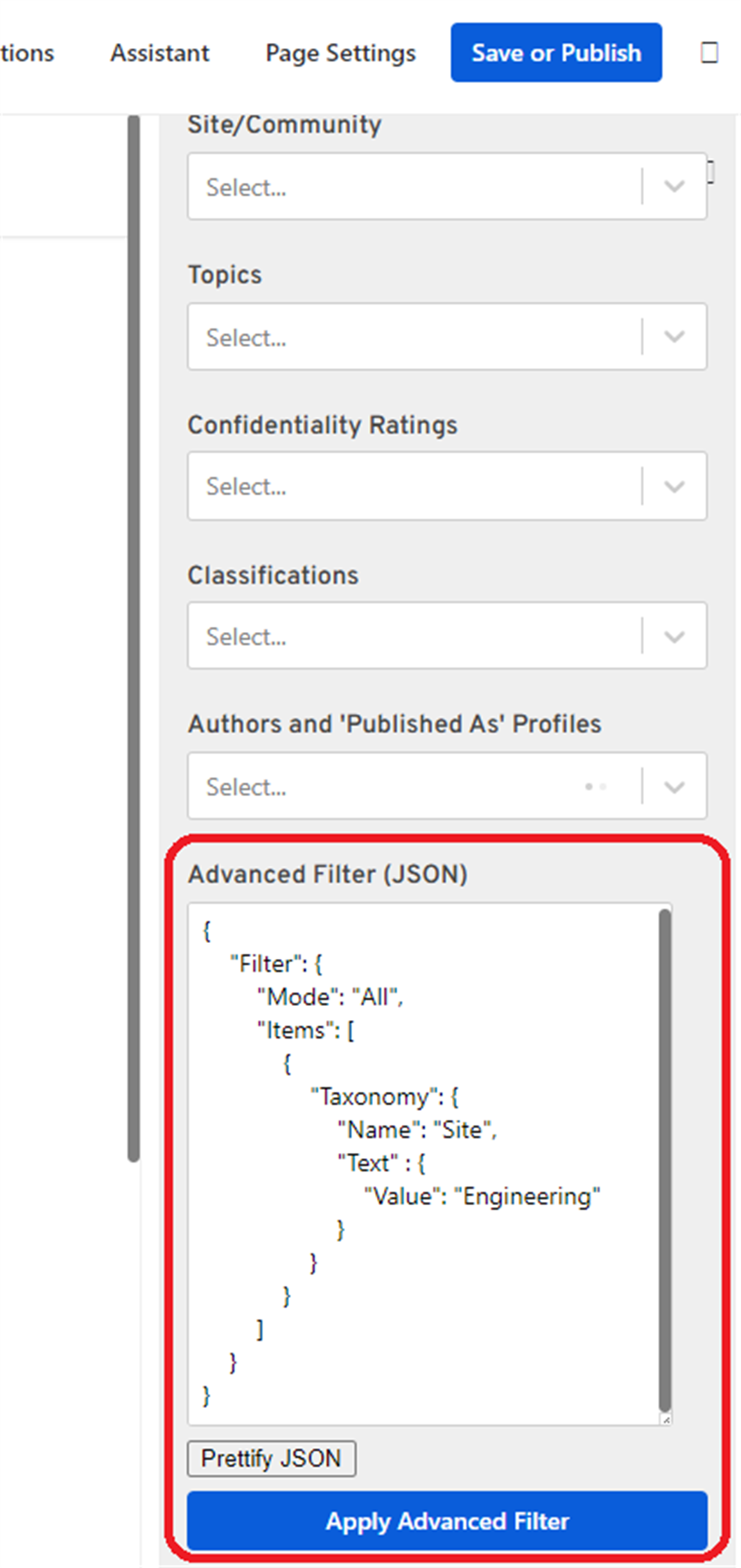
Structure
Root node
The advanced filter root node is a Filter. The root Filter is a filter group, so it can contain multiple filter items or nested filter groups. In the root filter node, you choose to return documents that match All or Any of the filter items within it.
Filter group
A filter group contains:
Mode(All or Any)Items(a collection of filter items)Groups(a collection of filter groups)
This lets you build complex filters from a combination of filters, groups, and modes, similar to the personas query builder.
Filter item
A filter item can filter on either:
Taxonomy(default or custom)TypeFacet(content type)
If more than one of the Taxonomy or TypeFacet properties is specified for a filter item, they are all evaluated together, and a returned document must match all of them.
Examples
Example 1: content in a site and directory
Show content in the "Engineering" site AND in the directory "Workplace Search Testing/":
{
  "Filter": {
    "Mode": "All",
    "Items": [
      {
        "Taxonomy": {
          "Name": "Site",
          "Text": {
            "Value": "Engineering"
          }
        }
      },
      {
        "Taxonomy": {
          "Name": "Directory",
          "Text": {
            "Value": "Workplace Search Testing/"
          }
        }
      }
    ]
  }
}
This shows content within that directory only, not in subdirectories. It lists both folders and files.
Example 2: include subdirectories
Show content in the "Engineering" site AND in the directory "Workplace Search Testing/", including subdirectories.
Change Example 1 so the directory filter uses a StartsWith operator, rather than the default Equals operator. For example, items with any of the following directory values are returned by a StartsWith "Workplace Search Testing/" filter:
Workplace Search Testing/Workplace Search Testing/A subdirectory/Workplace Search Testing/A subdirectory/Another subdirectory/
{
  "Filter": {
    "Mode": "All",
    "Items": [
      {
        "Taxonomy": {
          "Name": "Site",
          "Text": {
            "Value": "Engineering"
          }
        }
      },
      {
        "Taxonomy": {
          "Name": "Directory",
          "Text": {
            "Operator": "StartsWith",
            "Value": "Workplace Search Testing/"
          }
        }
      }
    ]
  }
}
This shows both files and folders, which is probably not what you want if you are including all files in all subdirectories.
Example 3: only files
Show only files in the "Engineering" site AND in the directory "Workplace Search Testing/", including subdirectories.
A filter item does not have to be of type Taxonomy. It can be of type TypeFacet, which corresponds to the content types you see in the general search results page filters.
{
  "Filter": {
    "Mode": "All",
    "Items": [
      {
        "Taxonomy": {
          "Name": "Site",
          "Text": {
            "Value": "Engineering"
          }
        }
      },
      {
        "Taxonomy": {
          "Name": "Directory",
          "Text": {
            "Operator": "StartsWith",
            "Value": "Workplace Search Testing/"
          }
        }
      },
      {
        "TypeFacet": {
          "Value": "Site Drive File"
        }
      }
    ]
  }
}
Example 4: files from two sites and folders
Show files from any of two sites, specifically files from two folders (and subdirectories) within those sites.
You want files from Any of the following sites:
- Engineering
- SharePoint Testing
For the "Engineering" site, you only want content that is in the "Workplace Search Testing" directory (and its subdirectories) and is a "Site Drive File" (not folders). For Engineering, show content that meets All of the following criteria:
Site= "Engineering"DirectoryStartsWith "Workplace Search Testing/"TypeFacet= "Site Drive File"
This results in a root filter group with mode Any containing two groups, one per site. Each group's mode is All.
{
  "Filter": {
    "Mode": "Any",
    "Groups": [
      {
        "Mode": "All",
        "Items": [
          {
            "Taxonomy": {
              "Name": "Site",
              "Text": {
                "Value": "Engineering"
              }
            }
          },
          {
            "Taxonomy": {
              "Name": "Directory",
              "Text": {
                "Operator": "StartsWith",
                "Value": "Workplace Search Testing/"
              }
            }
          },
          {
            "TypeFacet": {
              "Value": "Site Drive File"
            }
          }
        ]
      },
      {
        "Mode": "All",
        "Items": [
          {
            "Taxonomy": {
              "Name": "Site",
              "Text": {
                "Value": "SharePoint Testing"
              }
            }
          },
          {
            "Taxonomy": {
              "Name": "Directory",
              "Text": {
                "Operator": "StartsWith",
                "Value": "Christine's Folder/"
              }
            }
          },
          {
            "TypeFacet": {
              "Value": "Site Drive File"
            }
          }
        ]
      }
    ]
  }
}
Example 5: combine drive items and list items with a number filter
Show either:
- Site drive items from the "Engineering" site in the "Workplace Search Testing" directory (or a subdirectory of it), or
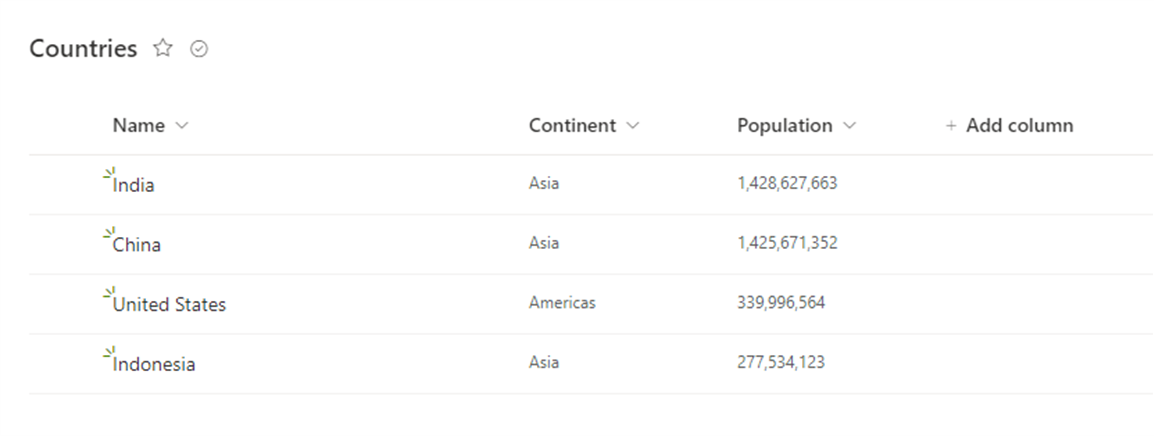
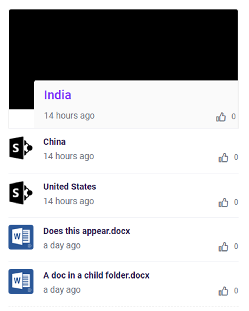
- List items from the "Countries" list in the "SharePoint Testing" site that have a population greater than 300 million.
{
  "Filter": {
    "Mode": "Any",
    "Groups": [
      {
        "Mode": "All",
        "Items": [
          {
            "Taxonomy": {
              "Name": "Site",
              "Text": {
                "Value": "Engineering"
              }
            }
          },
          {
            "Taxonomy": {
              "Name": "Directory",
              "Text": {
                "Operator": "StartsWith",
                "Value": "Workplace Search Testing/"
              }
            }
          },
          {
            "TypeFacet": {
              "Value": "Site Drive File"
            }
          }
        ]
      },
      {
        "Mode": "All",
        "Items": [
          {
            "Taxonomy": {
              "Name": "Site",
              "Text": {
                "Value": "SharePoint Testing"
              }
            }
          },
          {
            "Taxonomy": {
              "Name": "Site List",
              "Text": {
                "Value": "Countries"
              }
            }
          },
          {
            "Taxonomy": {
              "Name": "Population",
              "Number": {
                "Operator": "GreaterThan",
                "Value": 300000000
              }
            }
          }
        ]
      }
    ]
  }
}
The Countries list contains:
Only the three countries with a population greater than 300 million are returned:
Limitations
You can currently only use the Advanced Filter to filter on the standard or custom (list item) taxonomy values.
More data is stored in the search index. For example, you can see the last updated date in search results, but you cannot currently filter on it with the Advanced Filter. As a result, some scenarios are not currently possible, such as showing files from a particular site and folder that have a last updated date greater than one week ago.