Importing an external certificate
Before you start
- You need access to your domain management console to add DNS records.
- You are responsible for generating the Certificate Signing Request (CSR) and obtaining the SSL certificate from your certificate vendor.
For background, see these resources:
- Certificate format: AWS Certificate Manager import prerequisites
- Certificate process: How to import PFX-formatted certificates into AWS Certificate Manager using OpenSSL
Overview
This page describes the process used to import an external certificate for a vanity URL.
Interact only accepts a valid PFX-encoded certificate with the following properties:
- A password for the PFX file
- Chain certificate information
- A valid, unexpired certificate
- A signature algorithm of SHA256WITHRSA
Import process
The diagram below shows the import process.
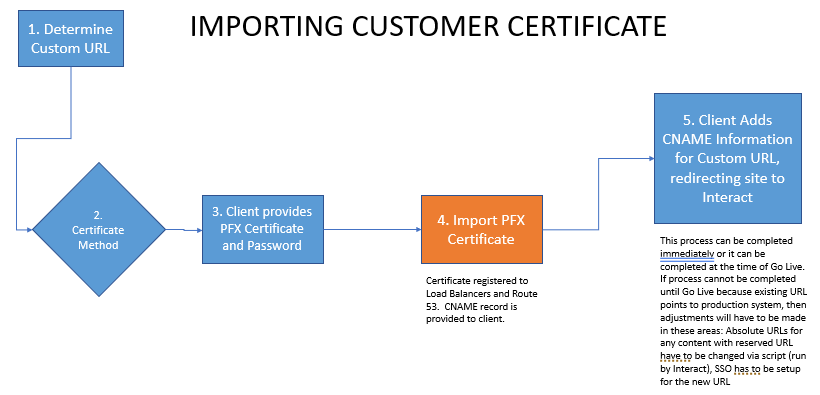
Steps 1-3: Prepare and submit the certificate
Decide on the vanity URL, create a PFX file with the properties defined above, open a ticket with Interact Technical Support, and provide the file and password.
Step 4: Receive the CNAME record
Interact completes the certificate import and sends you the CNAME record for your site. This CNAME record is a permanent CNAME used to route traffic from the vanity URL to your Interact site.
Step 5: Add the CNAME record to your domain
Add the CNAME information from Interact to your domain, in a similar way to how DNS information was added. This is provider-specific, so refer to your domain provider's documentation for details.
Once complete, run nslookup {{your_vanity_url}} and check that the Aliases area shows your vanity URL on the first row, the CNAME record on the second row, and a load balancer reference on the third row. These records generally indicate that the vanity URL is working. Next, test the URL by going to https://{{your_vanity_url}}/local-login to see if you get a login page.
You may also need to remove other Apex (A) records for this vanity URL with the DNS provider.
If applicable, go into Interact at Control Panel > SAML Authentication and set up SAML for the new URL. See Configuring SAML single sign-on for documentation.
Troubleshooting
- Many customers have an existing URL that they want to repurpose for use with Interact, but it is still being used for their old intranet site. Complete steps 1-4 above so that all you need to do at the end is the last step. Importing a certificate can take several days for Interact to complete, as it requires admin-level support. By completing steps 1-4 early in your implementation, you avoid potential delays at go-live.
- If you created content in Interact before switching to the vanity URL, you might have hard-coded (absolute) links pointing to your reserved URL. This is a problem because user sessions are set up against the vanity URL, and the link to the reserved URL forces the user to log in again. If this happens, republish the content with these links. If you have a large number of absolute links to the reserved URL, open a ticket with Technical Support, who can run a script to correct this.
- If you are going to have a vanity URL, it is best to wait to set up SSO until after the vanity URL is working. Otherwise, you have to set SSO up with the reserved URL and again with the vanity URL.
- Your certificate will eventually expire. If you use your own certificate (the process above), you are responsible for monitoring expiry dates and getting updated PFX files to Interact well before the expiry date. Importing a certificate, including renewal certificates, typically takes 2-5 days.
- If you are repurposing an existing vanity URL that is being used by another application, you may have conflicts with existing page history and cookies related to SSO or to how the application functions. This can cause pages to continually auto-refresh or display incorrectly. If those issues go away in incognito or private mode in your browser, you might need to clear all history for that vanity URL in the browser.
- You are responsible for generating the Certificate Signing Request (CSR) on any machine that can generate one, and for submitting it to the appropriate certificate vendor to generate the SSL certificate. Interact cannot do this on your behalf.