Getting started with native connectors
Before you start
- You need access to the Control Panel with permission to manage application variables and Workplace Search.
Step 1: Enable native connectors
By default, the ability to configure native connectors is disabled. To enable the feature, select the Enable Workplace Search Native Connectors application variable.
Note: Application variables are managed in Control Panel > Application Variables.

Step 2: Create a native connector
Once the feature is enabled, you can create a native connector.
Go to Control Panel > Workplace Search, select the type of connector you want to create from the tabs on the left and click Add New Connector.
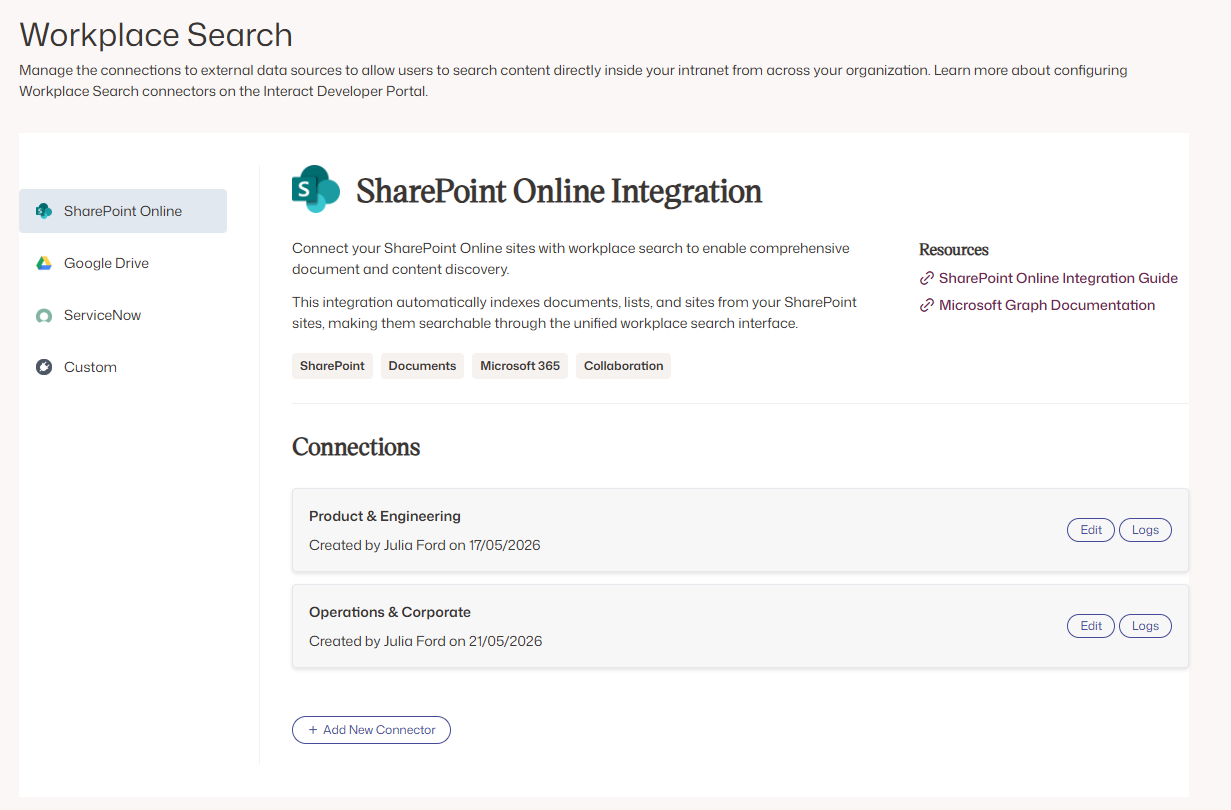
You are presented with a configuration template relevant to your chosen connector, which you can then populate.
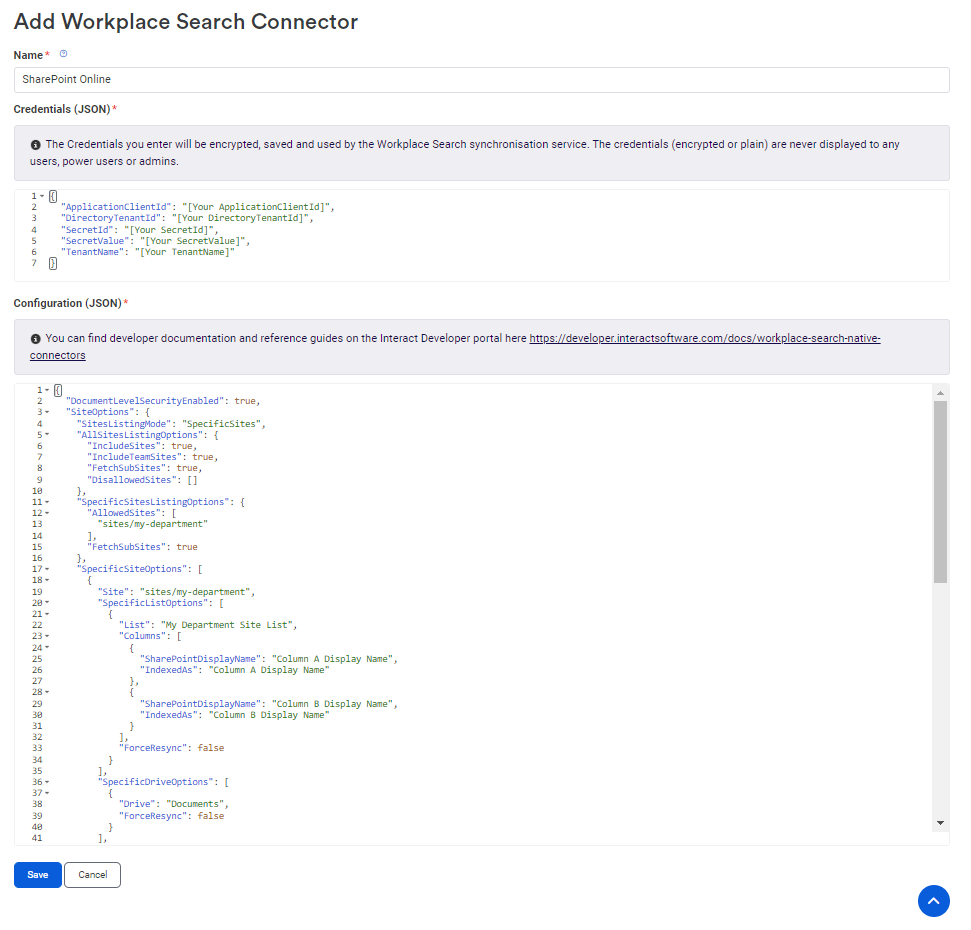
Note: Refer to the documentation for your chosen connector for details on how to complete the configuration.
General search
Once connector documents are synchronised to your search index, you can find those documents by running a search, provided you have permission to access them.
General search filters
By default, connectors store additional relevant metadata properties against synchronised documents. Configure the general search filters with the Taxonomy Aggregations (JSON) application variable to allow filtering on a defined list of specific additional fields.
Some connectors also let you control the additional metadata included with a document. For example, the SharePoint connector can include values from custom columns within lists, so users can refine their search queries to reach relevant content faster.
For more information, see:
Content Widget and Content Listing Block advanced filter
Once connector documents are synchronised to your search index, you can display specific results within homepages or pages.
The Content Widget and the Content Listing Block have an Advanced Filter (JSON) field. Use it to configure advanced nested filters (groups, AND, OR) that target specific synchronised content based on its content type and on the available taxonomy filter values.
For more information, see: