Microsoft 365
The Microsoft 365 Marketplace integration connects your intranet with the following services:
- Exchange Online
- Teams
- SharePoint Online
- OneDrive
- Calendar
- Tasks
Interact uses the Microsoft Graph API and the SharePoint Search REST API to interface with the Microsoft 365 ecosystem.
Before you start
You need:
- A Power User account in Interact with access to Control Panel > Marketplace.
- An administrator account in the Microsoft Entra admin centre (formerly Azure AD) with permission to create app registrations and grant admin consent.
- Your intranet domain to hand, to build the redirect URIs.
Overview
To complete the integration, you will:
- Create a new app registration in Microsoft Entra ID (formerly Azure AD).
- Gather the Application (client) ID, Directory (tenant) ID and Client secret value.
- Grant the API permissions required by the Marketplace features you intend to use.
Step 1: Create an Entra ID app registration
- Go to the Microsoft Entra admin centre and open App registrations: https://portal.azure.com/#blade/Microsoft_AAD_IAM/ActiveDirectoryMenuBlade/RegisteredApps
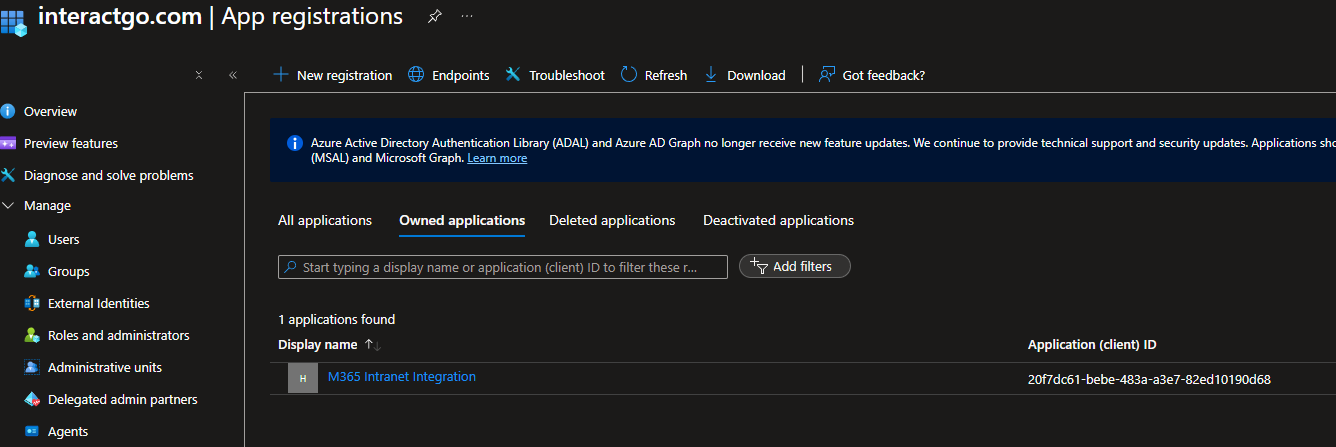
- Select New registration.
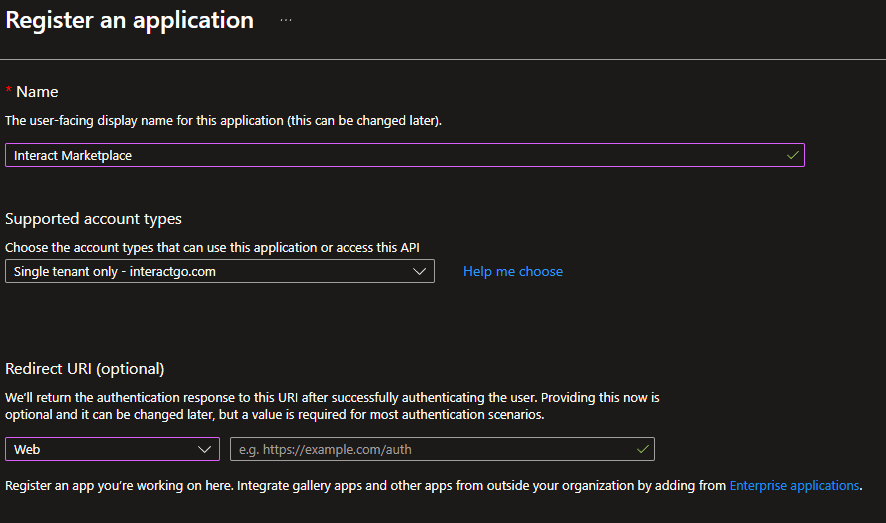
- Provide a name for your registration.
- Under Redirect URI, add your first redirect URI in the following format, replacing the placeholder with your intranet URL, and click Register
https://{{intranet_url}}/marketplace/microsoft/account/sign-in/oauth2
For example: https://intranet.acme.com/marketplace/microsoft/account/sign-in/oauth2
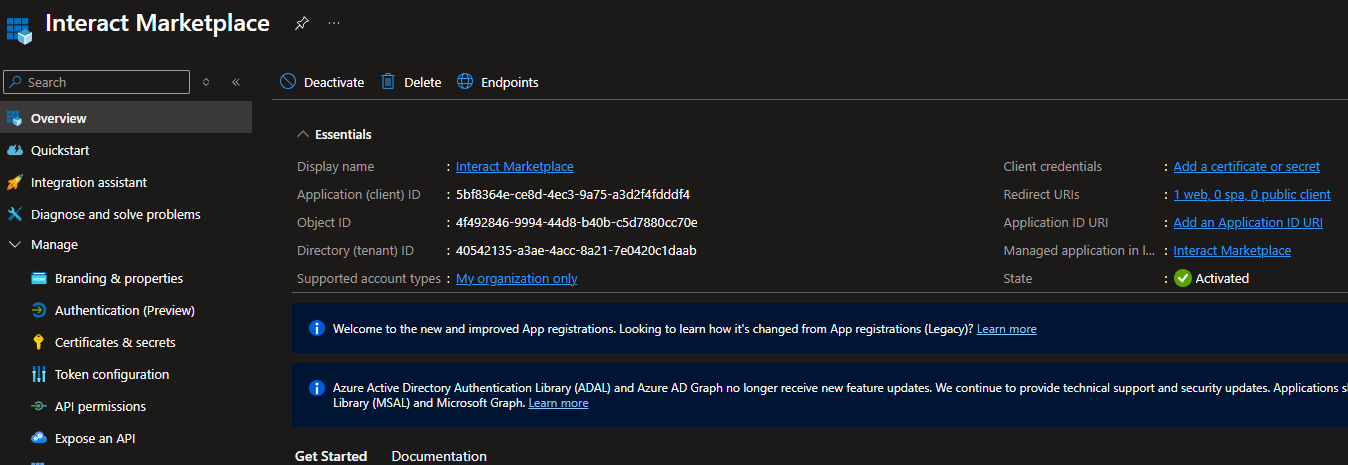
- Copy the Application (client) ID and Directory (tenant) ID values from the application overview screen.
You will need the Application (client) ID value for a second redirect URI, which takes the following format:
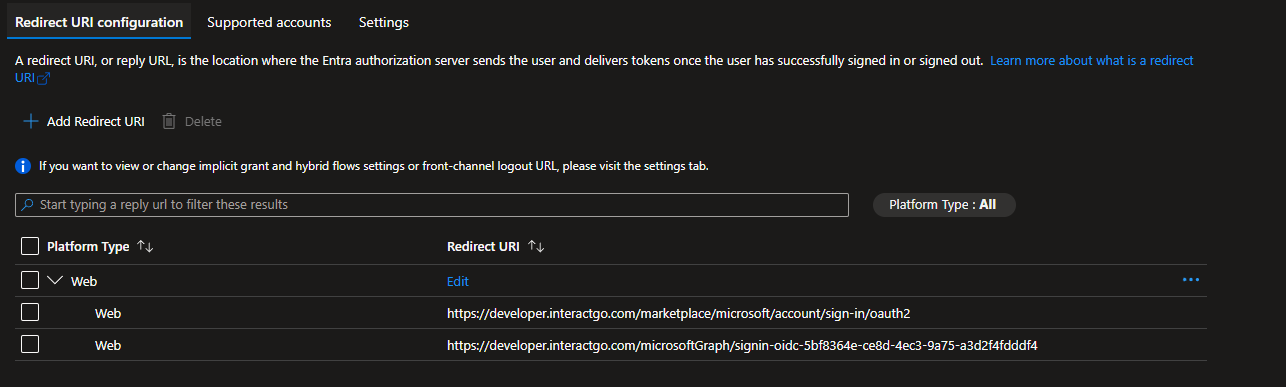
https://{{intranet_url}}/microsoftGraph/signin-oidc-{{application_id}}
For example: https://intranet.acme.com/microsoftGraph/signin-oidc-07a36512-ec60-495f-948a-829b0db4e340
-
Select Redirect URIs.
-
Enter the second redirect URI in the format shown above.
- Select the ID tokens checkbox for implicit and hybrid flows.
- Select Save.
- Create a client secret.
- Go to Certificates and secrets.
- Add a new client secret with a brief description.
- Select Add.
- Make a note of the client secret value for later.
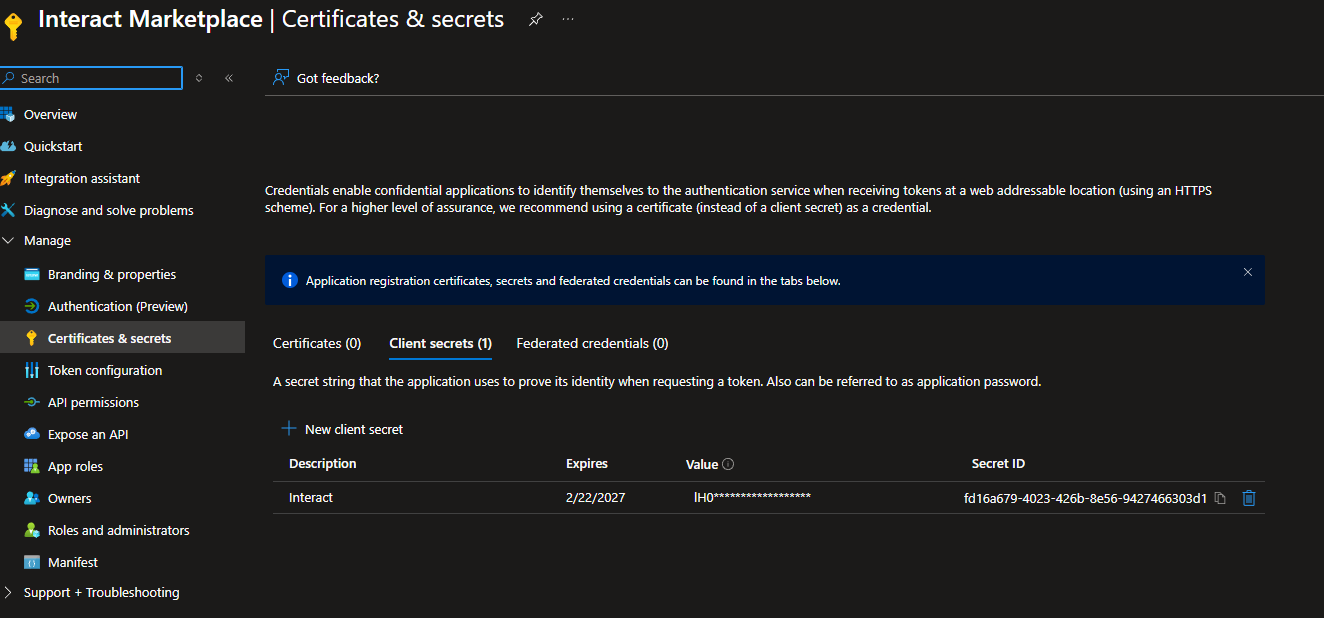
- You should now have the following information:
- Application (client) ID
- Directory (tenant) ID
- Client secret value
The setup is now complete. You will return here to add the necessary scopes once you have configured the Interact Marketplace settings.
Warning: Redirect URIs are case sensitive and whitespace sensitive. Make sure the casing matches precisely what is documented here, and remove any leading or trailing whitespace.
Step 2: Configure the Interact Marketplace
- Go to Control Panel > Marketplace and select Microsoft 365.
-
Specify the Client ID, Client Secret and Authority from the Entra ID app registration:
- Client ID — the
Application (client) ID. - Client Secret — the
Client secret value. - SharePoint Instance (optional) — if you want to use the SharePoint Search REST API, supply your SharePoint instance value, for example
https://acme.sharepoint.com/. - Authority — take the
Directory (tenant) IDand paste it into the following format:
http
https://login.microsoftonline.com/{{directory_tenant_id}}/
For example:
https://login.microsoftonline.com/38dad1b5-6969-4cd2-8f94-24f8c4c9baca/ - Client ID — the
-
Under Integration Options, select the features you want to use. The required API scopes are listed. Take a copy of this list, as the scopes need adding back to the Entra ID app registration.
- If you plan to use the SharePoint One Search connector or Exchange Online, enable SharePoint and Outlook in Control Panel > Application Variables > Integrations.
- Select Save.
Warning: Misconfigured scopes result in an AADSTS65001 error. Make sure the scopes you grant in the app registration match the Marketplace list exactly.
Important: Editing existing Marketplace configuration options, including Integration Options for Microsoft 365, forcibly purges the authentication tokens of all users who have used the integration. Those users must re-authenticate before they can use the integration again. Any scope changes apply immediately to new access tokens. Existing service-provider access tokens do not pick up changes until re-authentication.
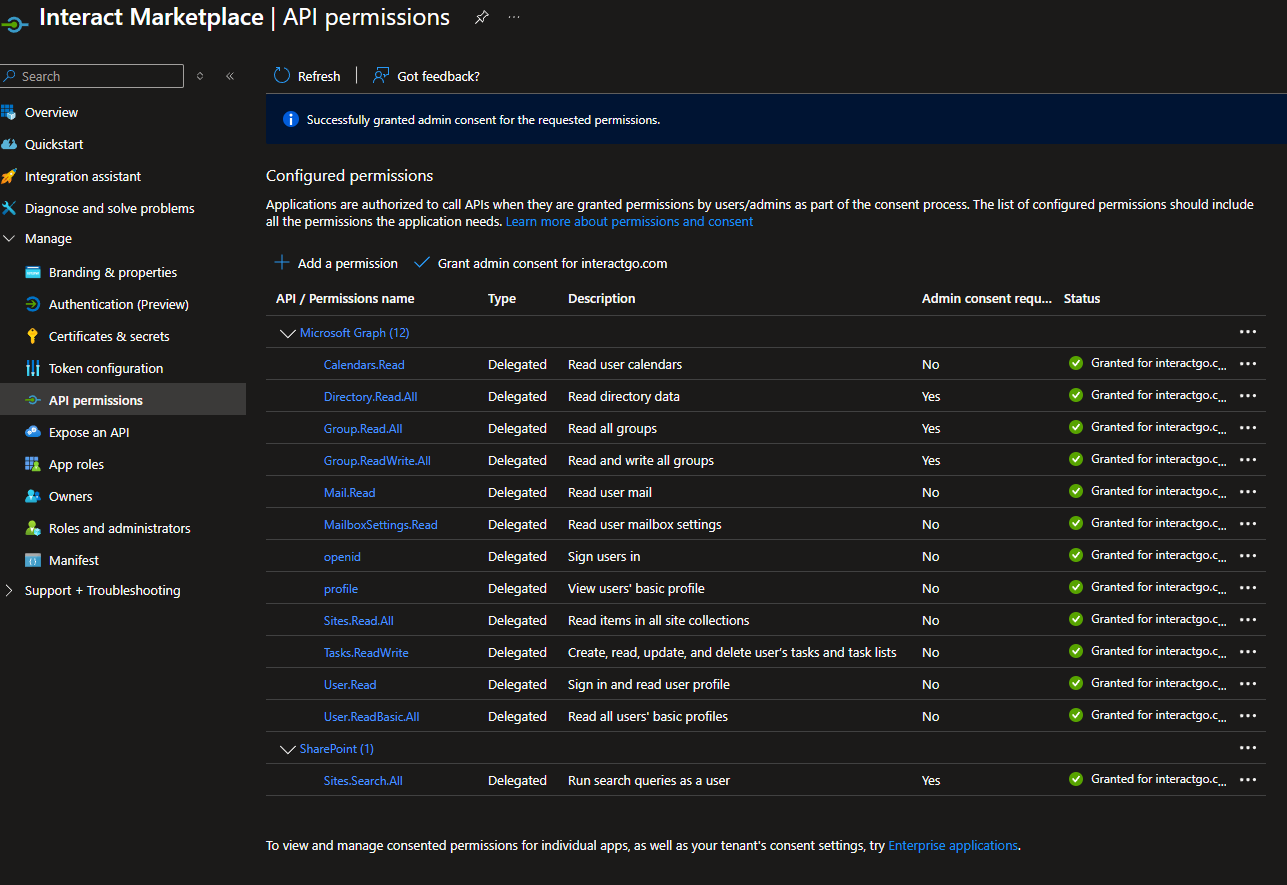
Step 3: Add and consent to permission scopes
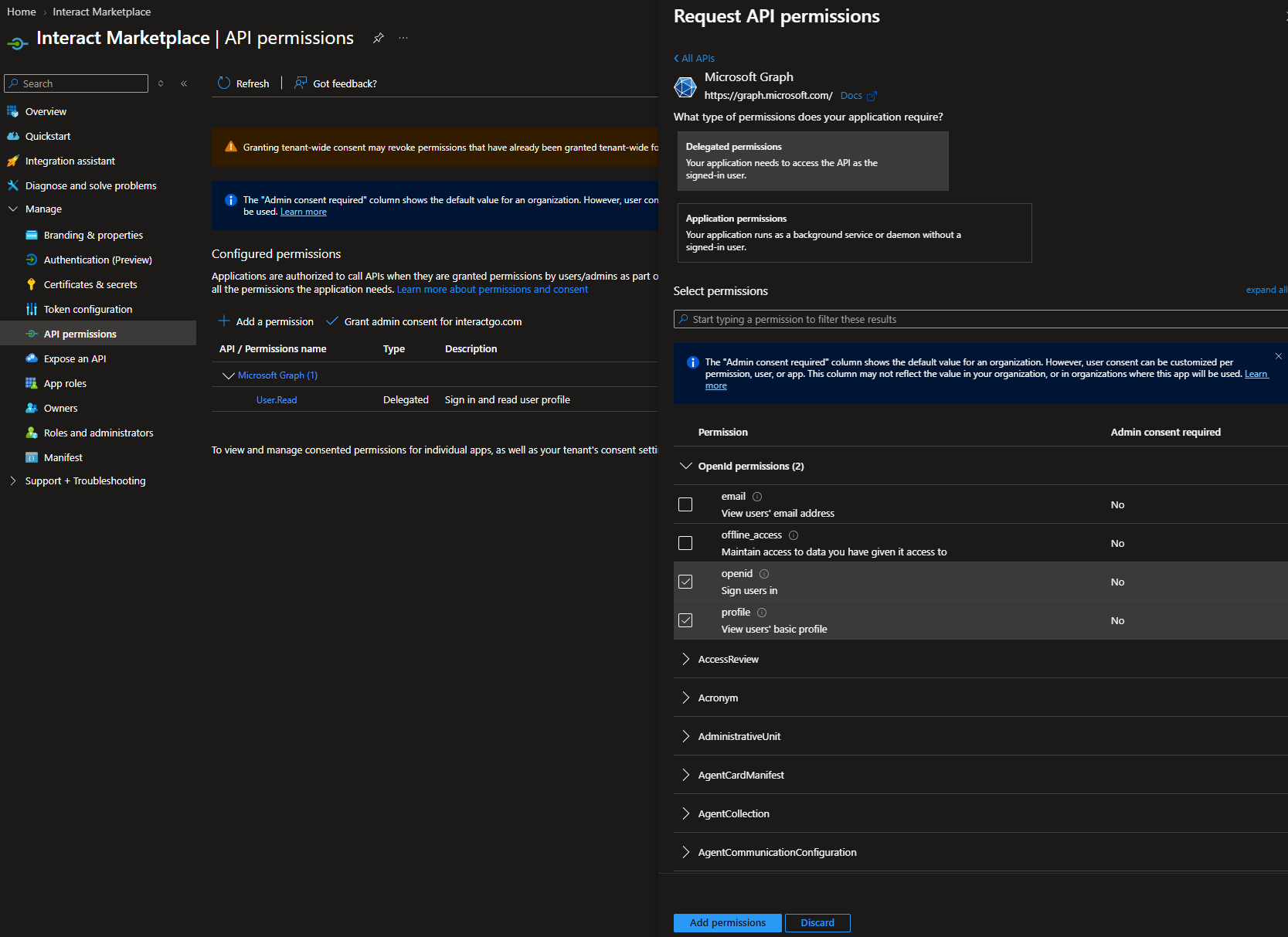
The list of usable scopes is shown below. Depending on your selected Integration Options on the Marketplace configuration page, the required scopes differ so that only what is needed is requested (the least-privilege principle).
In Control Panel > Marketplace, select Microsoft 365 to see which scopes are required for each Microsoft 365 integration.
Microsoft Graph API permission scopes
| Scope | Permission type | API | Microsoft reference |
|---|---|---|---|
| openid | Delegated | Microsoft Graph API | openid permissions |
| profile | Delegated | Microsoft Graph API | openid permissions |
| Calendars.Read | Delegated | Microsoft Graph API | calendars permissions |
| Directory.Read.All | Delegated | Microsoft Graph API | directory permissions |
| Group.Read.All | Delegated | Microsoft Graph API | group permissions |
| Group.ReadWrite.All | Delegated | Microsoft Graph API | group permissions |
| MailboxSettings.Read | Delegated | Microsoft Graph API | mail permissions |
| Mail.Read | Delegated | Microsoft Graph API | mail permissions |
| Sites.Read.All | Delegated | Microsoft Graph API | sites permissions |
| Tasks.ReadWrite | Delegated | Microsoft Graph API | tasks permissions |
| User.Read | Delegated | Microsoft Graph API | user permissions |
| User.ReadBasic.All | Delegated | Microsoft Graph API | user permissions |
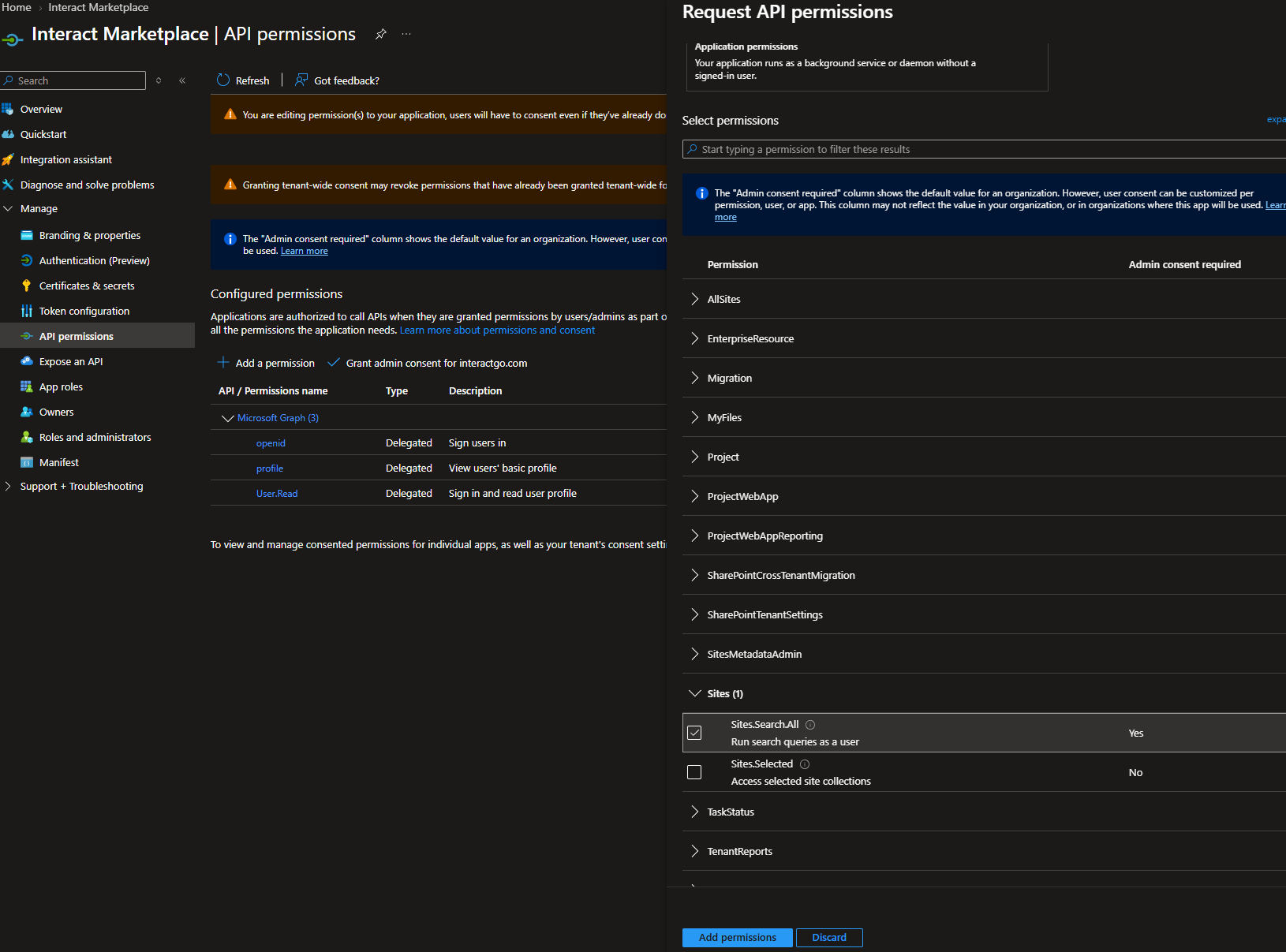
SharePoint API permission scopes
| Scope | Permission type | API | Microsoft reference |
|---|---|---|---|
| Sites.Search.All | Delegated | SharePoint API | SharePoint Search REST API overview |
Grant admin consent
The Interact Marketplace supports admin-consented permissions rather than per-user authorisation. You must grant admin consent to the added permission scopes.
Note: The screenshot below shows scopes for a fully configured Microsoft 365 integration. Your scopes will vary based on your selected Integration Options.
- Select Grant admin consent and click Yes on the pop-up.
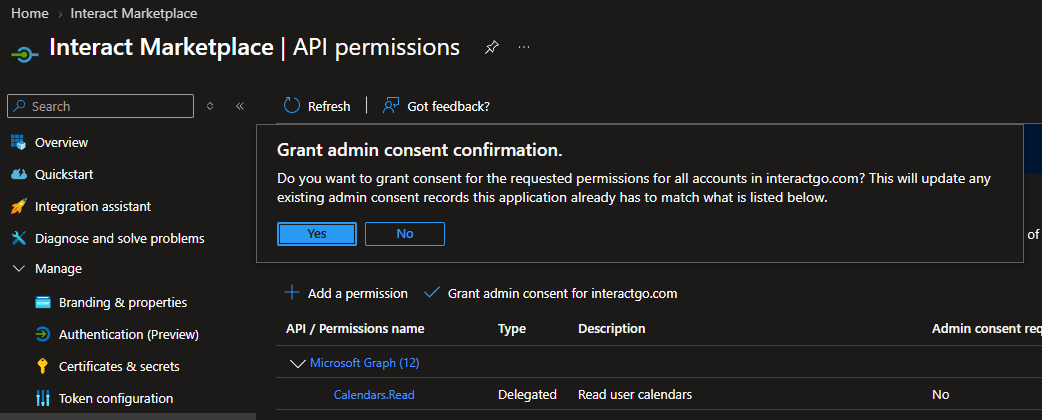
- If successful, you can now use the Microsoft 365 widgets and search integrations in your intranet.
SharePoint Search REST API
When you query in the context of a SharePoint Online user, you get results from:
- Content in SharePoint Online site collections.
- Content in Microsoft 365 groups.
- Shared OneDrive for Business content (content accessible to people other than the OneDrive for Business owner).
- Content from SharePoint Server indexed via a cloud search service application (Cloud Hybrid Search).
For more detail, see the SharePoint Search REST API overview.
Guidance
- The Marketplace configuration page lets you configure the functionality you need and lists the required API permissions for the app registration. This applies the least-privilege principle during configuration.
- The Microsoft Graph API may enforce rate limits. These are outside Interact's control, and Interact does not currently apply API monitoring or capping for third-party services. See Microsoft Graph throttling.
- Errors from the Microsoft Graph API are displayed in the widgets to aid troubleshooting and are recorded in the Marketplace logs.
- Errors in the form
AADSTS65001are returned directly from the Microsoft Graph API. Refer to the Microsoft error code reference to troubleshoot. - The Teams channel widget polls the Graph APIs every 20 seconds to retrieve updates for the specific channel. If a browser tab becomes inactive, it continues to poll.
- Microsoft 365 Marketplace integrations do not support per-user authorisation. All permission scopes must receive admin consent.
- You can enable automatic Graph API login when using Entra ID SAML SSO combined with the Microsoft 365 Marketplace integration. See Auto login to the Microsoft Graph API.
- App registration scopes listed on the Marketplace configuration page are requested for authorisation at user login. Scopes granted in the app registration after a user has authenticated are not applied until that user re-authenticates. Re-save your Marketplace configuration to purge all sessions if you change the app registration scopes.
- You may experience delays when removing or revoking permissions in the app registration API permissions panel. These delays are outside Interact's control. Active access tokens and refresh tokens may continue to work for a period of time, even after permissions are revoked or the application is deleted. To remove access immediately, select Clear for the Microsoft 365 configuration on the Marketplace configuration page.
- Microsoft may implicitly grant other permissions that are added to the app registration and have received admin consent. For example, if the Marketplace requests
openid,profileandCalendars.Read, but the app registration also hasSites.Read.AllandDirectory.ReadWrite, the user implicitly receives access to all five scopes, not just the three requested. - Some scopes, such as
Calendars.Read, are not automatically granted by virtue of a broader scope such asCalendars.ReadWriteorGroup.ReadWrite.All. IfCalendars.ReadorGroup.Read.Allis on the Marketplace configuration list, it must be present in the app registration scopes exactly as listed. - Cross-geolocation usage based on your Microsoft 365 tenant geolocation may measurably affect the response times of API-heavy widgets, such as the Teams widget.
- For example, a Microsoft 365 tenant located in Europe, used on an Interact site hosted in North America, has the added latency of traversing that geographical distance for every API call. Most integrations are light and rely on a handful of API calls. A widget like Teams requires hundreds of graph traversals to stitch the conversation context together, so it experiences this latency overhead clearly.
- You can reduce the impact by adjusting the Teams widget settings to shorten the date range, change the refresh rate and so on.
Common Graph API errors
| Error (example text) | Common cause |
|---|---|
| AADSTS65001: The user or administrator has not consented to use the application with ID '07a36512-ec60-495f-948a-829b0db4e340' named 'Interact Software Marketplace'. Send an interactive authorization request for this user and resource. Trace ID: f15b40f1-3085-4626-a022-e77d801853f3 Correlation ID: 1b500252-fe7b-4705-84ed-c4bd0fd8e62c Timestamp: 2021-03-18 17:02:05Z | Make sure all API scopes listed on the Marketplace configuration page are added correctly and have all received admin consent. |