Template metadata configuration
Before you start
You need:
- A Power User account in Interact with access to Control Panel > Block Editor.
Overview
Metadata requirements within Block Editor templates enforce a set of rules for all pages created from a given template. This page covers how to set up metadata requirements for a specific template, the options available, and what they mean for content creators who create or edit a page using a template with metadata requirements set.
You configure metadata requirements from the Block Editor administration page. Go to Control Panel > Block Editor Administration > Templates.
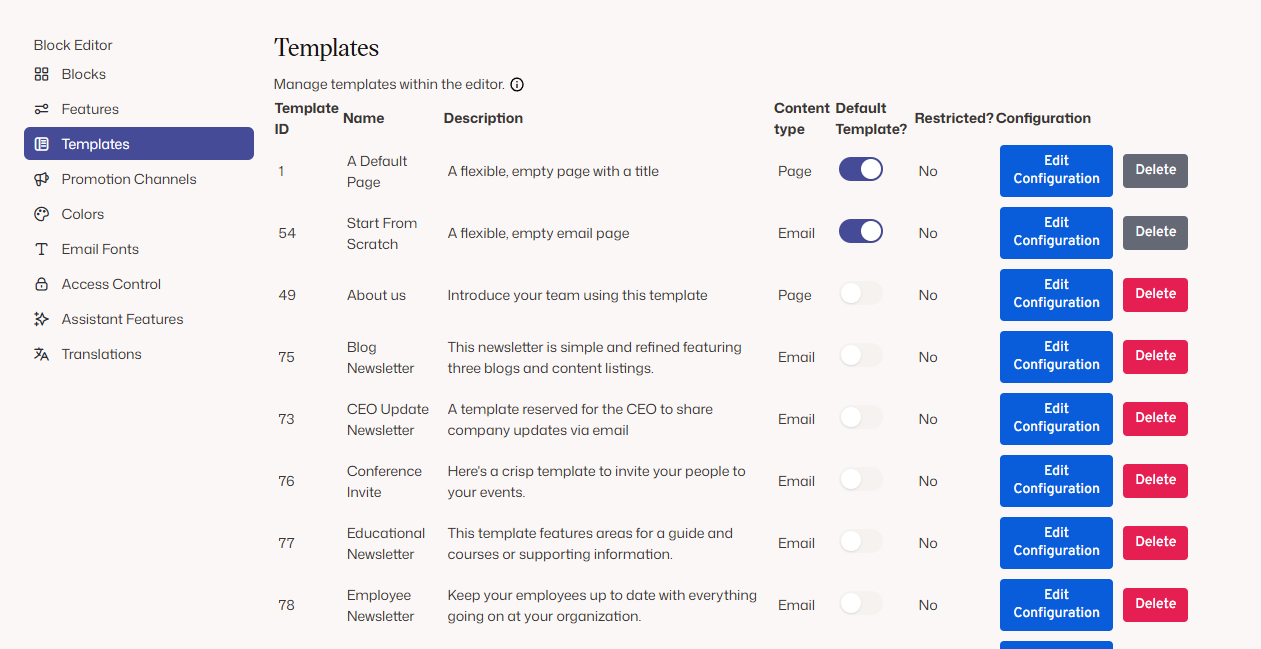
Note: You can add metadata requirements to existing or new templates, but the requirements only apply to pages created after the template has been saved with the requirements.
You can find the metadata requirements configuration under the Edit Configuration button of the desired template. It appears at the bottom of the side panel, under Metadata Requirements.
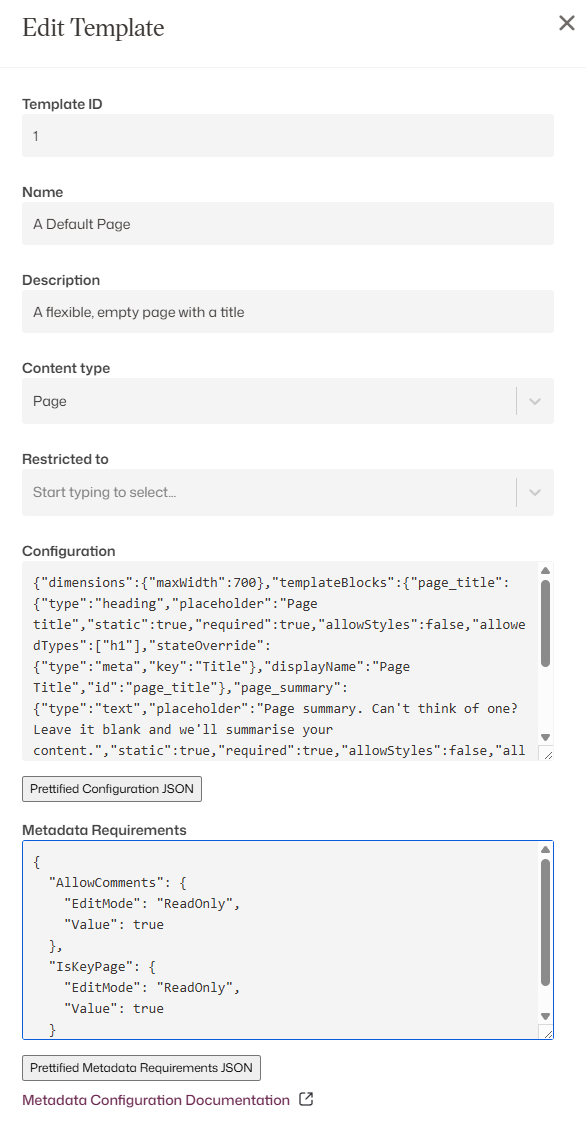
Metadata requirements are applied via JSON configuration. The JSON structure depends on the restrictions you want to apply to the fields (the Page Settings of the Block Editor page).
Important: The JSON properties and values are case-sensitive.
Types of configuration
You can specify two parameters for each field in the metadata requirements:
- EditMode determines what restrictions, if any, apply to a field. The four options are
Editable,Required,ReadOnlyandAppend. If not specified, fields areEditableby default. - Value sets the initial value for a given field.
Editable
This option is supported for all fields. By default, all fields are Editable and can be freely changed by authors. Use this with Value if you need to set initial placeholder values inside the Page Settings that any author who uses the template can change.
| Scenario | Snippet |
|---|---|
| Editable (optional) field with no initial value set. | "Tags": { "EditMode": "Editable" } |
| Editable (optional) field with default placeholder value set. | "Tags": { "EditMode": "Editable", "Value": [1,2,3] } |
Required
Note:
Requiredis not supported on checkboxes and toggles, as they cannot be blank.
The Required state forces values to be supplied for the designated fields. They cannot be blank. You can use this together with a default value that is auto-populated, which the author can change. As long as a value is set, the Required state is satisfied and a page can be created.
| Scenario | Snippet |
|---|---|
| The field is mandatory with no value set. The page cannot be saved without a value being added. | "Tags": { "EditMode": "Required" } |
| The field is mandatory with a placeholder value set. This value can be changed but must be applied. | "Tags": { "EditMode": "Required", "Value": [1,2,3] } |
ReadOnly
This is supported in all fields. The ReadOnly state stops users from changing these fields when creating or modifying a page. It also supports a specific default value that the author cannot change. For example, it can enforce that all pages created from an "HR Template" include a "High Confidentiality" confidentiality rating that cannot be changed or removed.
| Scenario | Snippet |
|---|---|
| The field is read-only with no value set. | "Tags": { "EditMode": "ReadOnly" } |
| The field is read-only with mandatory values set. | "Tags": { "EditMode": "ReadOnly", "Value": [1,2,3] } |
Append
This is only supported on multi-select fields. The Append state lets you set fixed pre-defined values for a given Page Settings field for pages using this template, while allowing the author to expand the list by adding and removing their own additional options. The pre-defined values cannot be removed. For example, you could pre-assign the page with a list of topics that are always relevant to pages using this template, while letting users expand the list.
Note: Use
Appendin conjunction with theValueparameter. IfValueis not used, the field behaves as if it was set toEditable(the user can add and remove, and there are no pre-defined fixed values).
| Scenario | Snippet |
|---|---|
| The field has a mandatory set of values that are automatically set and cannot be removed. The user can add and remove their own values. In this example, options 1, 2 and 3 are automatically selected, but the user can add another option via the create or edit page. | "Tags": { "EditMode": "Append", "Value": [1,2,3] } |
Supported fields
The table below lists all fields currently supported via metadata requirements. Any field not in this list is not supported at present. You can apply restrictions to whichever fields you want and combine them in a single snippet.
Note: To request additional fields, contact your Customer Success Manager.
| Field (Page Settings) | Description | Supported types | Example JSON snippet |
|---|---|---|---|
| Discoverable | Options for this toggle are true (on) or false (off), without quotes. The Discoverable setting controls search visibility of content and is tightly coupled with Best Bets. Setting the value to false hides Best Bets from the Page Settings, because if the page is not visible in search, search-rank-influencing features do not apply. |
Editable, ReadOnly | "IsDiscoverable": { "EditMode": "ReadOnly", "Value": true } |
| Topics | The value is a comma-separated list of Topic IDs. Find the IDs in Control Panel > Topics > Export. | Editable, Required, ReadOnly, Append | "Tags": { "EditMode": "Editable", "Value": [1,2,3] } |
| Classification | The value is the ID of a specific classification rating. Find the values in Control Panel > Classifications > Export. | Editable, Required, ReadOnly | "ClassificationId": { "EditMode": "Editable", "Value": 10 } |
| Confidentiality Rating | The value is the ID of a specific confidentiality rating. Find the values in Control Panel > Confidentiality Ratings > Export. | Editable, Required, ReadOnly | "ConfidentialityId": { "EditMode": "Editable", "Value": 10 } |
| Best Bets | The value field is a list of best bets (wrapped in double quotes). | Editable, Required, ReadOnly, Append | "BestBets": { "EditMode": "Editable", "Value": ["Best bets 1", "Best bets 2", "Best bets 3"] } |
| Keywords | The value field is a list of keywords (wrapped in double quotes). | Editable, Required, ReadOnly, Append | "Keywords": { "EditMode": "Editable", "Value": ["Keyword 1", "Keyword 2"] } |
| Public Page | Options for this toggle are true (on) or false (off), without quotes. |
Editable, ReadOnly | "IsPublic": { "EditMode": "Editable", "Value": true } |
| Display Published As | Options for this toggle are true (on) or false (off), without quotes. Use this field with the Public Page feature. |
Editable, ReadOnly | "DisplayAuthor": { "EditMode": "Editable", "Value": true } |
| Display Facebook Share | Options for this toggle are true (on) or false (off), without quotes. Use this field with the Public Page feature. |
Editable, ReadOnly | "DisplayFacebookShare": { "EditMode": "Editable", "Value": true } |
| Display LinkedIn Share | Options for this toggle are true (on) or false (off), without quotes. Use this field with the Public Page feature. |
Editable, ReadOnly | "DisplayLinkedInShare": { "EditMode": "Editable", "Value": true } |
| Display Twitter Share | Options for this toggle are true (on) or false (off), without quotes. Use this field with the Public Page feature. |
Editable, ReadOnly | "DisplayTwitterShare": { "EditMode": "Editable", "Value": true } |
| Allow Comments | Options for this toggle are true (on) or false (off), without quotes. |
Editable, ReadOnly | "AllowComments": { "EditMode": "Editable", "Value": true } |
| Is Key Page | Options for this toggle are true (on) or false (off), without quotes. |
Editable, ReadOnly | "IsKeyPage": { "EditMode": "Editable", "Value": true } |
You can use multiple snippets together to create a tailored set of restrictions for your template. Wrap them together in curly brackets { } with a comma separating each snippet. The example below shows both Allow Comments and Is Key Page set to ReadOnly. Note the opening and closing brackets and the separating comma.
{
  "AllowComments": {
    "EditMode": "ReadOnly",
    "Value": true
  },
  "IsKeyPage": {
    "EditMode": "ReadOnly",
    "Value": true
  }
}
This snippet locks these fields, so the author cannot set them when creating a page based on this template. The fields also have their default value set to true and appear in the Page Settings as toggled on.
Warning: Each field requirement can appear in the JSON configuration only once. There should never be more than one of each field, such as
AllowCommentsorIsKeyPage.
Example metadata requirements
The following sample JSON snippets help you start your metadata requirements quickly. Where the values are numbers or lists of numbers, adjust them to the values in your intranet.
All fields set to Editable
{
  "Tags": {
    "EditMode": "Editable",
    "Value": [4203, 4206, 4207]
  },
  "ClassificationId": {
    "EditMode": "Editable",
    "Value": 2069
  },
  "ConfidentialityId": {
    "EditMode": "Editable",
    "Value": 2068
  },
  "BestBets": {
    "EditMode": "Editable",
    "Value": ["Leave of absence", "Parental leave", "Vacation"]
  },
  "IsPublic": {
    "EditMode": "Editable",
    "Value": true
  },
  "DisplayAuthor": {
    "EditMode": "Editable",
    "Value": true
  },
  "DisplayFacebookShare": {
    "EditMode": "Editable",
    "Value": true
  },
  "DisplayLinkedInShare": {
    "EditMode": "Editable",
    "Value": true
  },
  "DisplayTwitterShare": {
    "EditMode": "Editable",
    "Value": true
  },
  "AllowComments": {
    "EditMode": "Editable",
    "Value": true
  },
  "IsKeyPage": {
    "EditMode": "Editable",
    "Value": true
  },
  "Keywords": {
    "EditMode": "Editable",
    "Value": ["HR policy"]
  },
  "IsDiscoverable": {
    "EditMode": "Editable",
    "Value": true
  }
}
All fields set to ReadOnly
{
  "Tags": {
    "EditMode": "ReadOnly",
    "Value": [4203, 4206, 4207]
  },
  "ClassificationId": {
    "EditMode": "ReadOnly",
    "Value": 2069
  },
  "ConfidentialityId": {
    "EditMode": "ReadOnly",
    "Value": 2068
  },
  "BestBets": {
    "EditMode": "ReadOnly",
    "Value": ["Leave of absence", "Parental leave", "Vacation"]
  },
  "IsPublic": {
    "EditMode": "ReadOnly",
    "Value": true
  },
  "DisplayAuthor": {
    "EditMode": "ReadOnly",
    "Value": true
  },
  "DisplayFacebookShare": {
    "EditMode": "ReadOnly",
    "Value": true
  },
  "DisplayLinkedInShare": {
    "EditMode": "ReadOnly",
    "Value": true
  },
  "DisplayTwitterShare": {
    "EditMode": "ReadOnly",
    "Value": true
  },
  "AllowComments": {
    "EditMode": "ReadOnly",
    "Value": true
  },
  "IsKeyPage": {
    "EditMode": "ReadOnly",
    "Value": true
  },
  "Keywords": {
    "EditMode": "ReadOnly",
    "Value": ["HR policy"]
  },
  "IsDiscoverable": {
    "EditMode": "ReadOnly",
    "Value": true
  }
}
All fields set to Required (where applicable)
{
  "Tags": {
    "EditMode": "Required",
    "Value": [4203, 4206, 4207]
  },
  "ClassificationId": {
    "EditMode": "Required",
    "Value": 2069
  },
  "ConfidentialityId": {
    "EditMode": "Required"
  },
  "BestBets": {
    "EditMode": "Required",
    "Value": ["Leave of absence", "Parental leave", "Vacation"]
  },
  "Keywords": {
    "EditMode": "Required",
    "Value": ["HR policy"]
  }
}
All fields set to Append (where applicable)
{
  "Tags": {
    "EditMode": "Append",
    "Value": [4203, 4206, 4207]
  },
  "BestBets": {
    "EditMode": "Append",
    "Value": ["Leave of absence", "Parental leave", "Vacation"]
  },
  "Keywords": {
    "EditMode": "Append",
    "Value": ["HR policy"]
  }
}
FAQs
What happens to existing pages if a change is applied to a template's metadata requirements?
All pages have their template's metadata requirements enforced even after the page has been created. Template metadata applies both on page creation and on page edit. For example, if you add a new required field to the template, it is now required on all existing pages the next time they are edited, as the pages remember which template they are associated with.
I changed my template and now I cannot save some of my pages
If you change a template to make a field non-editable (for example, a field is now ReadOnly with a specific pre-defined value), revert the template to the previous configuration. Then update the pages to comply with the new pre-defined value you want to enforce, save the page, and add the metadata requirement back into the template. You can then make changes to existing pages going forward. This is expected behaviour to avoid unexpected or silent overrides to metadata due to template changes for existing content, and to ensure the changes are reviewed by the author first.
What if one of the IDs I have used is wrong?
If you use an incorrect ID in the metadata requirements, you can still save the template. However, when creating a page based on this template, the ID is skipped. It shows nothing and allows page creation, even if it is non-editable.
What if one of the IDs I have used gets deleted?
If an ID is deleted after creation, the ID is skipped, shows nothing and still allows pages to be created. For a single-select field, nothing is selected. For a multi-select field, only the valid options are pre-selected.
Best Bets is required but I cannot find it
Best Bets is usually located at the bottom of the Page Settings tab. If you cannot find it, it is usually hidden by the Discoverable toggle. Toggling Discoverable on shows the Best Bets box. If you cannot change the Discoverable toggle, it may have an EditMode of ReadOnly in the template. In that case, change the template to either change the Best Bets EditMode from Required or change the EditMode on Discoverable from ReadOnly.
Note: The Discoverable setting controls search visibility of content and is tightly coupled with Best Bets. Setting the value to
falsehides Best Bets from the Page Settings, because if the page is not visible in search, search-rank-influencing features do not apply.
My JSON looks correct but it is not working
Double-check the casing of each field (EditMode, Value) and the values of EditMode. They are case-sensitive and will not work if the casing is incorrect. You can also use a free online JSON validator to check for structural issues, such as the wrong type of quotes or missing commas.
I have added metadata requirements but some are not showing correctly
This is usually because there is a duplicate in the metadata requirements JSON. Each field setting can appear only once, so including a field twice results in unexpected behaviour. If a field is specified twice or more, the first rule at the top of the JSON snippet applies.