TradingView stock app
Before you start
- You need access to the Control Panel with permission to manage the App Development Kit.
Note: This example is a sample, not officially supported by Interact Technical Support. Review and test it with your development team before use.
Overview
A common request is the ability to embed external systems into the platform, whether provided by third-party suppliers or by other internal teams. You can do this by creating a Custom App with the ADK.
Using the steps below, you can add any of the TradingView widgets to your intranet.
Common widgets
- Ticker widget — customise the widget on TradingView
- Mini chart widget — customise the widget on TradingView
- Symbol info widget — customise the widget on TradingView
Building your Custom App
Follow the steps below to show any of the widgets on your intranet.
Step 1: Pick a widget
You can find a list of all the widgets on TradingView. There are two types of widget: the iframe and the web component. The iframe type is the one that is supported. In this example, we embed the Single Ticker Widget.
Step 2: Customise the widget
Once you have selected a widget, customise it. Configure the on-screen widget options within TradingView, then select Apply.
Step 3: Generate the widget
Once you have generated the widget, it creates the embed code below:
<!-- TradingView Widget BEGIN -->
<div class="tradingview-widget-container">
  <div class="tradingview-widget-container__widget"></div>
  <div class="tradingview-widget-copyright"><a href="https://www.tradingview.com/symbols/FX-EURUSD/" rel="noopener" target="_blank"><span class="blue-text">EURUSD rate</span></a><span class="blue-text">by TradingView</span></div>
  <script type="text/javascript" src="https://s3.tradingview.com/external-embedding/embed-widget-single-quote.js" async>
  {
  "symbol": "FX:EURUSD",
  "width": 350,
  "locale": "uk",
  "colorTheme": "light",
  "isTransparent": false,
}
  </script>
</div>
<!-- TradingView Widget END -->
You need the JSON options object from the code above:
{
  "symbol": "FX:EURUSD",
  "width": 350,
  "locale": "uk",
  "colorTheme": "light",
  "isTransparent": false
}
You also need the widget name from the generated embed code. Find it in the script src attribute URL. Using our example:
<!-- Widget HTML -->
<script type="text/javascript" src="https://s3.tradingview.com/external-embedding/embed-widget-single-quote.js" async></script>

<!-- Widget URL -->
https://s3.tradingview.com/external-embedding/embed-widget-single-quote.js

<!-- Widget Name -->
single-quote
Now that you have the widget name and JSON options, generate the embed URL. The TradingView embed is in the following format:
https://s.tradingview.com/embed-widget/{embed-name}/?locale={locale}#{urlEncodedOptions}
Swapping in the widget name and the locale (found in the JSON options) from above, this is our widget URL:
https://s.tradingview.com/embed-widget/single-quote/?locale=uk#
Now pass the JSON widget options in the URL. The JSON options must be URL encoded — you can use a tool such as URL Encoder Online.
// Input
{
  "symbol": "FX:EURUSD",
  "width": 350,
  "locale": "uk",
  "colorTheme": "light",
  "isTransparent": false
}

// Encoded
%7B%0A%20%20%22symbol%22%3A%20%22FX%3AEURUSD%22%2C%0A%20%20%22width%22%3A%20350%2C%0A%20%20%22locale%22%3A%20%22uk%22%2C%0A%20%20%22colorTheme%22%3A%20%22light%22%2C%0A%20%20%22isTransparent%22%3A%20false%0A%7D
Once the options are encoded, you can finish the embed URL:
// Embed URL - Format
https://s.tradingview.com/embed-widget/{embed-name}/?locale={locale}#{urlEncodedOptions}

// Embed URL
https://s.tradingview.com/embed-widget/single-quote/?locale=uk#%7B%0A%20%20%22symbol%22%3A%20%22FX%3AEURUSD%22%2C%0A%20%20%22width%22%3A%20350%2C%0A%20%20%22locale%22%3A%20%22uk%22%2C%0A%20%20%22colorTheme%22%3A%20%22light%22%2C%0A%20%20%22isTransparent%22%3A%20false%0A%7D
If a widget does not display the symbol specified in the widget options, for example the Symbol Info Widget, add the symbol parameter to the embed URL. The URL should then be:
// Embed URL - Format
https://s.tradingview.com/embed-widget/{embed-name}/?locale={locale}&symbol={symbol}#{urlEncodedOptions}
Replace {symbol} with the symbol value from the JSON options. Do not remove the double quotes. Below is an example embed URL for the Symbol Info Widget:
// Embed URL
https://s.tradingview.com/embed-widget/symbol-info/?locale=uk&symbol=NASDAQ:MSFT#%7B%0A%20%20%22symbol%22%3A%20%22NASDAQ%3AMSFT%22%2C%0A%20%20%22width%22%3A%20550%2C%0A%20%20%22locale%22%3A%20%22uk%22%2C%0A%20%20%22colorTheme%22%3A%20%22light%22%2C%0A%20%20%22isTransparent%22%3A%20false%0A%7D
Step 4: Create the Custom App
Within your intranet, go to Control Panel > App Development Kit and select Add Custom App.
Give your Custom App a name such as TradingView Stocks.
Paste the following code snippet into the Application Code editor, substituting the TradingView embed URL you created above:
<iframe src="{{embed_url}}" />
Save the Custom App.
Step 5: Add the widget to a homepage
Navigate to the homepage you want to use the app on. Select the settings cog in the bottom right, then Add Widget. Your new Custom App widget is available in this list:
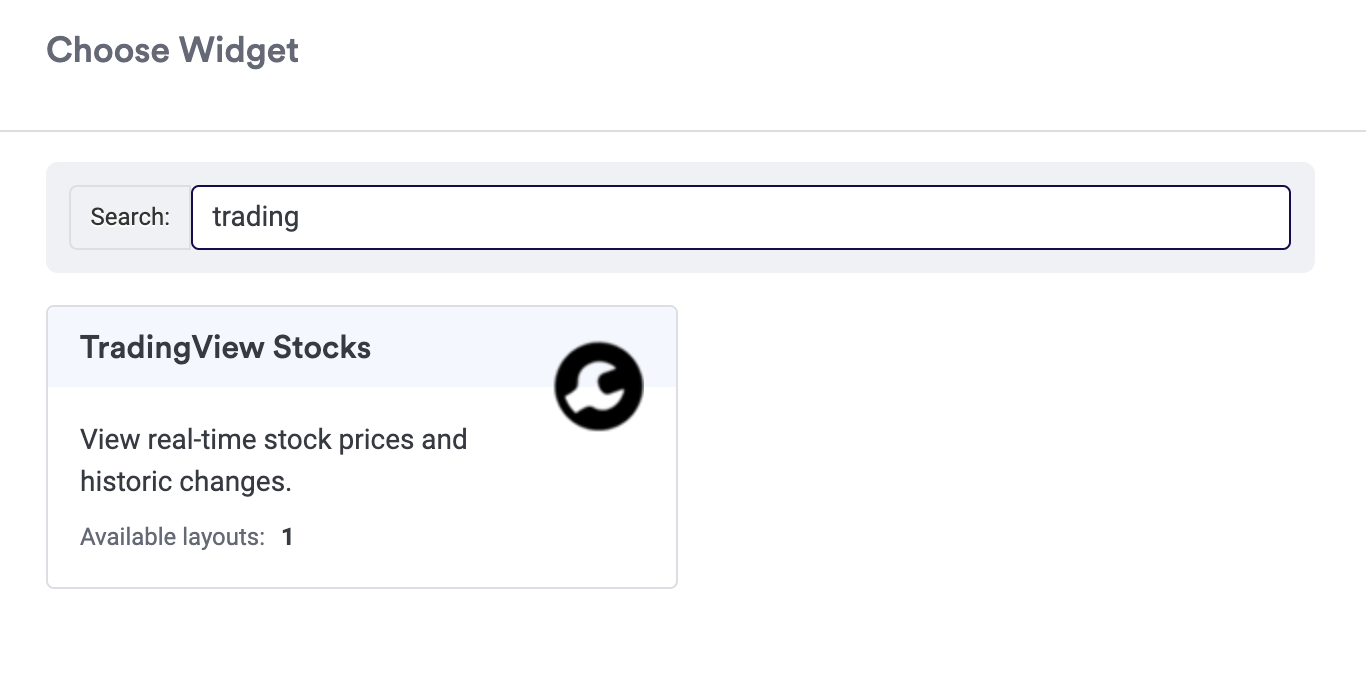
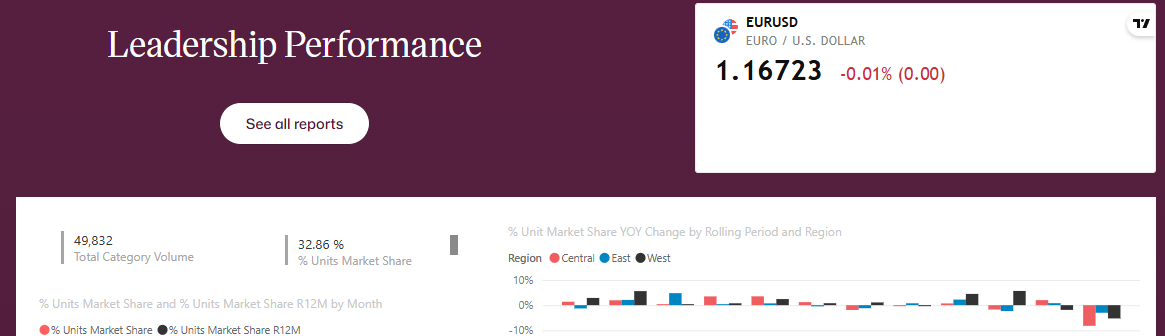
Select the widget. You should now see your new widget within the layout:
Additional widgets
- Market overview widget — customise the widget on TradingView
- Economic calendar widget — customise the widget on TradingView