Box
Let users search and open their Box files from your intranet using a Box custom app.
The Box integration lets users search and open their files from Box. Once Box is enabled, it appears on the search page, allowing integrated searches within Interact.
Before you start
You need:
- A Power User account in Interact with access to Control Panel > Marketplace.
- An administrator account in the Box Developer Console with permission to create custom apps.
- Your intranet URL to hand, to build the OAuth 2.0 redirect URI.
Step 1: Configure the Box app
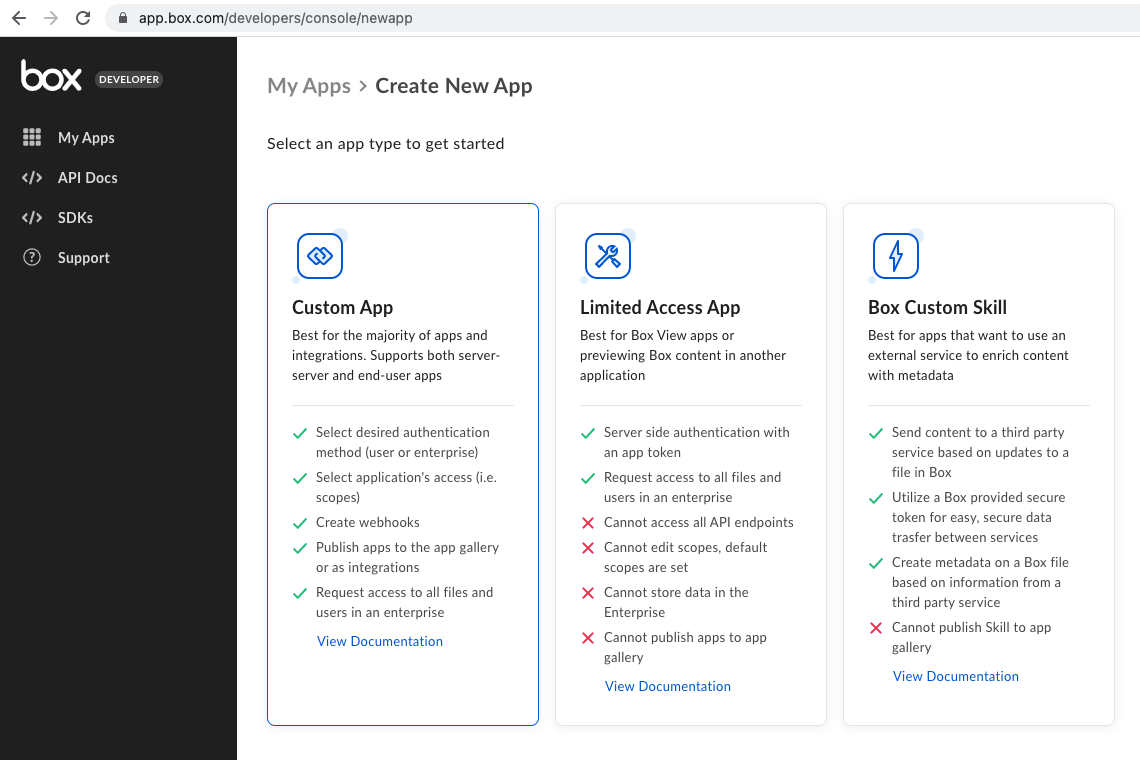
- In the Box Developer Console, create a new custom app.
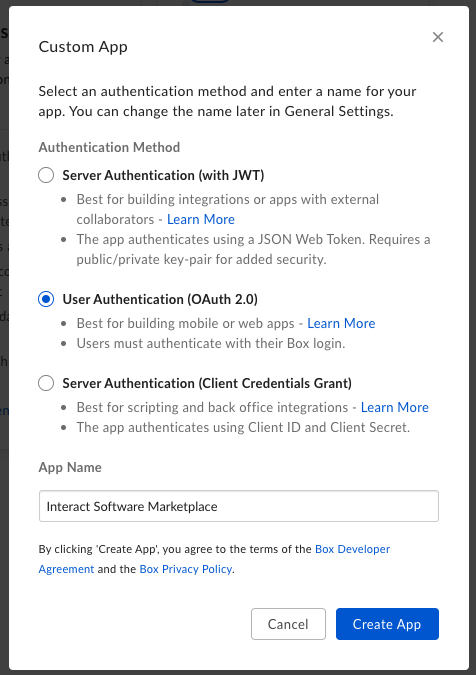
- Specify User Authentication (OAuth 2.0) as the authentication method.
- Specify an app name.
- Select Create App.
- Go to the Configuration tab.
- Specify the details outlined in the table below.
- Select Save.
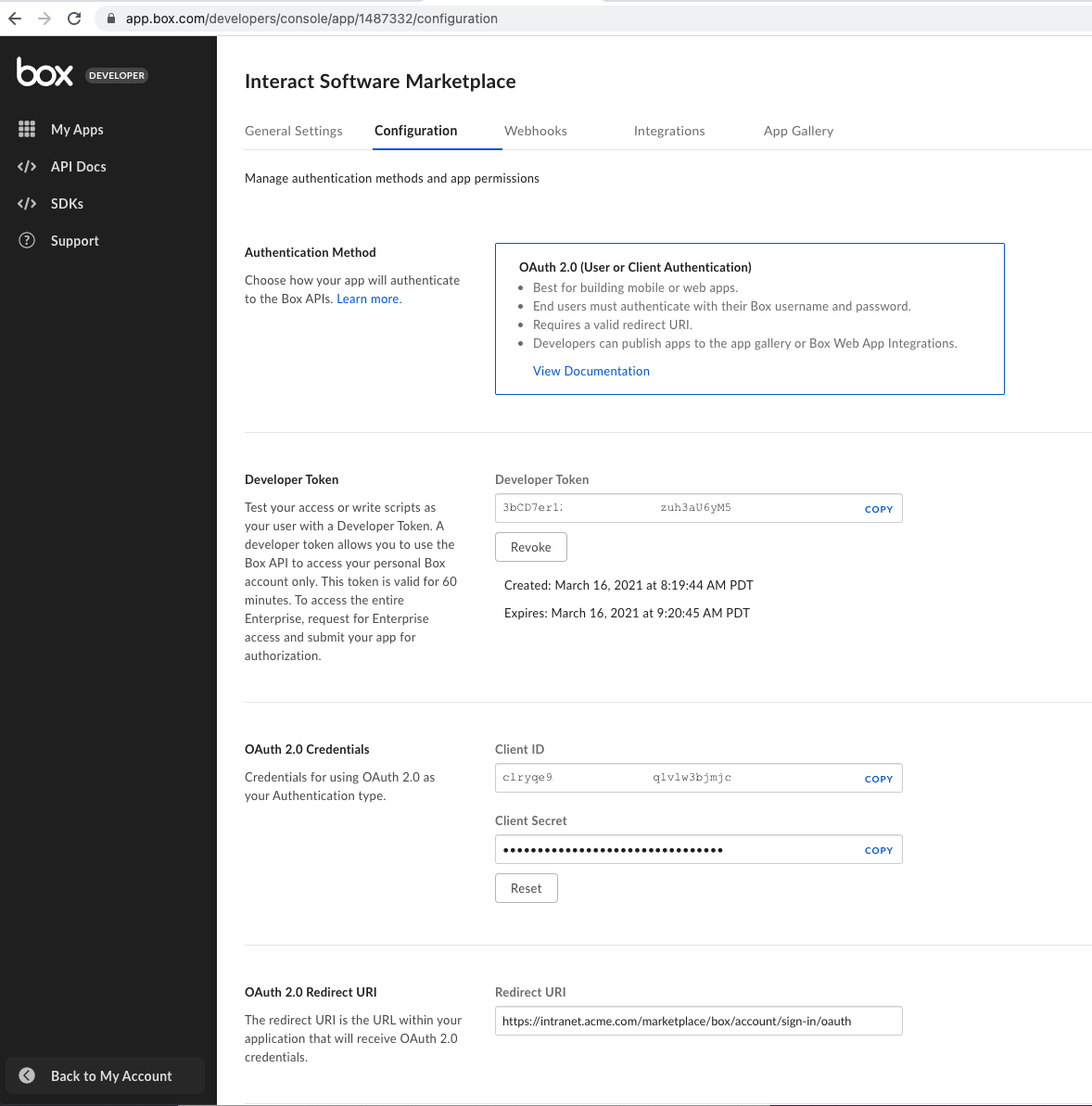
| Field | Value | Example |
|---|---|---|
| OAuth 2.0 Redirect URI | https://{{intranet_url}}/marketplace/box/account/sign-in/oauth |
https://intranet.acme.com/marketplace/box/account/sign-in/oauth |
Step 2: Configure the Interact Marketplace
- Go to Control Panel > Marketplace and select Box.
- Specify the Client ID and Client Secret from the Box custom app.
- Select Save.
Note: To enable the Box tab on the search page, contact Interact Support.
Related
Section: Integrations