Salesforce
The Salesforce widget lets a user search accounts, leads, tasks and campaigns. Users connect to Salesforce using Salesforce's OAuth 2.0 login. Before the widget works in Interact, you must create a connected app within your Salesforce instance.
Before you start
You need:
- A Power User account in Interact with access to Control Panel > Marketplace.
- An administrator account in your Salesforce instance with permission to create connected apps.
- A Salesforce edition that supports the REST API (see below).
- Your intranet URL to hand, to build the callback URL.
Important: Make sure your Salesforce instance supports the REST API and that it is enabled. The following editions generally do not support the REST API: Group Edition, Essentials Edition and Professional Edition (available via additional purchase). The following editions generally do support the REST API: Enterprise Edition, Unlimited Edition, Developer Edition and Performance Edition.
Step 1: Create a connected app
- Go to Setup > App Manager.
- Create a new connected app.
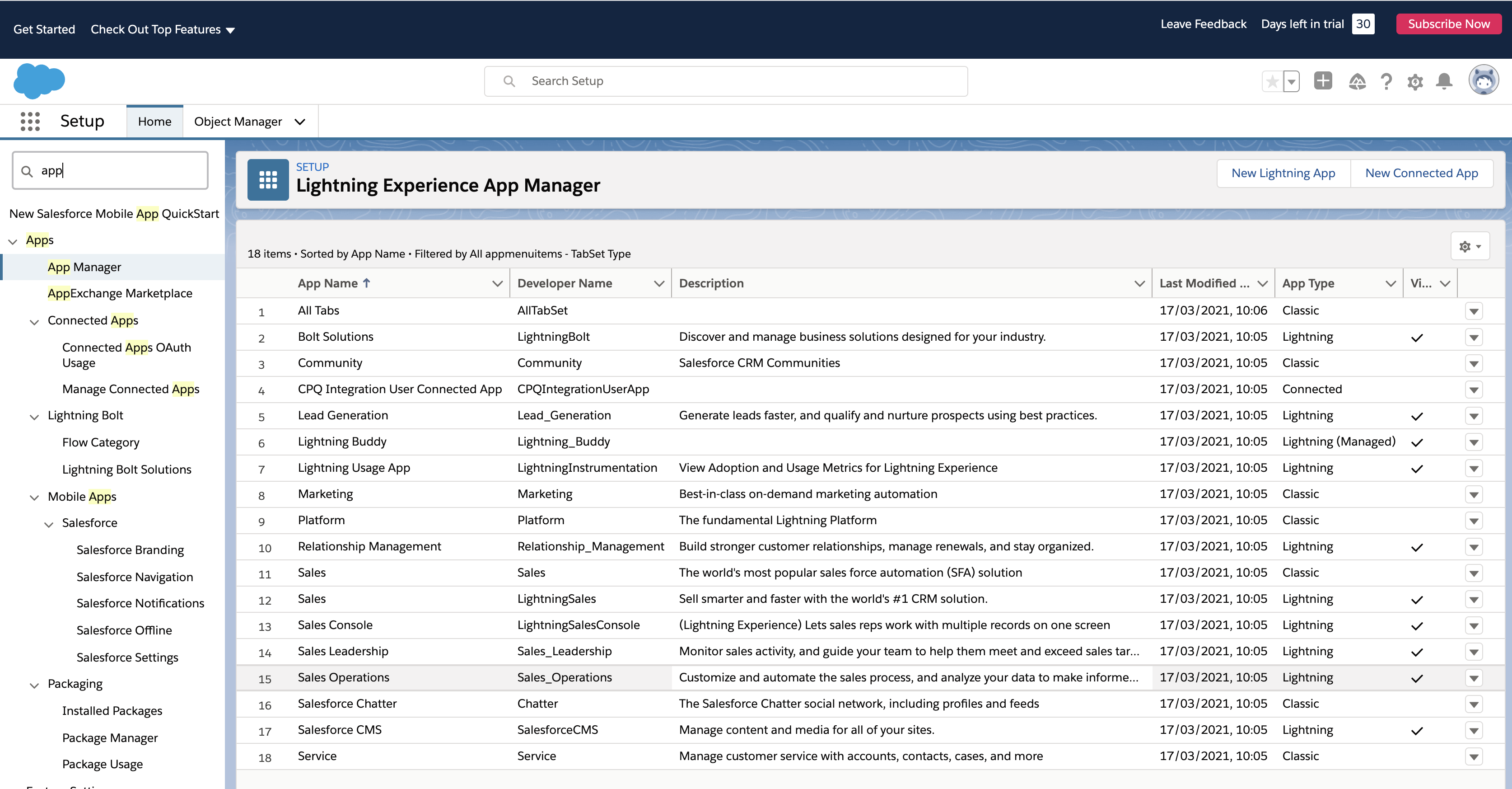
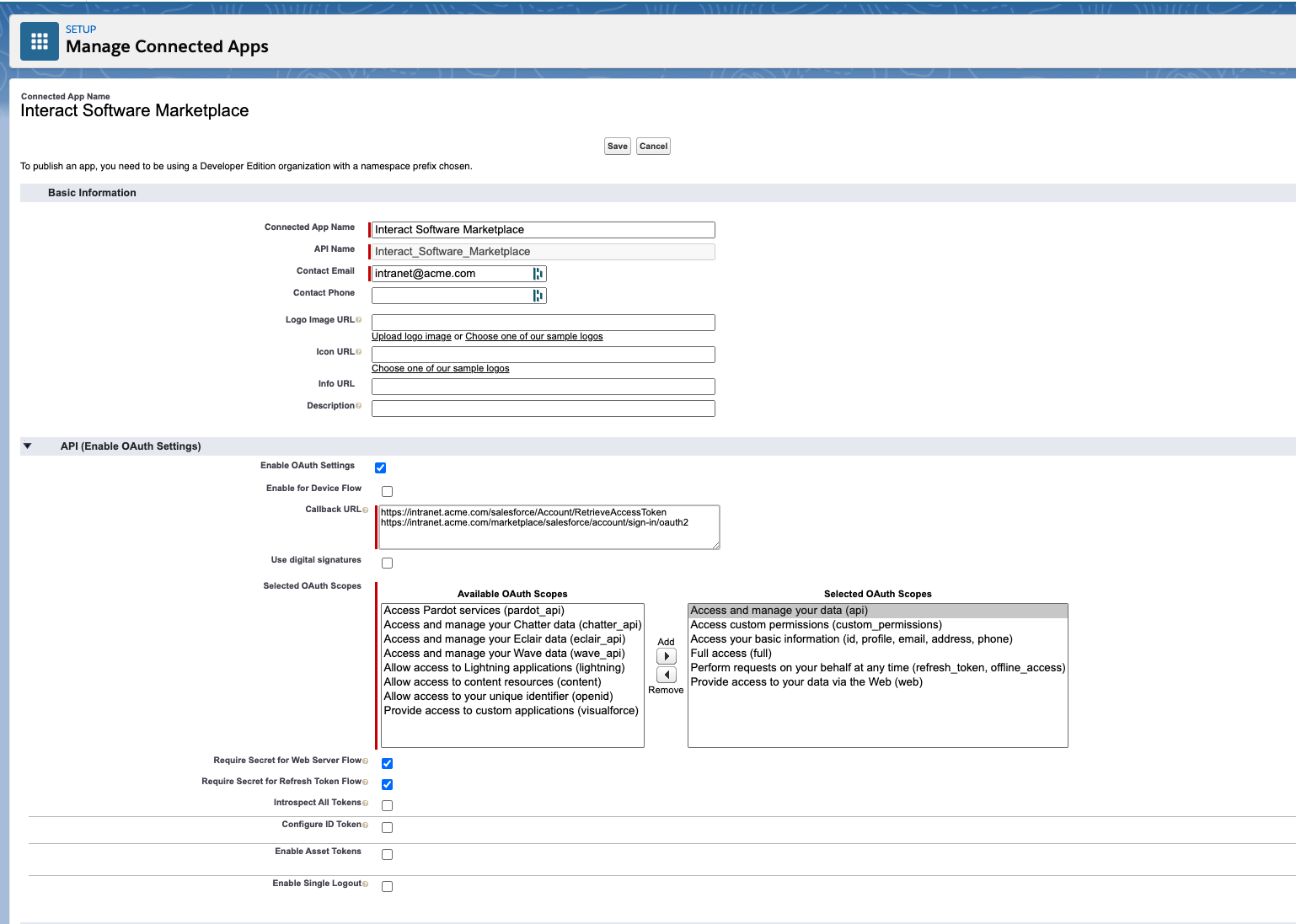
- Use the table below to populate the required fields.
| Field | Value | Example |
|---|---|---|
| Connected App Name | The name of your application, which users will see | Acme Intranet |
| Contact Email | A contact for users of the application | support@acme.com |
| Enable OAuth Settings | Checked | Checked |
| Callback URL | Add https://{{intranet_url}}/marketplace/salesforce/account/sign-in/oauth2 |
https://intranet.acme.com/marketplace/salesforce/account/sign-in/oauth2 |
| Selected OAuth Scopes | Access and manage your data (api); Access custom permissions (custom_permissions); Access your basic information (id, profile, email, address, phone); Full access (full); Perform requests on your behalf at any time (refresh_token, offline_access); Provide access to your data via the Web (web) | |
| Require Secret for Web Server Flow | Checked | |
| Require Secret for Refresh Token Flow | Checked |
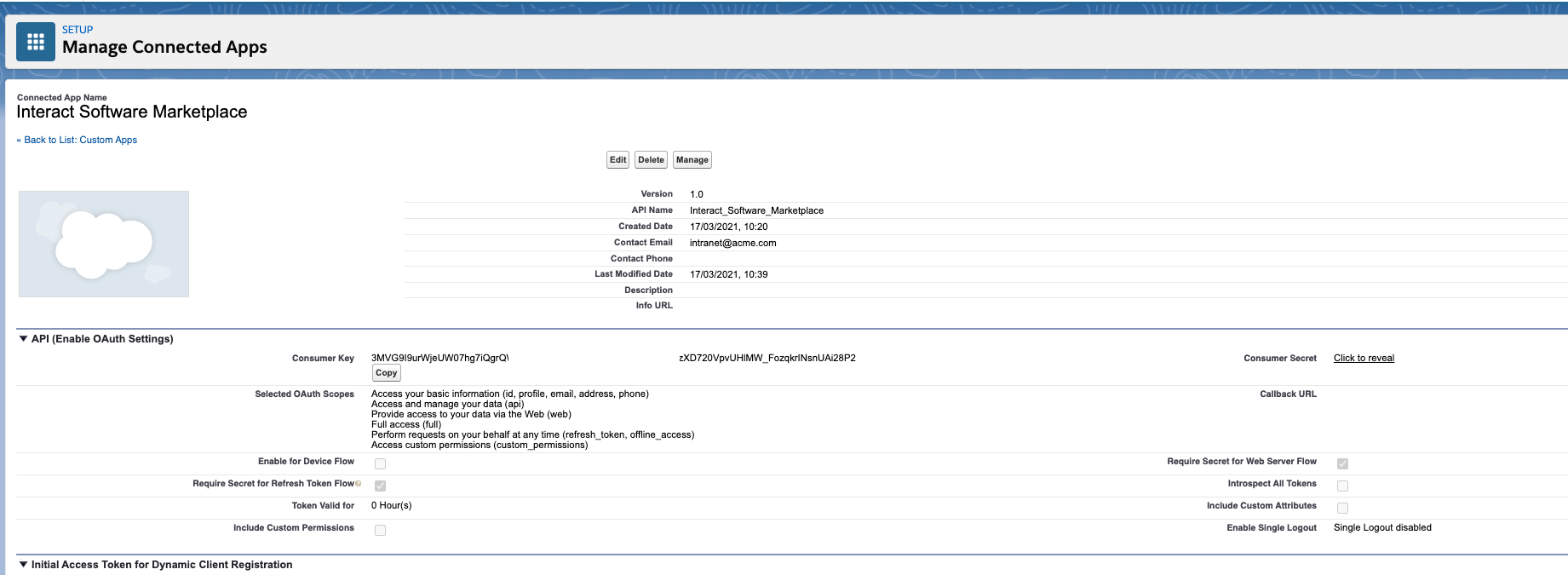
- Obtain the Consumer Key and Consumer Secret for the newly created connected app.
Step 2: Configure the Interact Marketplace
- Go to Control Panel > Marketplace and select Salesforce.
- Specify the Consumer Key and Consumer Secret from the Salesforce connected app.
- Select Save.
Important: Editing existing Marketplace configuration options forcibly purges the authentication tokens of all users who have used the integration. Those users must re-authenticate before they can use the integration again. Any scope changes apply immediately to new access tokens. Existing service-provider access tokens do not pick up changes until re-authentication.