SuccessFactors
The SuccessFactors integration pulls in useful information, such as user notifications and PTO balances, into your intranet. It uses OAuth for secure authentication via SAP Cloud Identity Services and SuccessFactors.
Before you start
You need:
- A Power User account in Interact with access to Control Panel > Marketplace.
- The Administrator Permissions > Manage Security > Manage SAML SSO Settings permission in SuccessFactors.
- The Administrator Permissions > Manage Security > Manage Application Security Feature Settings permission in SuccessFactors.
- An existing SAP SuccessFactors HCM suite hybrid SAML/OIDC application set up in Identity Authentication.
- Your intranet domain to hand, to build the redirect URI.
Step 1: Configure SAP Cloud Identity Services
- Log in to your SAP Cloud Identity Services tenant, for example
https://tenantzxcvb.accounts.ondemand.com. - Go to the Applications section and select New to create an OpenID Connect application, or use an existing one.
-
Configure the values as outlined below:
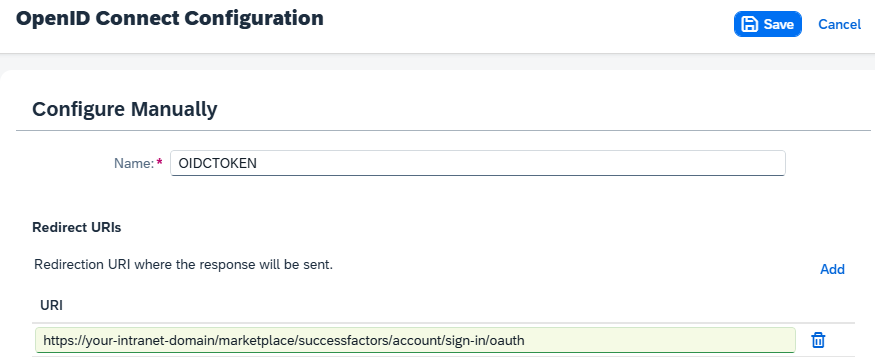
- Redirect URI (OpenID Connect Configuration > Redirect URIs):
https://{{intranet_url}}/marketplace/successfactors/account/sign-in/oauth
- Redirect URI (OpenID Connect Configuration > Redirect URIs):
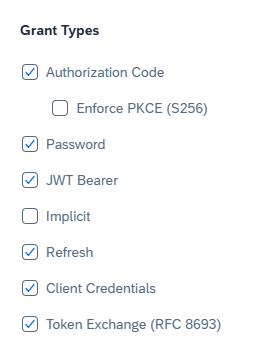
 - Grant Types (OpenID Connect Configuration > Grant Types): ensure the following grant types are enabled.
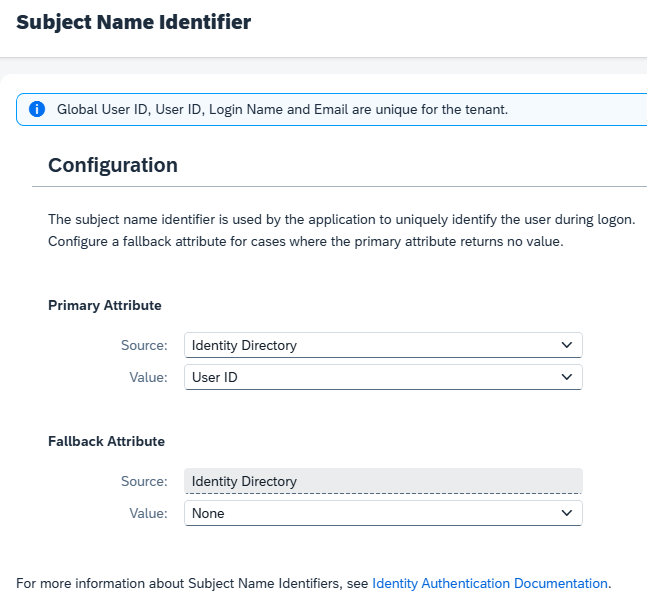
 - Subject Name Identifier:
 - Dependency (Dependencies > APIs): add the existing hybrid SAML/OIDC application as an API dependency and note down the name you give it.
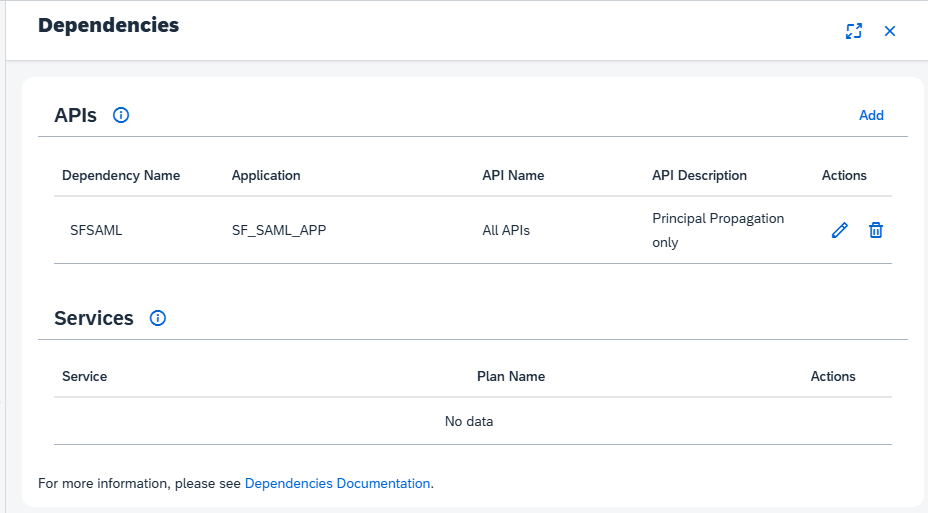 - API Permission (Provided APIs > API Permissions Groups > Allow all APIs for principal propagation): enabled.
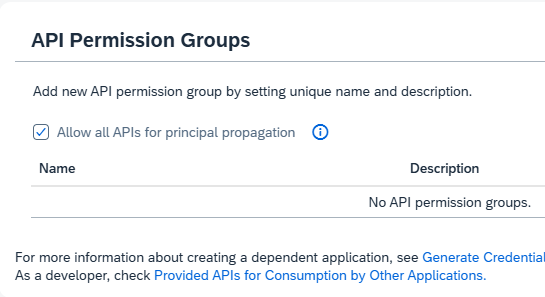
- Make a note of the Client ID, Client Secret, Dependency Name and URL. You will need these for the integration setup.
| Field | Where to find it | Example |
|---|---|---|
| Client ID | Client Authentication > Client ID | x12y34z56 |
| Client Secret | Client Authentication > Secrets | abcd1234efgh5678 |
| Dependency Name | Dependencies > APIs | SF_SAML |
| Authority URL | The base URL of your tenant | https://tenantzxcvb.accounts.ondemand.com |
Warning: Treat the Client Secret like a password. Store it securely and avoid sharing it unnecessarily.
Step 2: Configure SuccessFactors
- Log in to your SuccessFactors instance, for example
https://demo-eu10-sales.hr.cloud.sap/. - Go to Admin Center > Tools > Manage OAuth2 Client Applications and select the application used for the SAML/OIDC application set up in Identity Authentication.
- Make a note of the Application URL, Company ID and API Key. You will need these for the intranet setup.
| Field | Value | Example |
|---|---|---|
| API URI | Application URL of the OAuth app in SuccessFactors. It should match one of the server URLs in the list of SAP SuccessFactors API servers. | https://apisalesdemo2.successfactors.eu/ |
| Company ID | Your organisation's unique ID in SuccessFactors | SFCPART112233 |
| API Key | The key generated for API access | xyz789abc456 |
Important: Ensure the API Key has permissions to access user data and notifications to avoid issues with the integration.
Step 3: Configure the Interact Marketplace
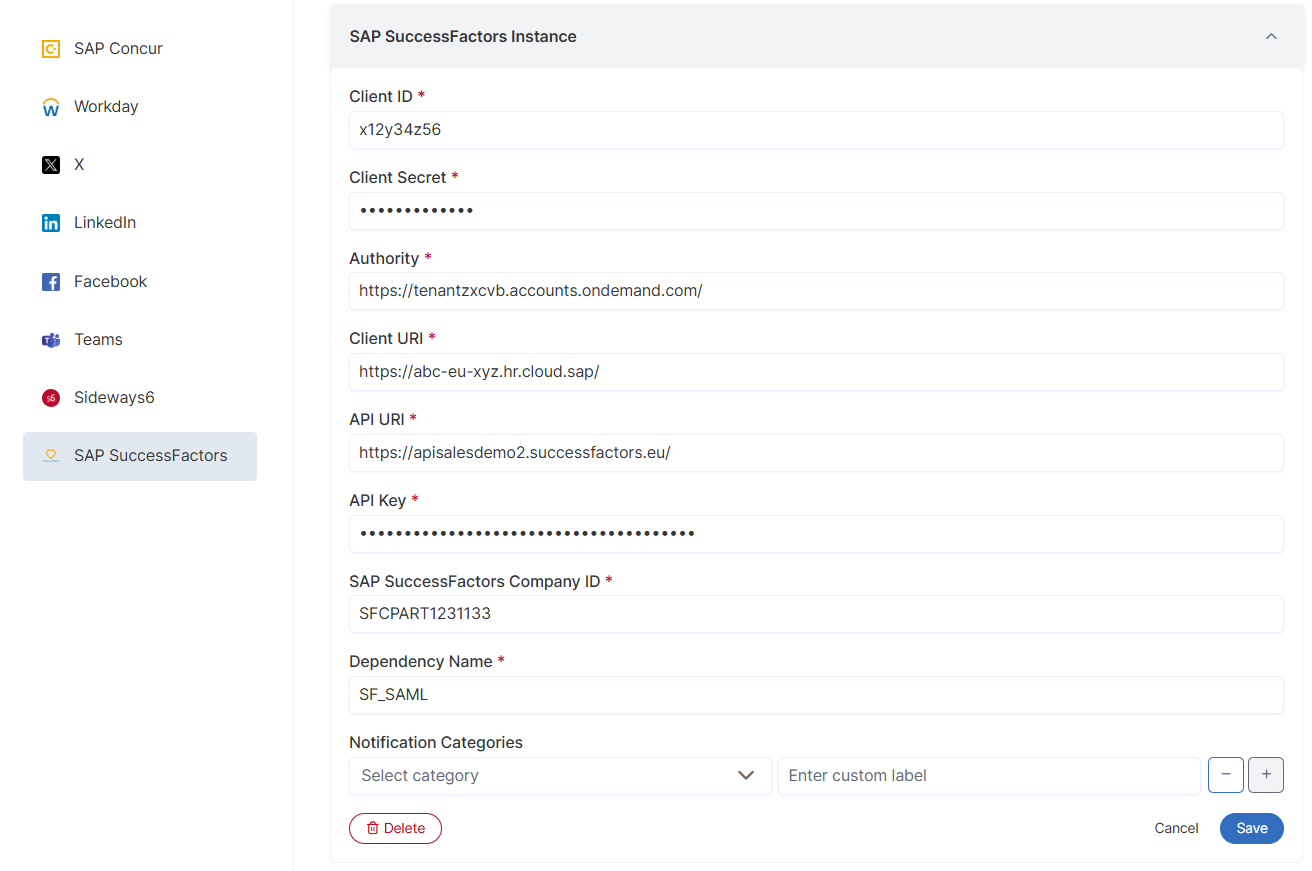
- Go to Control Panel > Marketplace and select SuccessFactors.
-
Specify the following from your SAP Cloud Identity Services and SuccessFactors setups:
- Client ID
- Client Secret
- Authority (for example
https://tenantzxcvb.accounts.ondemand.com) - Client URI
- API URI
- API Key
- SAP SuccessFactors Company ID
- Dependency Name
-
Select Save.
Important: Editing these settings invalidates existing authentication tokens for all users, requiring them to re-authenticate before using the integration again. Any scope changes apply to new tokens immediately.