The Google Marketplace integration lets you search Google Drive, Tasks and Calendars.
Before you start
You need:
- A Power User account in Interact with access to Control Panel > Marketplace.
- An administrator account in Google Cloud Platform with permission to create projects, enable APIs and create OAuth credentials.
- Your intranet URL to hand, to build the authorised origins and redirect URIs.
Step 1: Configure Google Cloud Platform APIs and services
- In Google Cloud Platform, go to the APIs & Services dashboard: https://console.cloud.google.com/apis/dashboard.
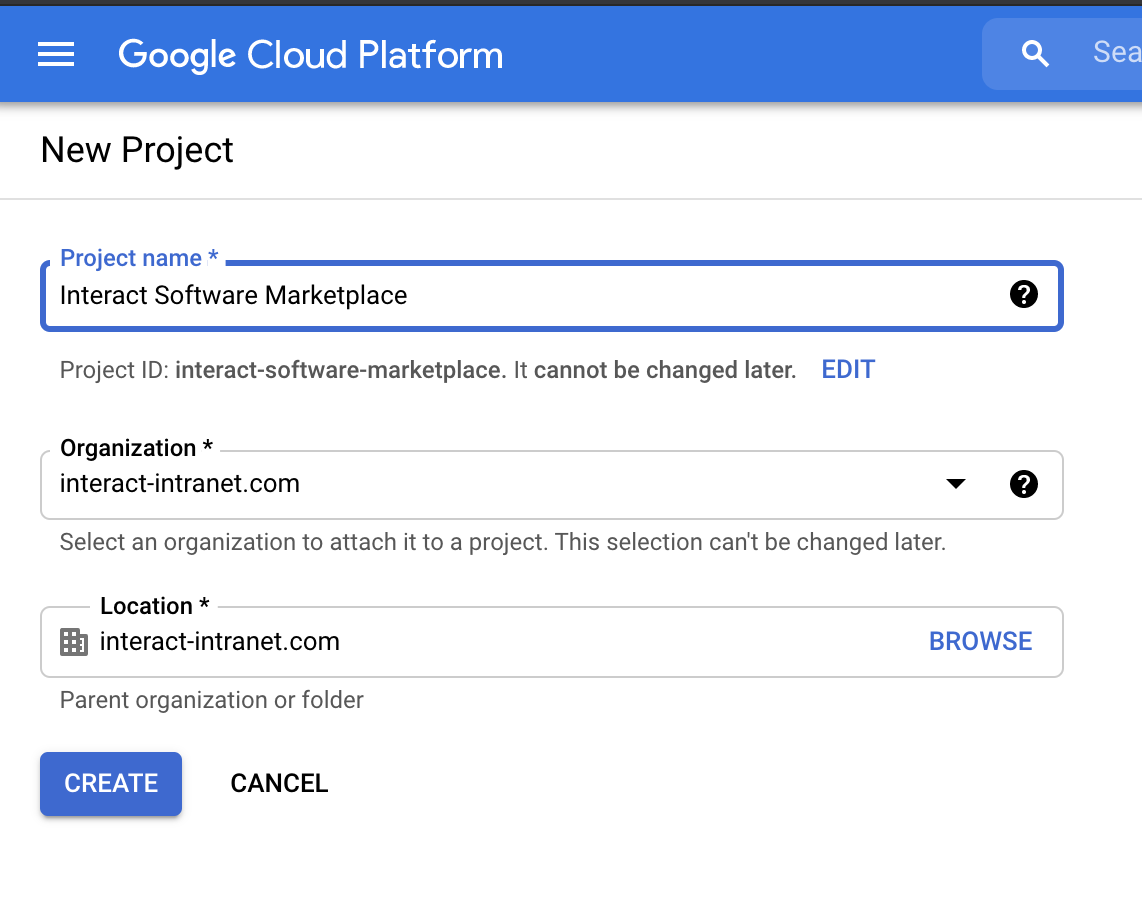
- Create a new project.
- Enable the required APIs:
- Go to the newly created project via the project dashboard.
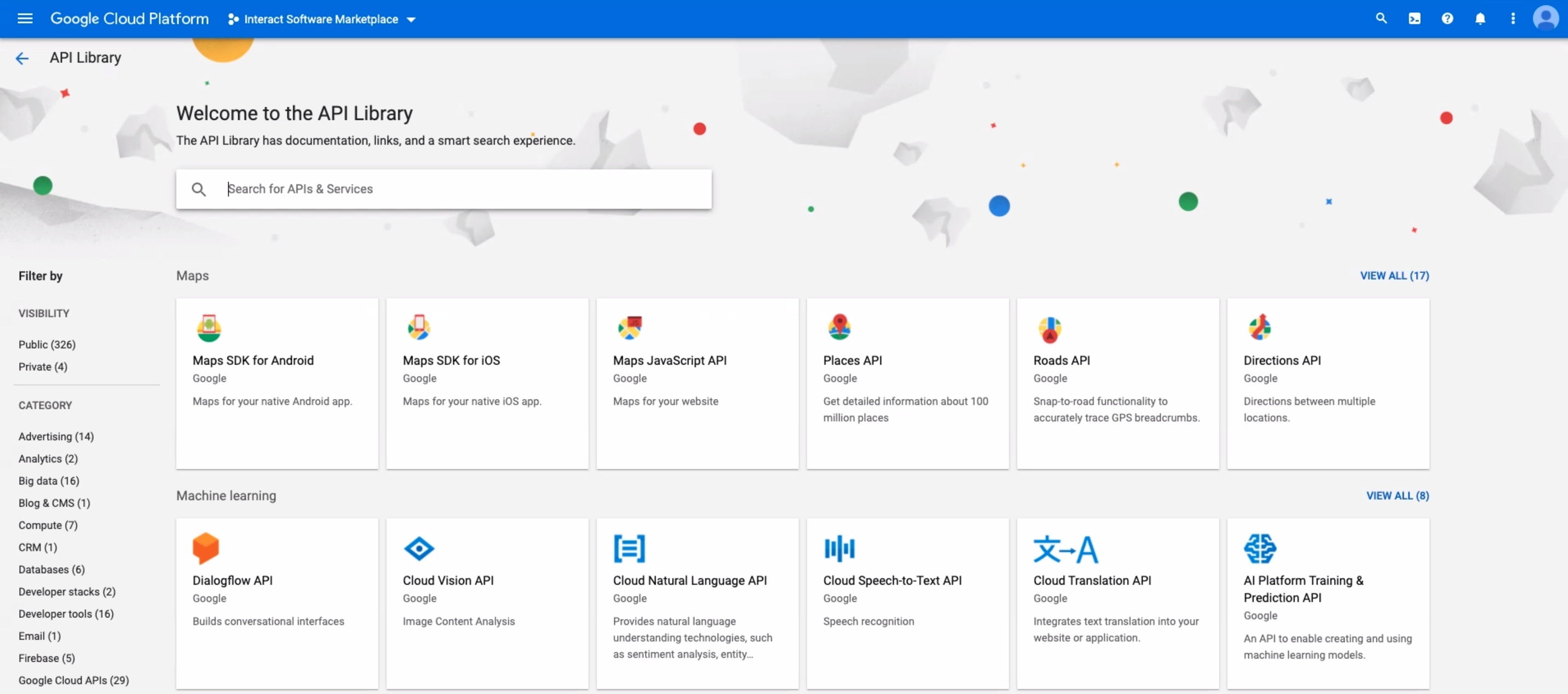
- Select Enable APIs and Services.
- Search for and enable the APIs you intend to access from Interact. The table below shows the APIs you can use with the Marketplace.
| Google API and service | Integration capability | Required scopes |
|---|---|---|
| Google Drive API | Search Google Drive directly using Interact's search feature. | DriveService.Scope.DriveFile, DriveService.Scope.Drive, DriveService.Scope.DriveScripts |
| Google Calendar API | Lets a user access and manage their calendar from within Interact. | CalendarService.Scope.CalendarReadonly |
| Google Tasks API | Lets a user access and manage their tasks from within Interact. | TasksService.Scope.Tasks |
Tip: Enable only the APIs you intend to use within Interact.
- Specify the user type:
- Go back to the APIs & Services dashboard.
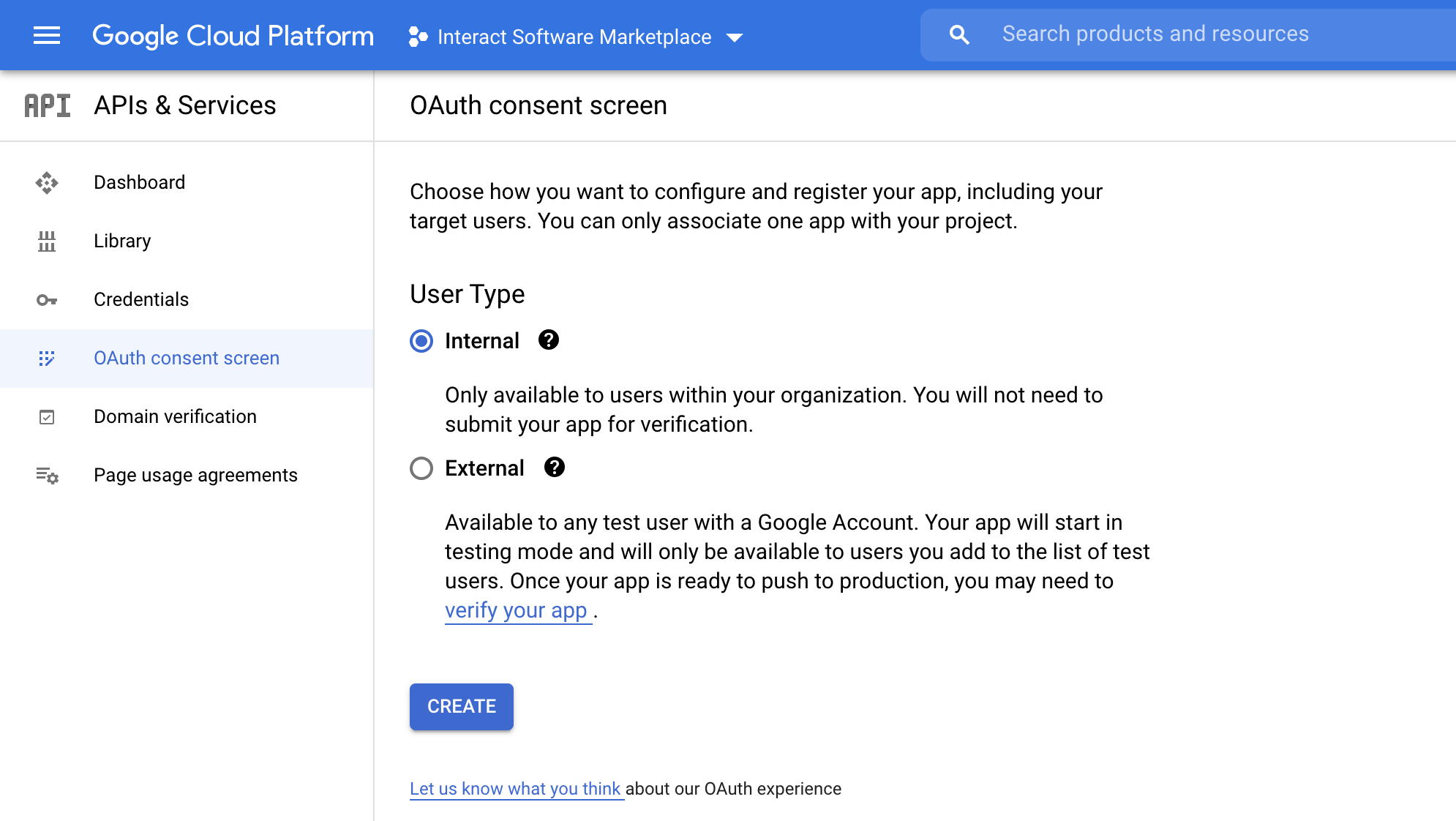
- Open the OAuth consent screen.
- Specify the user type for the targeted audience of the integration. If you are unsure, choose Internal.
- Enter your information for the OAuth consent screen, Scopes and Summary steps, then go back to the dashboard. By default, no scopes are needed.
- Configure the OAuth settings:
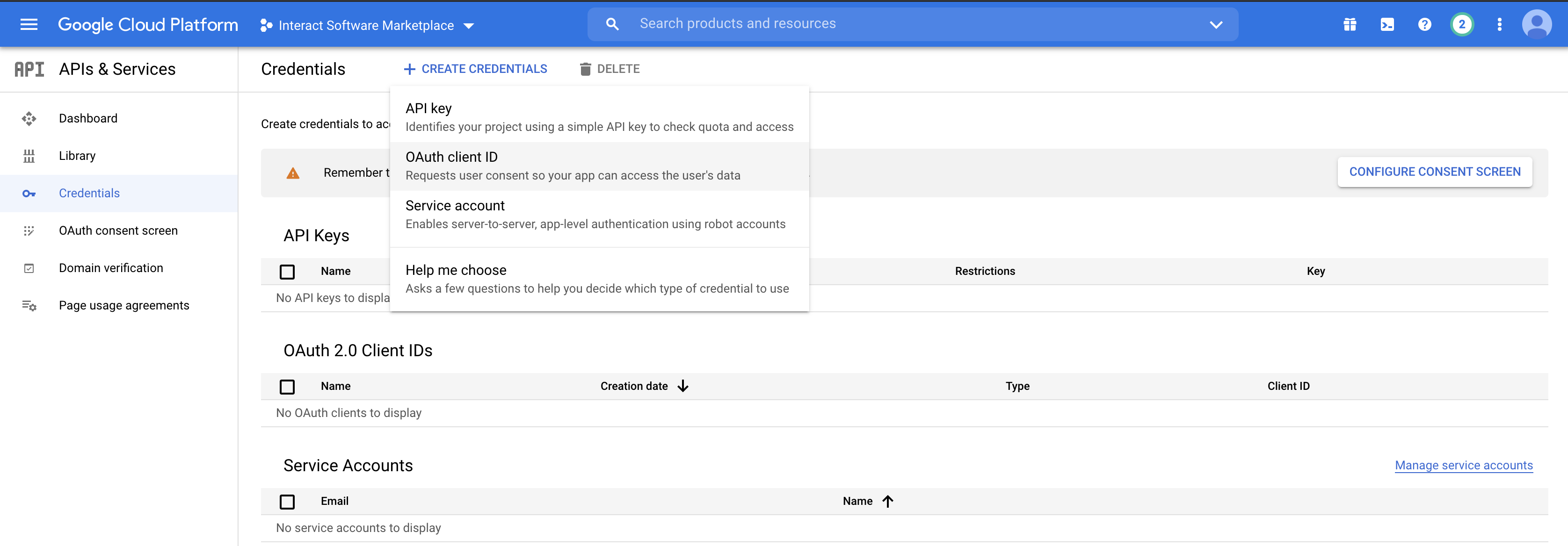
From the Credentials tab, select Create Credentials, then OAuth client ID. Specify the details outlined in the table below.
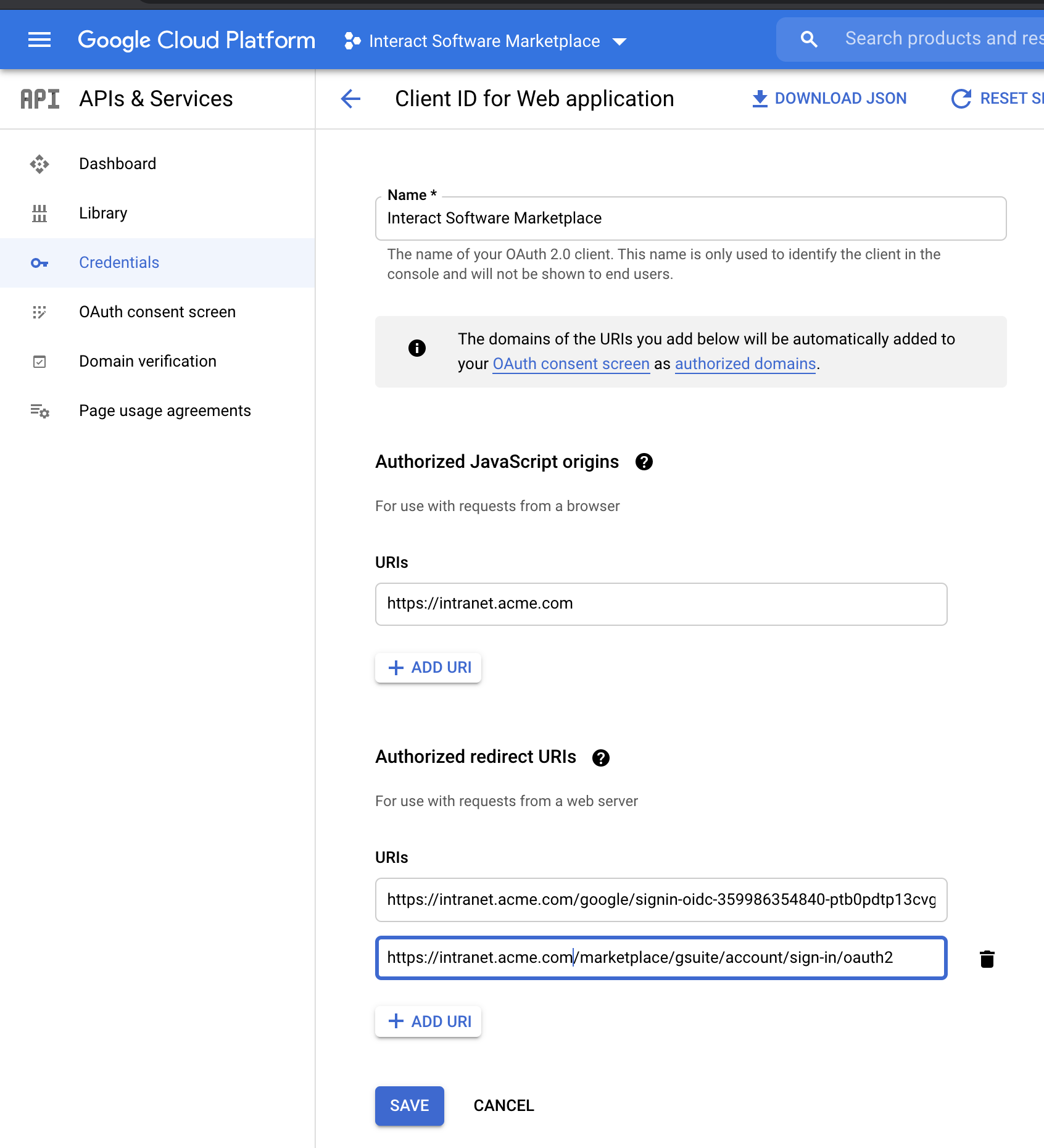
| Field | Value | Example |
|---|---|---|
| Application type | Web application | |
| Name | Specify an appropriate name. | Interact Software Marketplace |
| Authorised JavaScript origins | Your intranet URL | https://intranet.acme.com |
| Authorised redirect URIs | Add https://{{intranet_url}}/marketplace/gsuite/account/sign-in/oauth2 |
https://intranet.acme.com/marketplace/gsuite/account/sign-in/oauth2 |
Note: The Google client ID is not generated and displayed until you save this screen. You can enter dummy URLs and return to edit them after the ID has been generated. Once they are shown, make a note of the Google client ID and the secret for configuring the Interact Marketplace.
Step 2: Configure the Interact Marketplace
- Go to Control Panel > Marketplace and select Google.
- Specify the Client ID and Client Secret from the Google API project.
- Select Save.
- If you plan to use the Google Search connector, enable Google Drive in Control Panel > Application Variables > Integrations.
Important: Editing existing Marketplace configuration options forcibly purges the authentication tokens of all users who have used the integration. Those users must re-authenticate before they can use the integration again, so that any scope changes apply immediately to new access tokens. Existing service-provider access tokens do not pick up changes until re-authentication.
Guidance
- Interact uses the following API versions: Google Drive API v3 and Google Calendar API v3.
- You can review and configure Google API quotas in the Quotas tab within the project dashboard (APIs & Services).
- Interact Google Drive search runs in the context of the user. Users cannot find or see documents they do not have permission to see. Interact respects the permissions used within your Google Drive and Workspace environment.